> For the complete documentation index, see [llms.txt](https://docs.acestudio.ai/llms.txt). Markdown versions of documentation pages are available by appending `.md` to page URLs; this page is available as [Markdown](https://docs.acestudio.ai/project/mixing/effects/third-party-effects.md).
# Third-Party Effects
Use third-party VST3 and AU plug-ins in the FX chain.
ACE Studio now hosts third-party audio effect plug-ins right alongside its built-in effects. Once a plug-in is scanned, it shows up in the same **FX Library** as the built-in effects and runs on the same FX chain — so you can mix built-in and third-party processors in any order on any track.
For how the FX chain itself works — adding, reordering, bypassing, and saving chains — see [Effects](/project/mixing/effects.md).
***
### Supported formats
| Format | Windows | macOS |
| -------------------- | ------- | ----- |
| **VST3** | ✓ | ✓ |
| **AU** (Audio Units) | — | ✓ |
* Only **64-bit** plug-ins are supported. 32-bit plug-ins cannot be loaded.
* On Apple Silicon Macs, plug-ins run **natively**.
***
### Scanning and updating the plug-in list
On its first launch after installation, ACE Studio runs a **full scan** of the standard plug-in folders (listed in [Preferences](/account-and-settings/preferences.md#plugins)). On later launches it only scans plug-in files that have been added, removed, or changed, so start-up stays fast.
If a plug-in hangs or crashes, you have two options:
* **Disable** — exclude that plug-in permanently. It won't be scanned again.
* **Skip** — skip this one and continue scanning the rest.
To pick up plug-ins you install or update later, re-scan from **Preferences**:
* **Rescan** — scans for newly installed or updated plug-ins.
* Hold Alt / Option while clicking **Rescan** to force a **full re-scan** of everything. This is slower, but rebuilds the list from scratch.
See [Preferences](/account-and-settings/preferences.md) for the plug-in settings.
***
### Adding a plug-in
Click **+ Insert** to open the **FX Library**. Third-party plug-ins and built-in effects share this one library; see [Effects](/project/mixing/effects.md) for an overview of the library.
* **Vendor list** — the column on the left groups plug-ins by manufacturer, with a count next to each name. Search and the Type filter apply within whichever vendor you pick. ACE Studio's own built-in effects live under the **ACE Studio** vendor.
* **Type** — filter by category: Analyzer, Distortion, Dynamics, EQ, Filter, Generator, Mastering, Modulation, Pitch Shift, Restoration, Reverb, Spatial, Tools, and so on. Only VST3 plug-ins can be filtered this way.
* **VST3 / AU** — on macOS, switch between the two formats. ACE Studio remembers your choice.
* **Search**, **Likes**, **Recent**, and **FX Chain** — see [Effects](/project/mixing/effects.md).
Each card shows the plug-in image, its name, and a subtitle with the format, type, and vendor, such as *VST3, EQ, FabFilter*. AU plug-ins show format and vendor only.
Pick a plug-in and it's added as a chip on the FX chain, exactly like a built-in effect. From there it behaves like any other insert — reorder it, bypass or deactivate it, copy and paste it, or save it as part of an FX chain.
***
### The plug-in window
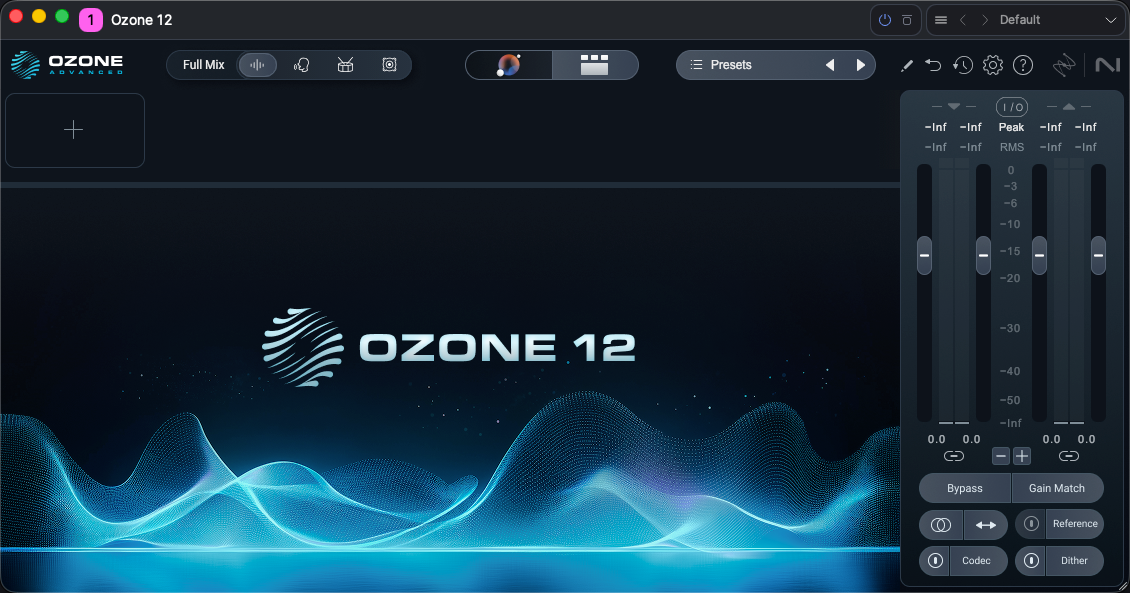
Built-in effects expand inline inside their chip. A third-party plug-in instead opens in its **own separate window** — click the window icon on the right of the chip to open it.
At the top of the window, ACE Studio adds a consistent header so every plug-in works the same way, no matter who made it:
* **Power** and **Bypass** — turn the plug-in on or off, or bypass its processing, the same as on the chip.
* **Preset bar** — use < / > to step through presets, see the current preset name, such as *Default*, and open the preset menu.
#### Preset management
Presets that ACE Studio stores use its own `.acefxpreset` format.
Open the preset menu for:
* **Store Preset…** — save the current settings as a new `.acefxpreset` preset.
* **Update Preset** — overwrite the currently loaded preset. This is available once you're on a saved preset.
* **Store as Default Preset** — make the current settings the default for new instances of this plug-in.
* **Load Preset File… / Import Preset…** — bring in a preset from disk.
* **Export Preset…** — export the preset as an `.acefxpreset` file, for backup or for sharing within ACE Studio.
* **Export VST3 Preset… / Export AU Preset…** — export in the plug-in's **native** format, for use in other hosts. The option shown matches the plug-in type.
{% hint style="warning" %}
`.acefxpreset` presets are tied to the plug-in format: a preset stored from the **VST3** version of a plug-in cannot be loaded onto the **AU** version of the same plug-in, and vice versa. On macOS, where a plug-in may be available in both formats, keep to one format per plug-in for your presets to carry over.
{% endhint %}
The plug-in's own internal preset browser inside its interface still works as usual.
---
# Agent Instructions
This documentation is published with GitBook. GitBook is the documentation platform designed so that both humans and AI agents can read, navigate, and reason over technical content effectively. Learn more at gitbook.com.
## Querying This Documentation
If you need additional information that is not directly available in this page, you can query the documentation dynamically by asking a question.
Perform an HTTP GET request on the current page URL with the `ask` query parameter, and the optional `goal` query parameter:
```
GET https://docs.acestudio.ai/project/mixing/effects/third-party-effects.md?ask=&goal=
```
`ask` is the immediate question: it should be specific, self-contained, and written in natural language.
`goal` is optional and describes the broader end goal you are ultimately trying to accomplish on behalf of the user. GitBook uses it to tailor the answer towards what is most useful for that goal.
The response will contain a direct answer to the question and relevant excerpts and sources from the documentation.
Use this mechanism when the answer is not explicitly present in the current page, you need clarification or additional context, or you want to retrieve related documentation sections.