> For the complete documentation index, see [llms.txt](https://docs.acestudio.ai/llms.txt). Markdown versions of documentation pages are available by appending `.md` to page URLs; this page is available as [Markdown](https://docs.acestudio.ai/instruments/instrument-library.md).
# Instrument Library
Browse AI instruments, unison presets, and third-party instrument plug-ins from the Instrument Library in ACE Studio.
The Instrument Library is where you pick the sound source for an AI Instrument Track or an Instrument Track. It has two tabs: **AI Models** for ACE Studio's AI instruments and unison presets, and **Plugins** for third-party VST3 and AU instruments installed on your computer.
## Open the Instrument Library
There are three ways to open the library:
### From the Toolbar
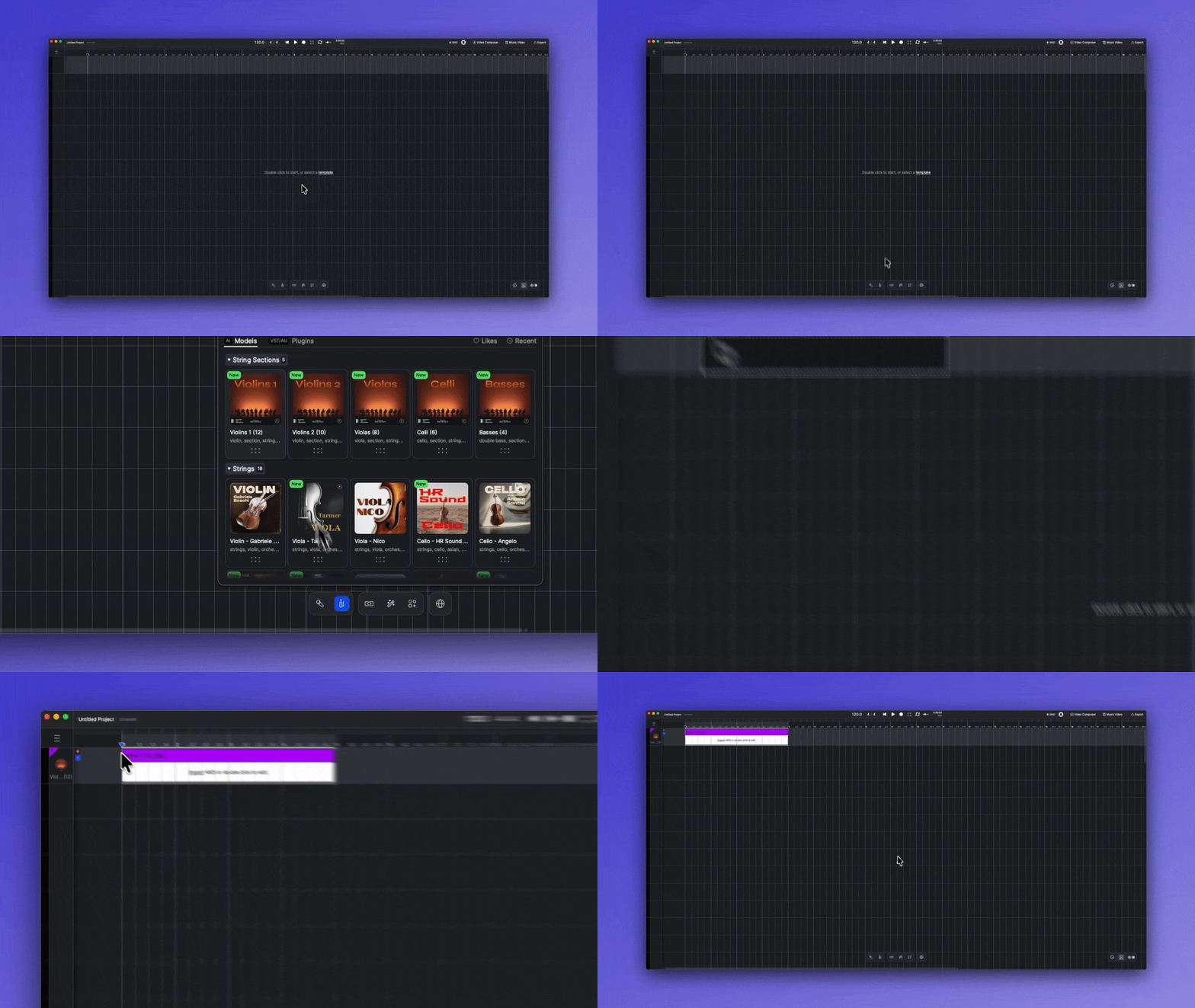
Click the instrument icon on the Toolbar at the bottom of the window. Drag an instrument onto the canvas to add it, or click the instrument and then click the canvas where you want it.
### From the Canvas
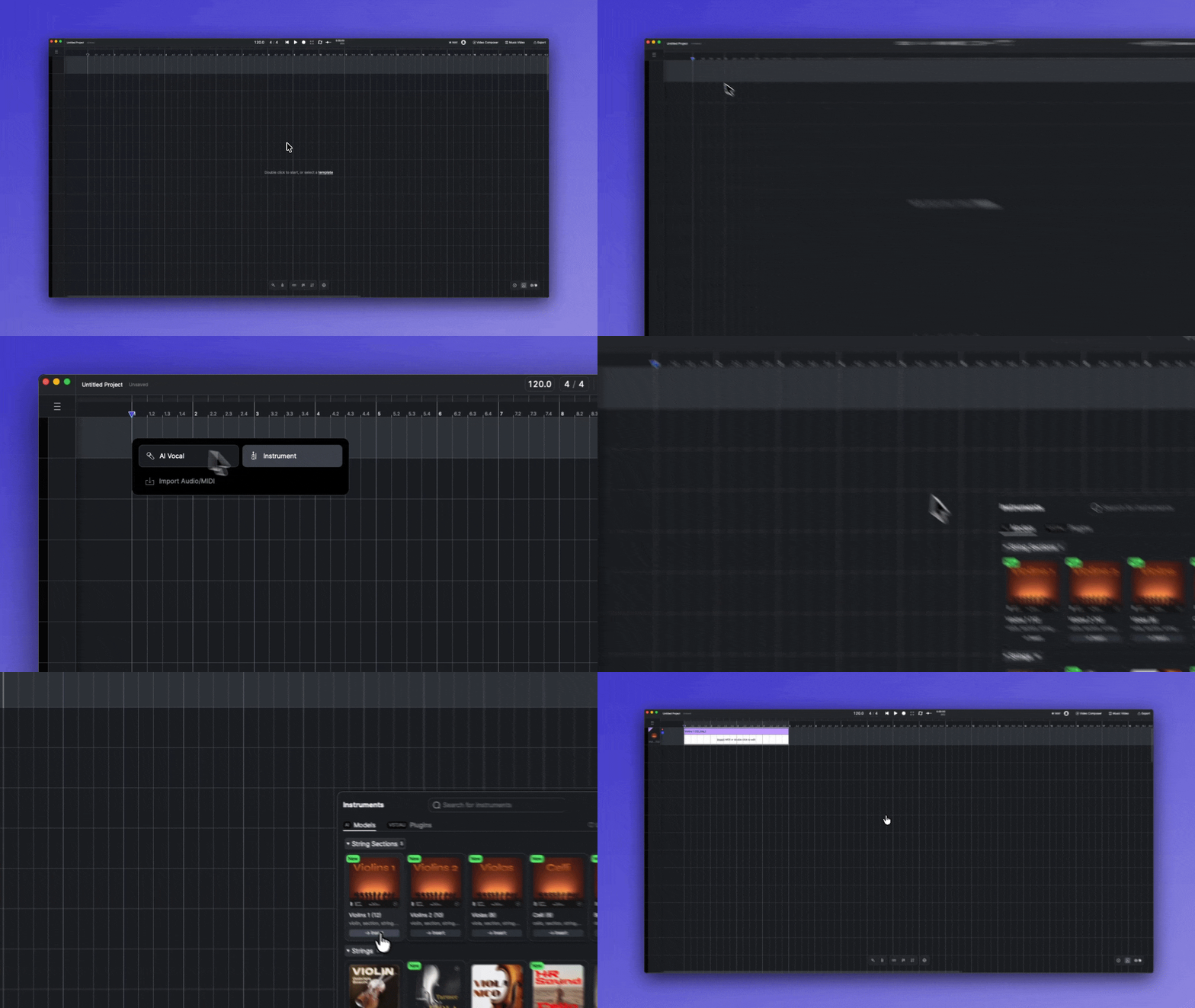
Double-click an empty track on the canvas and choose **Instrument** to open the Instrument Library, then select an instrument to load it onto that track.
### From the AI Instrument Track Panel
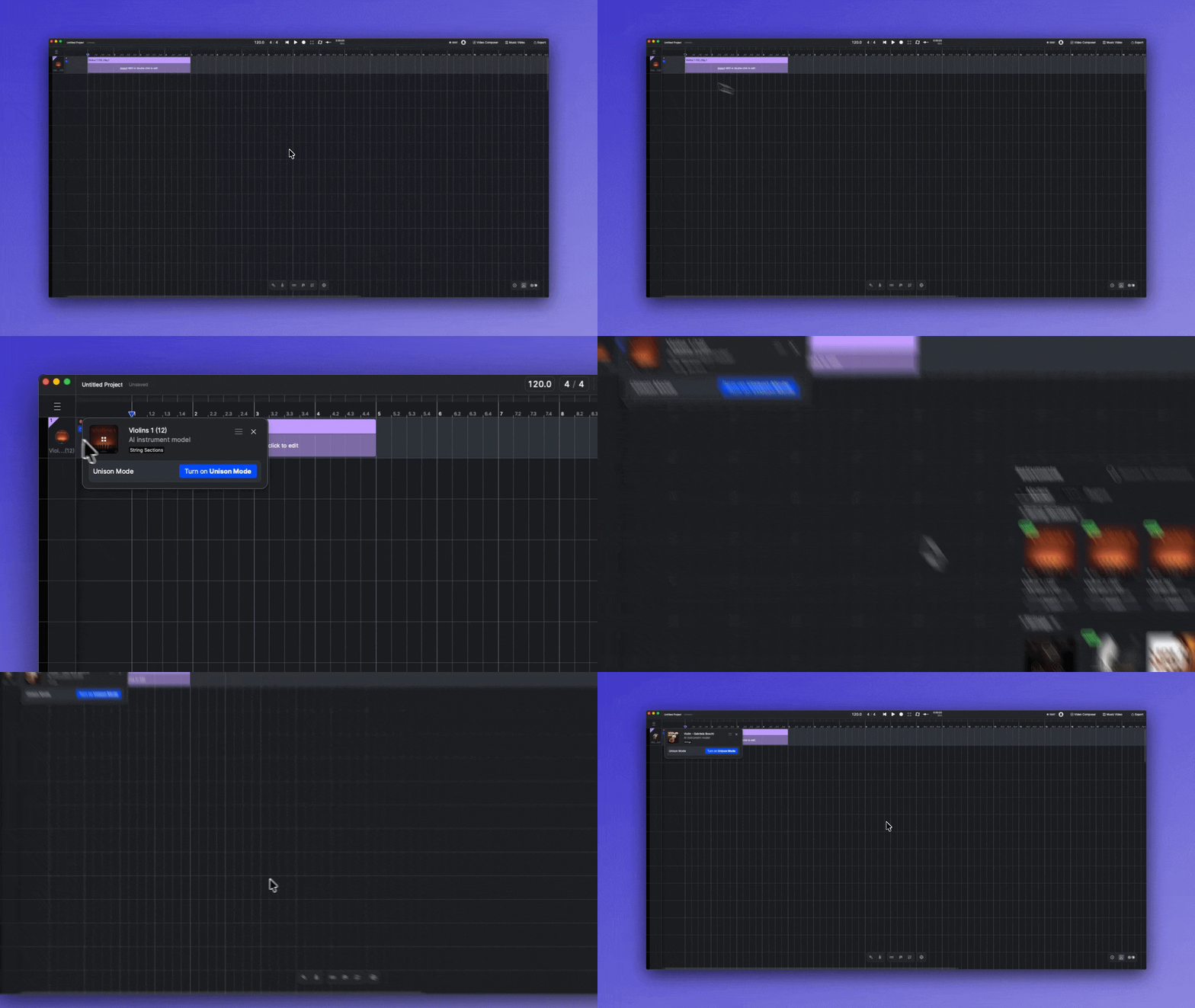
On an AI Instrument Track, click the picture on the track header to open the library. Click another instrument to replace the current one, or drag an instrument into [Unison](/instruments/create-instrument-sounds/unison-mode-for-instruments.md) to layer it.
{% hint style="info" %}
On an Instrument Track that hosts a third-party plug-in, clicking the track picture opens the plug-in window instead. To swap the plug-in, open the library from the Toolbar and drag a new one onto the track header. See [Third-Party Instruments](/instruments/third-party-instruments.md).
{% endhint %}
### Adding an instrument on the canvas
Whichever way you add an instrument, the target track loads it and an instrument clip is created at the corresponding position on the canvas.
## AI Models
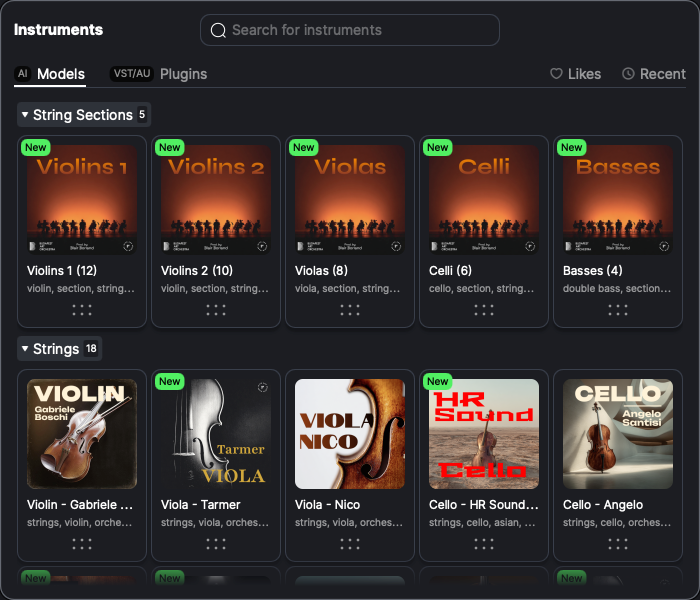
The **AI Models** tab holds ACE Studio's pre-made AI instruments, grouped by category such as String Sections, Strings, and Brass. Click a category header to collapse or expand it.
### Pre-made instruments
Pre-made instruments are crafted by ACE Studio using datasets of professional musicians and their performances in a responsible way. These instruments faithfully capture the unique characteristics and expressive qualities of the original players. We are continuously adding new pre-made instruments to meet diverse music production needs.
### Unison presets
Scroll to the bottom of the AI Models tab to find unison presets, listed alongside the instrument categories:
* **Pre-made Unison** — presets made by ACE Studio.
* **Customized Unison** — the presets you have saved. Right-click a card to rename it, edit its tags, or delete it from your account.
To learn more about the feature, please refer to [Unison Mode for instruments](/instruments/create-instrument-sounds/unison-mode-for-instruments.md).
## Plugins
The **Plugins** tab lists the third-party instrument plug-ins installed on your computer, grouped by vendor. For supported formats, filters, and how Instrument Tracks work, see [Third-Party Instruments](/instruments/third-party-instruments.md).
## Browsing tools
These tools work the same way on both tabs.
### Search
Click the search bar to enter search mode and type to find an instrument by name. Click the close button on the right side of the search bar to leave search mode.
### Likes and Recent
* **Likes** — click the heart on a card to like it. Click **Likes** at the top right of the library to show only the instruments you have liked. Likes are stored on this computer.
* **Recent** — click **Recent** to show the ten instruments you used most recently.
### Card actions
Hover a card to reveal its buttons:
* **Preview** — play a short audio demo of the instrument. Instruments without a demo do not show this button.
* **Like** — add the instrument to your Likes.
* **Info** — open an information panel on the left side of the library with details about the instrument. Clicking Info on another card replaces the panel; switching tabs or closing the library closes it.
Third-party plug-ins support **Like** only.
The dotted handle at the bottom of a card is for dragging. Drag it onto the canvas or a track header to load the instrument.
---
# Agent Instructions
This documentation is published with GitBook. GitBook is the documentation platform designed so that both humans and AI agents can read, navigate, and reason over technical content effectively. Learn more at gitbook.com.
## Querying This Documentation
If you need additional information that is not directly available in this page, you can query the documentation dynamically by asking a question.
Perform an HTTP GET request on the current page URL with the `ask` query parameter, and the optional `goal` query parameter:
```
GET https://docs.acestudio.ai/instruments/instrument-library.md?ask=&goal=
```
`ask` is the immediate question: it should be specific, self-contained, and written in natural language.
`goal` is optional and describes the broader end goal you are ultimately trying to accomplish on behalf of the user. GitBook uses it to tailor the answer towards what is most useful for that goal.
The response will contain a direct answer to the question and relevant excerpts and sources from the documentation.
Use this mechanism when the answer is not explicitly present in the current page, you need clarification or additional context, or you want to retrieve related documentation sections.