> For the complete documentation index, see [llms.txt](https://docs.acestudio.ai/llms.txt). Markdown versions of documentation pages are available by appending `.md` to page URLs; this page is available as [Markdown](https://docs.acestudio.ai/docs/product-wiki-zh/gong-cheng/arrangement-in-canvas/record.md).
# 录制
直接在 ACE Studio 的轨道上录制音频和 MIDI。
{% hint style="info" %}
录音前,请先设置输入硬件、采样率和缓冲区大小。
更多信息,请参阅 [偏好设置](/docs/product-wiki-zh/zhang-hu-yu-she-zhi/preferences.md).
{% endhint %}
要开始录音,请点击 **录音** 走带栏上的按钮,或按快捷键 R.
## 录音待命
在 ACE Studio 中,无需手动为轨道设置录音待命。选中轨道或将标记线放置到轨道上时,它会自动进入录音待命状态。
## 从空轨道录音
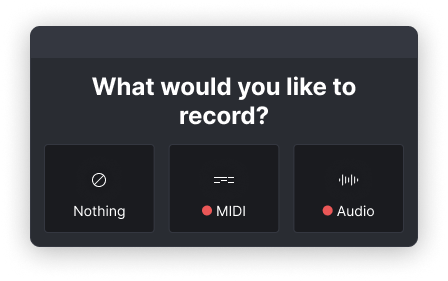
当选中空轨道并开始录音时,会弹出一个对话框,询问您要录制音频还是 MIDI。
## 录制音频
### 选择目标轨道
所选(聚焦)轨道会自动进入录音待命状态。红点会显示在混音器中通道名称旁边 [混音器](/docs/product-wiki-zh/gong-cheng/mixing/mixer.md) 或显示在轨道标题栏上,表示已准备就绪。
### 设置输入与监听
在混音器中选择正确的输入通道 [混音器](/docs/product-wiki-zh/gong-cheng/mixing/mixer.md)。默认情况下,为防止反馈,音频轨道的监听处于关闭状态。您可以手动启用 **监听开关** (耳机图标) [混音器](/docs/product-wiki-zh/gong-cheng/mixing/mixer.md) 如果需要听到实时输入信号。
### 开始与停止录音
将播放头放到要开始的位置,然后按 **录音** 按钮 R 走带栏中的按钮。再次按下 R ,或按 空格键 即可同时停止录音和播放。
## 录制 MIDI
### 选择人声轨道或乐器轨道
选择人声轨道、AI 乐器轨道或乐器轨道。所选轨道会自动进入录音待命状态,并以红点标示。
{% hint style="info" %}
注意:如果您选择多个轨道,只有第一个选中的轨道会进入录音待命状态。
{% endhint %}
### 设置输入与监听
在此选择正确的 MIDI 输入 [混音器](/docs/product-wiki-zh/gong-cheng/mixing/mixer.md)。对于 MIDI 轨道,默认已启用监听,因此您在 MIDI 设备上演奏时即可听到声音。会显示耳机图标以表示监听已开启。您可以关闭监听开关(耳机图标) [混音器](/docs/product-wiki-zh/gong-cheng/mixing/mixer.md).
### 使用虚拟 MIDI 键盘
如果您没有 MIDI 控制器,可以将电脑键盘用作虚拟 MIDI 输入设备。可从菜单 编辑 > 虚拟 MIDI 键盘(快捷键 /).
* 按键 A 到 L 对应白键。按键 WETYU 对应黑键。
* 按 Z / X 切换八度下移/上移。
* 按 C / V 降低/提高力度。
* 当虚拟键盘处于活动状态时,部分应用快捷键将暂时禁用。
### 开始与停止录音
将播放头放到要开始的位置,然后按 **录音** 按钮 R 走带栏中的按钮。再次按下 R ,或按 空格键 即可同时停止录音和播放。
---
# Agent Instructions
This documentation is published with GitBook. GitBook is the documentation platform designed so that both humans and AI agents can read, navigate, and reason over technical content effectively. Learn more at gitbook.com.
## Querying This Documentation
If you need additional information that is not directly available in this page, you can query the documentation by asking a question.
Perform an HTTP GET request on the following URL with the `ask` and `goal` query parameters:
```
GET https://docs.acestudio.ai/docs/product-wiki-zh/gong-cheng/arrangement-in-canvas/record.md?ask=&goal=
```
`ask` is the immediate question: it should be specific, self-contained, and written in natural language.
`goal` is what the user is ultimately trying to achieve, the reason they need the answer. Sharing it helps GitBook give you a better, more relevant answer. A goal is most helpful when it describes the outcome the user wants rather than restating the question. For example, with `ask=how do I create an API token`, a goal like `automate deployments from our CI pipeline` lets GitBook tailor the answer to that use case.
The response will contain a direct answer to the question and relevant excerpts and sources from the documentation.
Use this mechanism when the answer is not explicitly present in the current page, you need clarification or additional context, or you want to retrieve related documentation sections.