> For the complete documentation index, see [llms.txt](https://docs.acestudio.ai/llms.txt). Markdown versions of documentation pages are available by appending `.md` to page URLs; this page is available as [Markdown](https://docs.acestudio.ai/docs/product-wiki-zh/gong-cheng/arrangement-in-canvas/clips/clip-editor.md).
# 剪辑编辑器
通过剪辑编辑器编辑每个片段的内容。
双击片段以打开剪辑编辑器。
## 钢琴卷帘窗
当标记线位于 MIDI 片段上时,剪辑编辑器将显示该片段的钢琴卷帘窗。
用于钢琴卷帘窗编辑的 **人声片段**,请参阅 [编辑音符](/docs/product-wiki-zh/ai-sheng-yue-he-cheng/creating-ai-vocals/editing-notes.md).
用于钢琴卷帘窗编辑的 **乐器片段**,请参阅 [编辑音符](/docs/product-wiki-zh/yue-qi/create-instrument-sounds/editing-notes.md).
对于位于 **乐器轨道** 且加载了第三方插件的片段,钢琴卷帘窗会显示标准 MIDI 编辑,并在音符下方提供 **力度** 和 **MIDI CC** 轨道,而不是 AI 参数。请参阅 [第三方乐器插件](/docs/product-wiki-zh/yue-qi/third-party-instruments.md).
## 音频编辑器
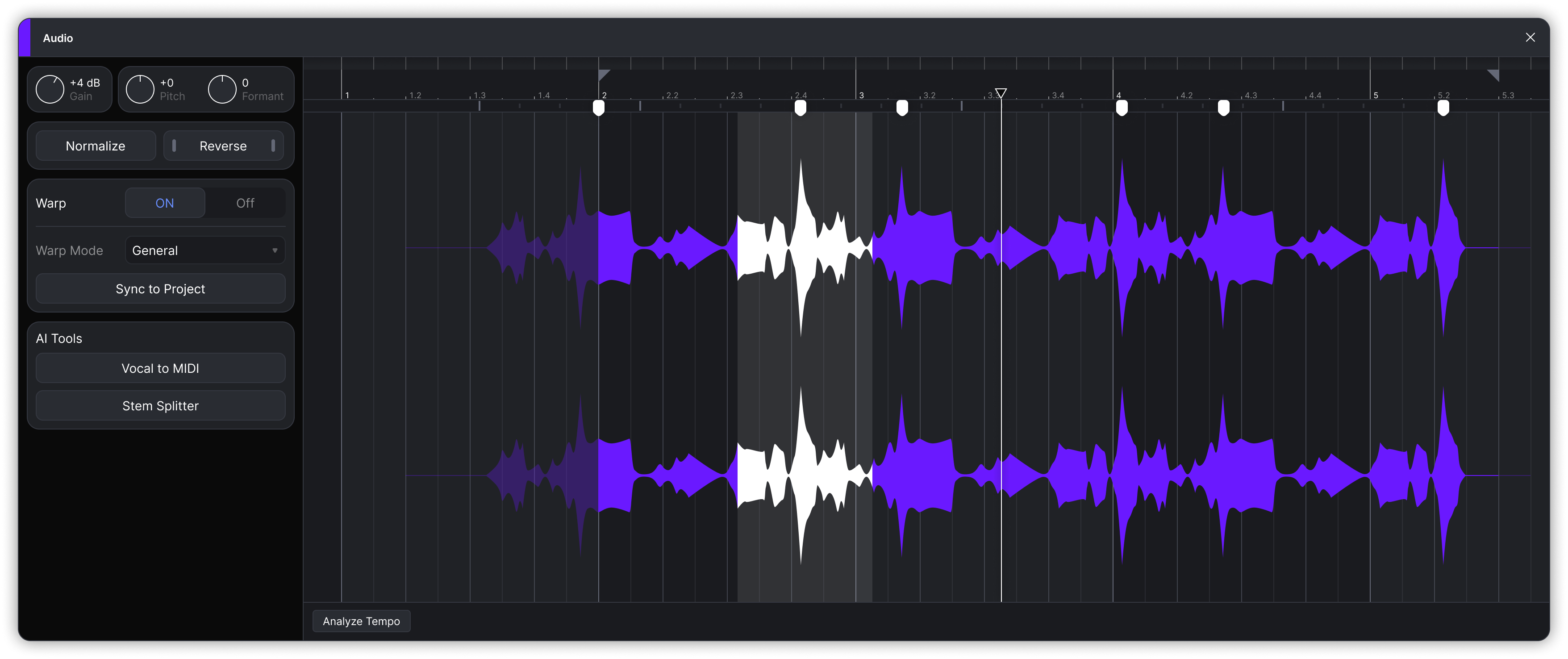
当标记线位于音频片段上时,剪辑编辑器将显示该片段的音频编辑器。
标尺上的旗标显示片段的开始和结束。拖动它们可裁剪片段。
* **增益** ——拖动以调整片段音量。
* **音高** ——以半音为单位移动片段音高。共振峰保持不变。
* **共振峰** ——在不改变音高的情况下移动共振峰。
* **标准化** ——一次性调整增益,使片段峰值达到 -3 dB。
* **倒放** ——将整个片段倒放。Warp 标记、淡入淡出、选区和裁剪范围会随音频一起反向。片段在时间线上的位置及其 BPM 值保持不变。
* **Warp** ——使用 Warp 标记对片段进行时间拉伸,或将其对齐到工程曲速。请参阅 [音频 Warp](/docs/product-wiki-zh/gong-cheng/arrangement-in-canvas/clips/audio-warp.md).
* **AI 工具**
* **人声转 MIDI** ——将此音频转换为带有歌词的 MIDI 片段。更多信息请参阅 [人声转 MIDI](/docs/product-wiki-zh/ai-gong-ju/vocal-to-midi.md).
* **音轨分离** ——将此音频拆分为音轨。这与 [音轨分离](/docs/product-wiki-zh/ai-gong-ju/stem-splitter.md).
* **分析曲速** ——位于音频编辑器底部。检测此音频的 BPM,并将其显示为 **已分析 BPM** ,并显示在片段右上角。对于时长 1 分钟或更长的音频,在添加片段时会自动检测 BPM。该数值仅供参考,不会影响播放。你可以手动编辑或清除它。
#### 缩放和移动视图
* 在时间标尺上水平拖动以平移视图。
* 在时间标尺上垂直拖动以进行水平缩放。你也可以按住 Ctrl/⌘Command 并滚动鼠标滚轮进行缩放。
* 在网格上按住鼠标中键拖动以移动视图。
---
# Agent Instructions
This documentation is published with GitBook. GitBook is the documentation platform designed so that both humans and AI agents can read, navigate, and reason over technical content effectively. Learn more at gitbook.com.
## Querying This Documentation
If you need additional information that is not directly available in this page, you can query the documentation by asking a question.
Perform an HTTP GET request on the following URL with the `ask` and `goal` query parameters:
```
GET https://docs.acestudio.ai/docs/product-wiki-zh/gong-cheng/arrangement-in-canvas/clips/clip-editor.md?ask=&goal=
```
`ask` is the immediate question: it should be specific, self-contained, and written in natural language.
`goal` is what the user is ultimately trying to achieve, the reason they need the answer. Sharing it helps GitBook give you a better, more relevant answer. A goal is most helpful when it describes the outcome the user wants rather than restating the question. For example, with `ask=how do I create an API token`, a goal like `automate deployments from our CI pipeline` lets GitBook tailor the answer to that use case.
The response will contain a direct answer to the question and relevant excerpts and sources from the documentation.
Use this mechanism when the answer is not explicitly present in the current page, you need clarification or additional context, or you want to retrieve related documentation sections.