> For the complete documentation index, see [llms.txt](https://docs.acestudio.ai/llms.txt). Markdown versions of documentation pages are available by appending `.md` to page URLs; this page is available as [Markdown](https://docs.acestudio.ai/docs/product-wiki-zh/ai-zhi-neng-ti/external-agent-access/claude-desktop-and-cowork.md).

# Claude Desktop 与 Cowork

通过 MCP 将 Claude Desktop（Chat & Cowork）连接到 ACE Studio。

通过本地 MCP（模型上下文协议）服务器将 Claude Desktop 连接到 ACE Studio，以便直接在 Claude 中检查、编曲并编辑你的音乐工程。

{% hint style="info" %}
本指南将带你完成配置 **聊天** 和 **协作** 在 Claude Desktop 中。

如果你正在使用 **代码** 模式（Claude Code），它使用单独的配置设置。请前往 [外部代理访问](/docs/product-wiki-zh/ai-zhi-neng-ti/external-agent-access.md) 让代理自动完成配置，或使用 `claude mcp add` 终端命令。
{% endhint %}

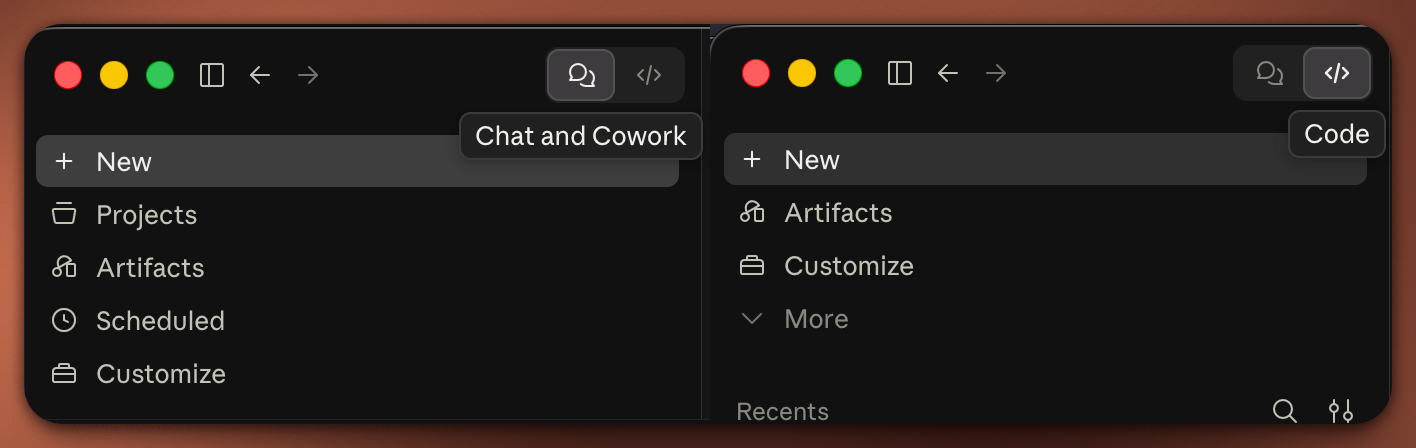
使用 Claude Desktop 左上角的模式选择器在各模式间切换：

<figure><img src="https://1816898227-files.gitbook.io/~/files/v0/b/gitbook-x-prod.appspot.com/o/spaces%2Fsn71WYzecYYQw3KkF40b%2Fuploads%2Fgit-blob-88d0c92ad5382c3dc71ccacb0a5cd3cc040e4233%2Fclaude-desktop-mode-selector.png?alt=media" alt="Mode selector in Claude Desktop showing Chat, Cowork, and Code"><figcaption><p>Claude Desktop 中的模式选择器</p></figcaption></figure>

***

### 步骤 1：打开设置

打开 **设置** 在 Claude Desktop 中：

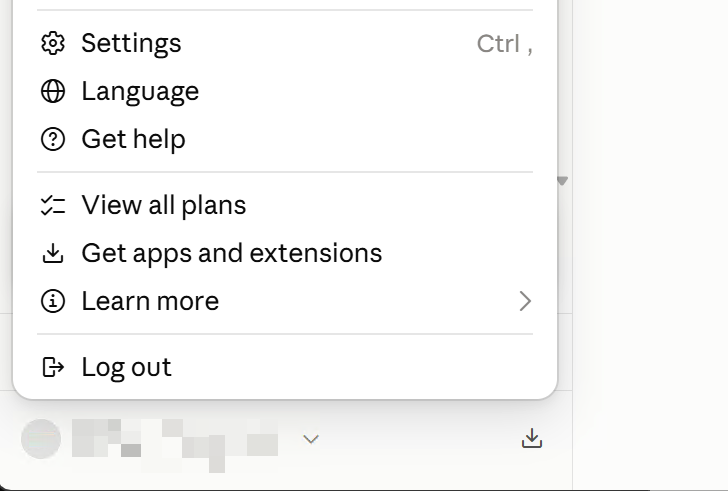
* 点击左下角的个人资料名称并选择 **设置**，或
* 使用应用菜单： **Claude → 设置...** (`Cmd+,` 在 macOS 上，或 `Ctrl+,` （Windows 上）。

{% tabs %}
{% tab title="个人资料菜单" %}

<figure><img src="https://1816898227-files.gitbook.io/~/files/v0/b/gitbook-x-prod.appspot.com/o/spaces%2Fsn71WYzecYYQw3KkF40b%2Fuploads%2Fgit-blob-4d652fee91fc0c7e6fb11371bbd0546fc561bca8%2Fclaude-desktop-open-settings-profile.png?alt=media" alt="Open Settings from user profile menu"><figcaption><p>通过左下角的个人资料菜单访问设置</p></figcaption></figure>
{% endtab %}

{% tab title="应用菜单（macOS）" %}

<figure><img src="https://1816898227-files.gitbook.io/~/files/v0/b/gitbook-x-prod.appspot.com/o/spaces%2Fsn71WYzecYYQw3KkF40b%2Fuploads%2Fgit-blob-ab2f2f30e730e3205c7bf38b278f1808efaa734f%2Fclaude-desktop-open-settings-macos.png?alt=media" alt="Open Settings from macOS app menu"><figcaption><p>从 macOS 菜单栏访问设置</p></figcaption></figure>
{% endtab %}
{% endtabs %}

***

### 步骤 2：打开配置文件

1. 在设置窗口中，导航到 **开发者** 下的 **桌面应用** 部分。
2. 点击 **编辑配置** 按钮。

<figure><img src="https://1816898227-files.gitbook.io/~/files/v0/b/gitbook-x-prod.appspot.com/o/spaces%2Fsn71WYzecYYQw3KkF40b%2Fuploads%2Fgit-blob-429d628635458aa2260f57a684bfb2c4384fa6fb%2Fclaude-desktop-developer-edit-config.png?alt=media" alt="Developer settings tab with Edit Config button"><figcaption><p>在开发者设置中点击“编辑配置”</p></figcaption></figure>

Claude Desktop 将打开你的系统文件管理器（Finder 或 File Explorer），并将 `claude_desktop_config.json` 选中。

***

### 步骤 3：添加 ACE Studio MCP 服务器

1. 打开 `claude_desktop_config.json` 在任何文本编辑器中。
2. 在 ACE Studio 中，打开 **偏好设置 → 常规 → 外部代理访问** 并点击 **复制命令** 旁边的 **MCP 服务器（stdio）** 以复制你的准确启动命令。
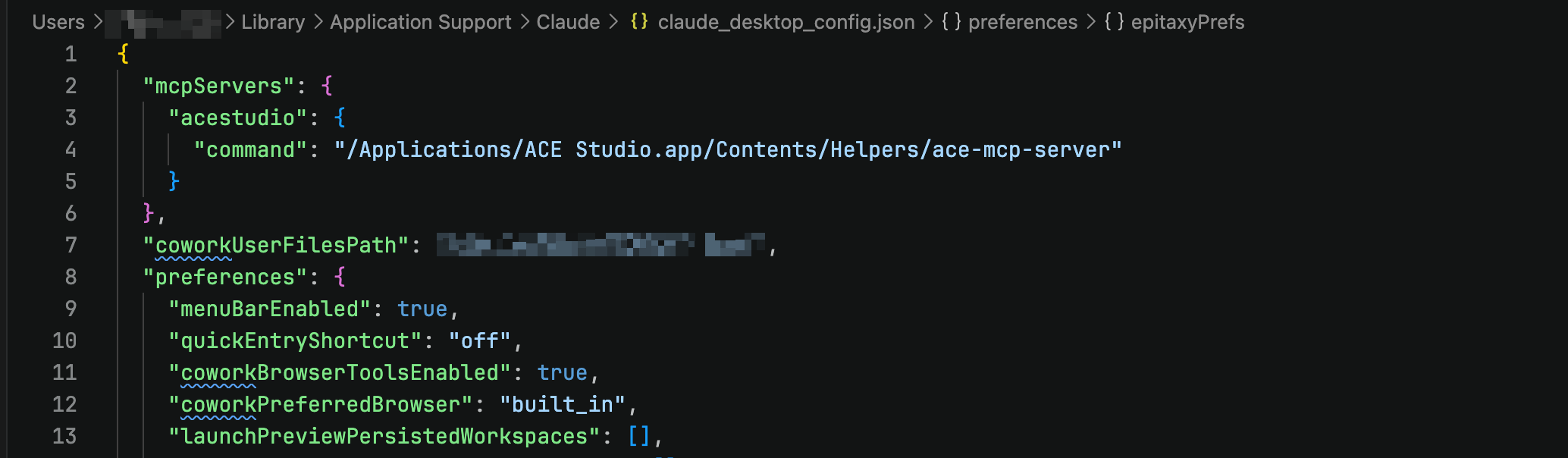
3. 添加 `acestudio` 在 `mcpServers`:

```json
{
  "mcpServers": {
    "acestudio": {
      "command": "/Applications/ACE Studio.app/Contents/Helpers/ace-mcp-server"
    }
  }
}
```

<figure><img src="https://1816898227-files.gitbook.io/~/files/v0/b/gitbook-x-prod.appspot.com/o/spaces%2Fsn71WYzecYYQw3KkF40b%2Fuploads%2Fgit-blob-d9c3fdd2ed7ede65689f1077697870598e262b7e%2Fclaude-desktop-config-json.png?alt=media" alt="claude_desktop_config.json configured with acestudio server"><figcaption><p><code>claude_desktop_config.json</code> 并配置好 acestudio 服务器</p></figcaption></figure>

{% hint style="info" %}
**Windows 路径转义：** 如果你在 JSON 文件中手动编写 Windows 路径，请将每个反斜杠转义为双反斜杠（`\\`），或者使用正斜杠（`/`).
{% endhint %}

4. 保存文件，然后 **完全重启 Claude Desktop** 。

***

### 步骤 4：验证并开始使用

#### 1. 确认连接状态

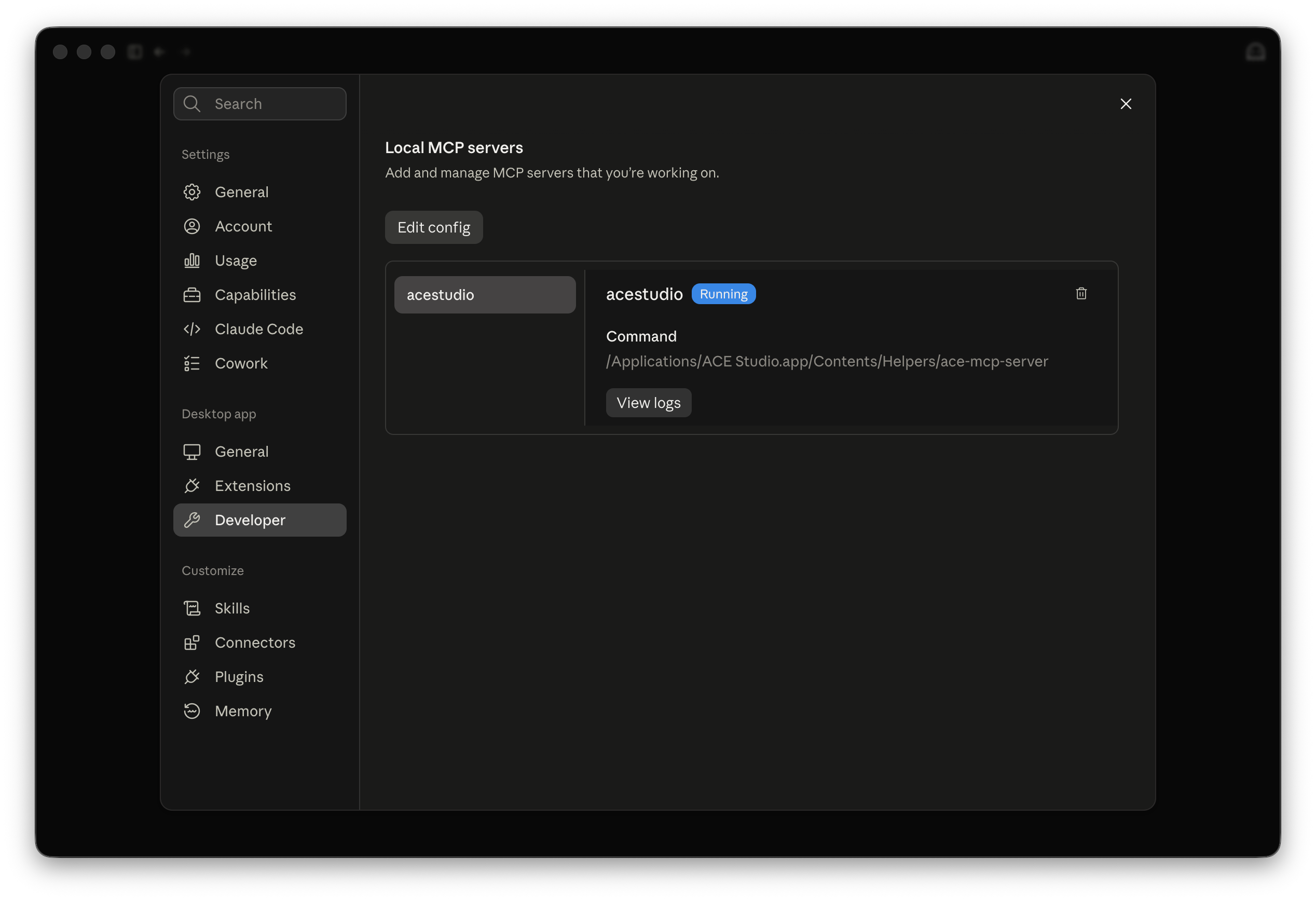
打开 **设置 → 开发者** 在 Claude Desktop 中。你现在应该能看到 **acestudio** 列在 **本地 MCP 服务器** 下，并显示运行中状态。

<figure><img src="https://1816898227-files.gitbook.io/~/files/v0/b/gitbook-x-prod.appspot.com/o/spaces%2Fsn71WYzecYYQw3KkF40b%2Fuploads%2Fgit-blob-4803e3f866334356d77d4bc233f88a64c5ac0c08%2Fclaude-desktop-mcp-connected.png?alt=media" alt="Local MCP Servers showing acestudio connected"><figcaption><p>显示活动的 acestudio 连接的本地 MCP 服务器</p></figcaption></figure>

#### 2. 在聊天或协作中启用

在聊天或协作中开始对话时 **聊天** 或 **协作**，点击 **+ / 连接器** 按钮下方的消息输入框，并确保 **acestudio** 已切换为 **开启**.

<figure><img src="https://1816898227-files.gitbook.io/~/files/v0/b/gitbook-x-prod.appspot.com/o/spaces%2Fsn71WYzecYYQw3KkF40b%2Fuploads%2Fgit-blob-1ea14dac4375044032aa43a26769238ff8c8a6b3%2Fclaude-desktop-connector-active.png?alt=media" alt="Connectors menu showing acestudio connector enabled"><figcaption><p>请确保 acestudio 连接器处于活动状态</p></figcaption></figure>

#### 3. 使用提示进行测试

确保 ACE Studio 已打开并正在运行，然后向 Claude 提问：

```
请检查当前 ACE Studio 工程信息
```

Claude 将连接到 ACE Studio，检查打开的工程，并返回其详细信息（曲速、调号、轨道和剪辑）。


---

# Agent Instructions
This documentation is published with GitBook. GitBook is the documentation platform designed so that both humans and AI agents can read, navigate, and reason over technical content effectively. Learn more at gitbook.com.

## Querying This Documentation
If you need additional information that is not directly available in this page, you can query the documentation by asking a question.

Perform an HTTP GET request on the following URL with the `ask` and `goal` query parameters:

```
GET https://docs.acestudio.ai/docs/product-wiki-zh/ai-zhi-neng-ti/external-agent-access/claude-desktop-and-cowork.md?ask=<question>&goal=<user_goal>
```

`ask` is the immediate question: it should be specific, self-contained, and written in natural language.
`goal` is what the user is ultimately trying to achieve, the reason they need the answer. Sharing it helps GitBook give you a better, more relevant answer. A goal is most helpful when it describes the outcome the user wants rather than restating the question. For example, with `ask=how do I create an API token`, a goal like `automate deployments from our CI pipeline` lets GitBook tailor the answer to that use case.

The response will contain a direct answer to the question and relevant excerpts and sources from the documentation.

Use this mechanism when the answer is not explicitly present in the current page, you need clarification or additional context, or you want to retrieve related documentation sections.