> For the complete documentation index, see [llms.txt](https://docs.acestudio.ai/llms.txt). Markdown versions of documentation pages are available by appending `.md` to page URLs; this page is available as [Markdown](https://docs.acestudio.ai/docs/product-wiki-zh/ai-gong-ju/music-video/creating-a-promo-clip.md).
# 创建宣传片段
将歌曲中的一段内容转化为短小、适合社交媒体发布的片段——可用于 Reels、TikTok、Shorts 等,成本仅为完整视频制作的一小部分。
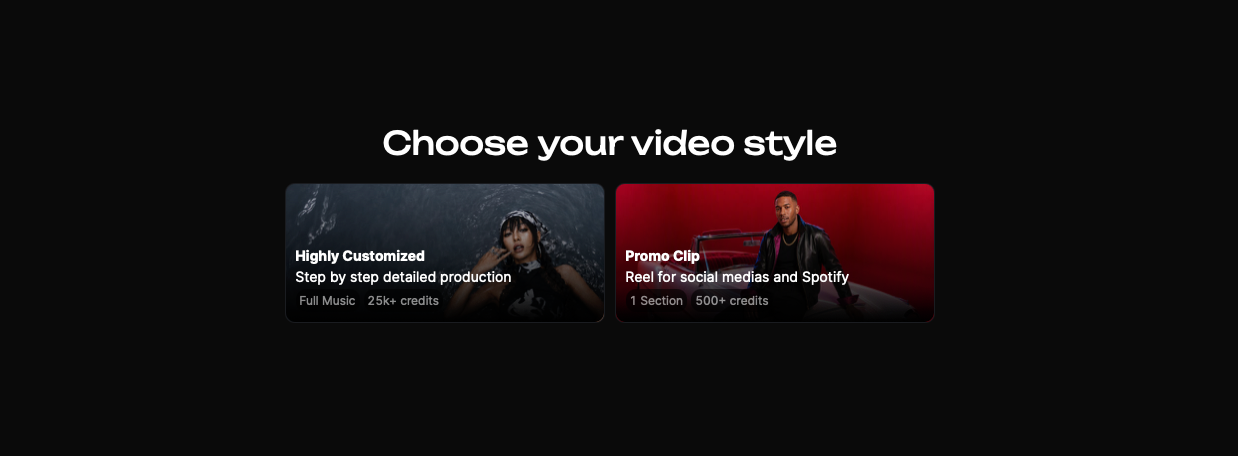
宣传片段是根据歌曲的单一段落制作的短音乐视频——专为 Instagram Reels、TikTok、YouTube Shorts 以及其他社交平台帖子打造。它具有相同的 [导演](/docs/product-wiki-zh/ai-gong-ju/music-video.md#your-director) 并拥有与完整视频相同的制作质量,但仅限于一个段落:只需 500+ 点数,而不是 25k+。
## 如何创建宣传片段
### 1. 开始会话
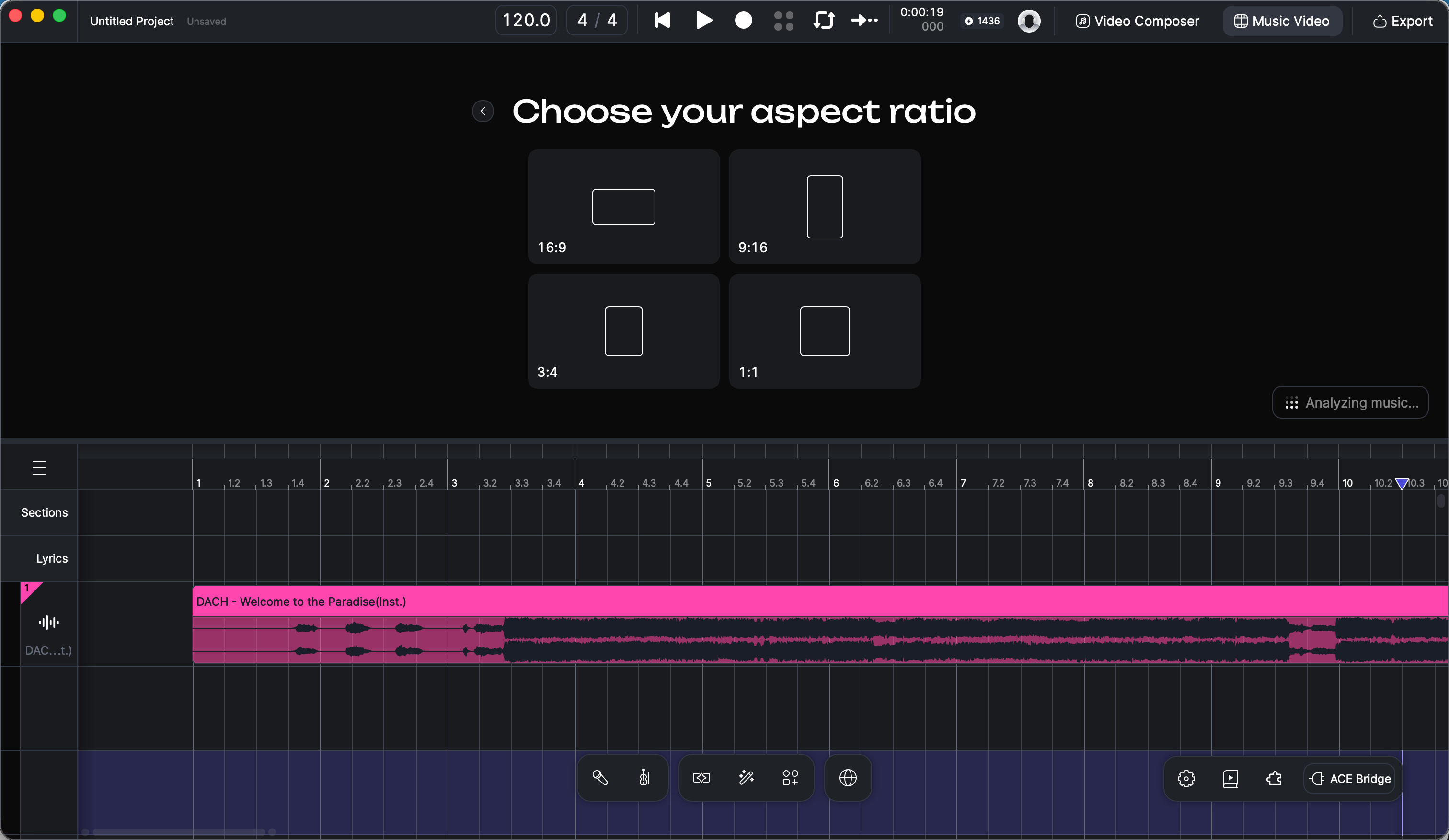
在 ACE Studio 中打开你的工程——可以是你制作的歌曲,或者导入到空工程中的成品轨道。点击 音乐视频 右上角,确保你的音乐已放在 [画布](/docs/product-wiki-zh/gong-cheng/arrangement-in-canvas/canvas.md),然后点击 开始会话。(与完整制作的入口相同——参见 [创建音乐视频](https://docs.acestudio.ai/docs/product-wiki-zh/ai-gong-ju/music-video/pages/34f9562206800b531486055938a7a9d50081b27c#1.-start-your-session) 了解详情。)
### 2. 选择“宣传片段”
在“选择视频风格”界面上,选择 **宣传片段**.
{% hint style="warning" %}
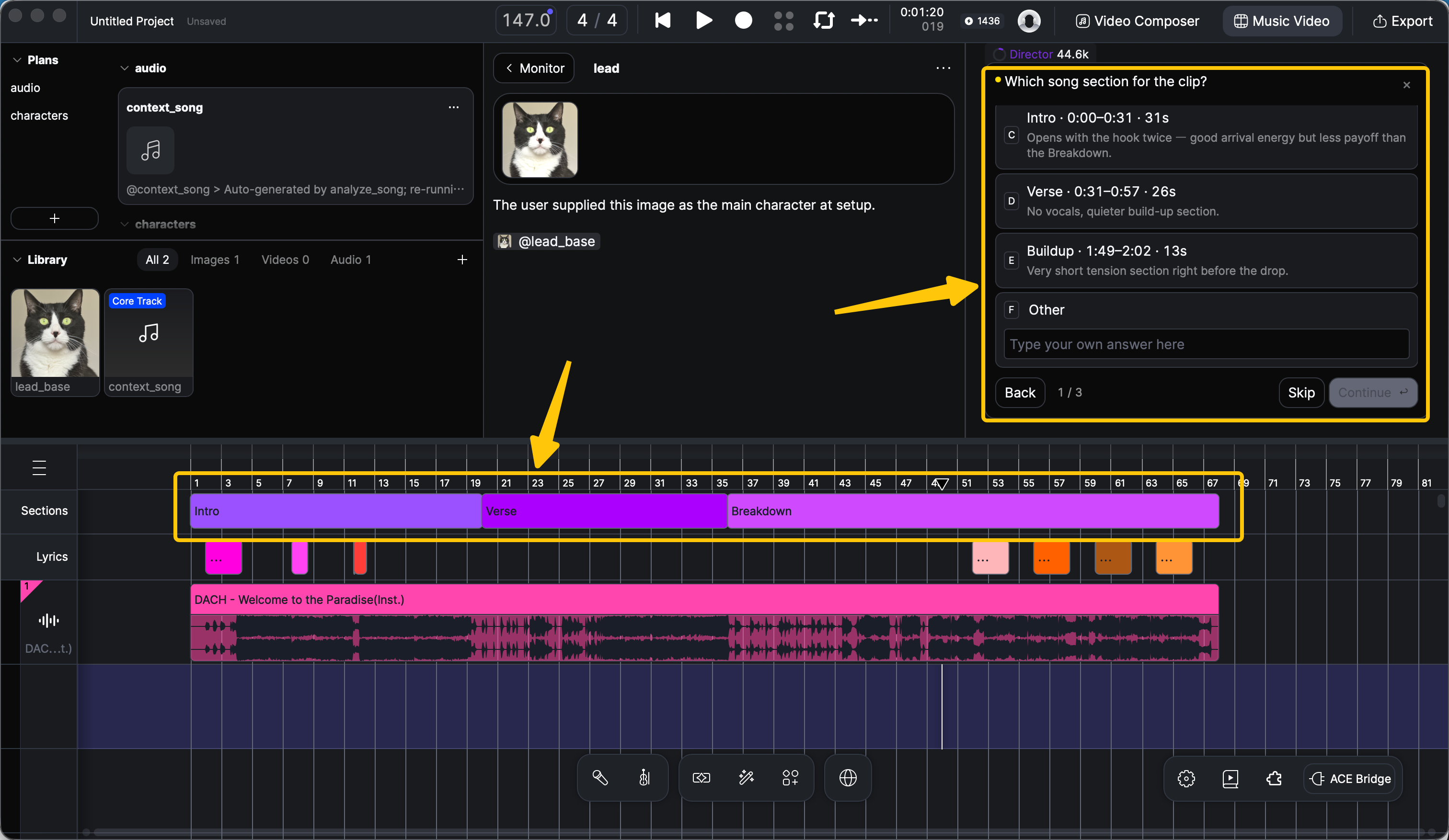
在选择之前,请先检查自动分段。查看 **段落** 画布上的行——分析结果可能没有将你的歌曲完美分割。如果边界看起来不对,请直接在画布上调整,然后选择 **其他** 并告诉导演,例如:“我已经调整了分段。请在片段中使用副歌 1。”参见 [修正歌曲段落与歌词时序](/docs/product-wiki-zh/ai-gong-ju/music-video/editing-and-iteration.md#how-to-fix-song-sections-and-lyric-timing).
{% endhint %}
### 6. 尽早选择你的视频模型
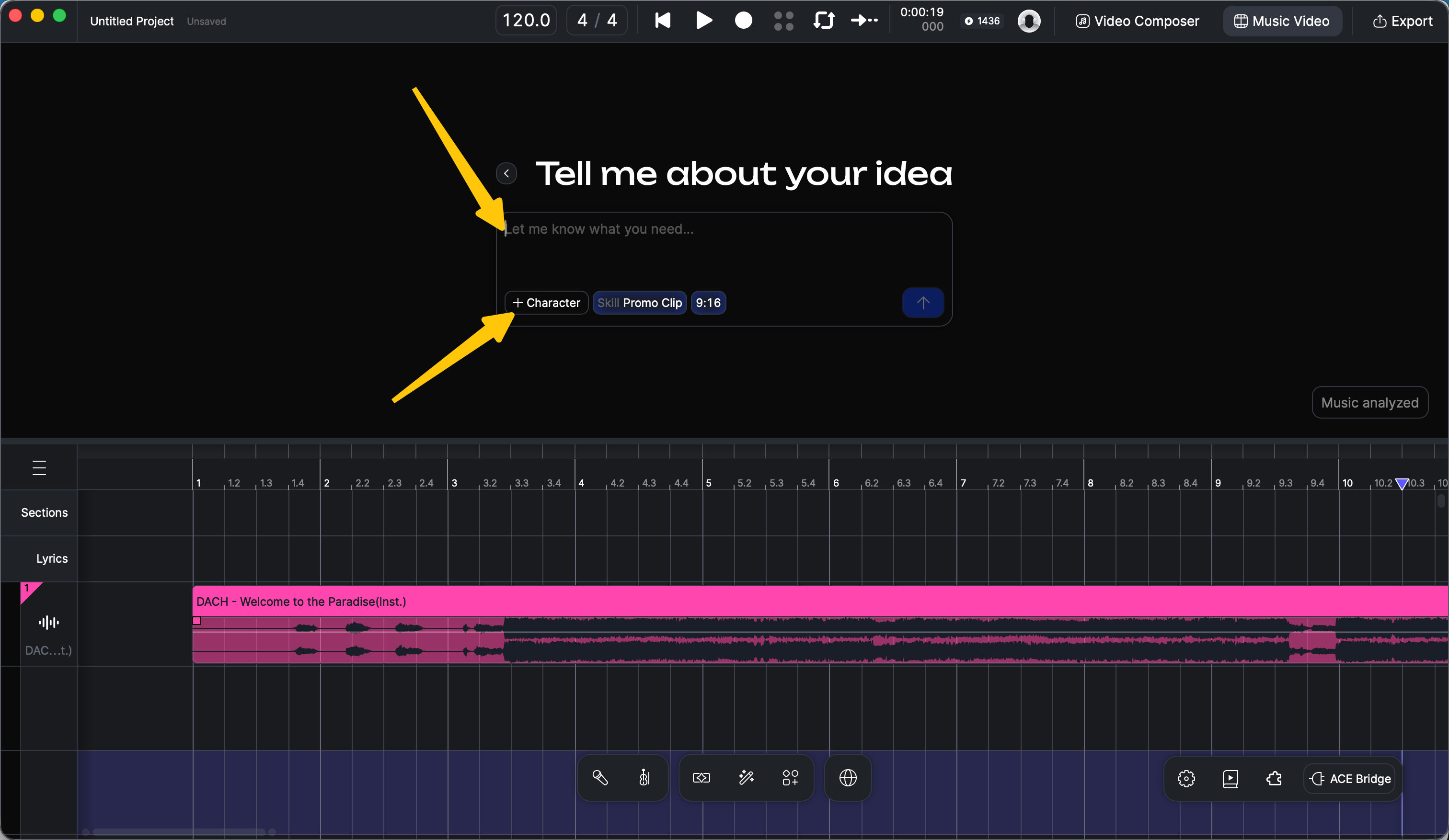
你的模型选择会影响导演如何为片段编写脚本——不同模型支持的最大镜头时长也不同。如果你已经确定风格,请尽早选择模型;否则默认值(MiniMax-H3)在大多数情况下都很适用。参见 [选择视频模型](/docs/product-wiki-zh/ai-gong-ju/music-video.md#choosing-a-video-model) 进行对比。
你可以在聊天输入下方的选择器中切换模型,或者直接告诉导演要使用哪个模型。
### 7. 先优化,再生成
接下来,导演会带你完成剩余步骤——角色设计、场景、分镜——然后生成视频。
一个关键提示: **在视频生成开始前,务必修正每一个细节。** 如果角色设计、场景或配色看起来不对,请立刻指出。此阶段重新生成图像的成本很低;之后再重做视频则会耗费更多时间和点数。当导演向你展示同一图像的多个版本时,请逐一浏览并选出你最喜欢的——参见 [浏览并选择图像版本](/docs/product-wiki-zh/ai-gong-ju/music-video/editing-and-iteration.md#how-to-browse-and-pick-image-versions).
片段生成后,请在画布上观看,并像其他工程一样导出——参见 [导出文件](/docs/product-wiki-zh/gong-cheng/file-management/export-files.md)。然后发布。🎬
---
# Agent Instructions
This documentation is published with GitBook. GitBook is the documentation platform designed so that both humans and AI agents can read, navigate, and reason over technical content effectively. Learn more at gitbook.com.
## Querying This Documentation
If you need additional information that is not directly available in this page, you can query the documentation dynamically by asking a question.
Perform an HTTP GET request on the current page URL with the `ask` query parameter, and the optional `goal` query parameter:
```
GET https://docs.acestudio.ai/docs/product-wiki-zh/ai-gong-ju/music-video/creating-a-promo-clip.md?ask=&goal=
```
`ask` is the immediate question: it should be specific, self-contained, and written in natural language.
`goal` is optional and describes the broader end goal you are ultimately trying to accomplish on behalf of the user. GitBook uses it to tailor the answer towards what is most useful for that goal.
The response will contain a direct answer to the question and relevant excerpts and sources from the documentation.
Use this mechanism when the answer is not explicitly present in the current page, you need clarification or additional context, or you want to retrieve related documentation sections.