> For the complete documentation index, see [llms.txt](https://docs.acestudio.ai/llms.txt). Markdown versions of documentation pages are available by appending `.md` to page URLs; this page is available as [Markdown](https://docs.acestudio.ai/docs/product-wiki-pt/instrumentos/create-instrument-sounds/unison-mode-for-instruments.md).
# Modo Unison para instrumentos
Combine vários Instrumentos de IA em uma única faixa uníssono no ACE Studio.
## O que é o Modo Unison?
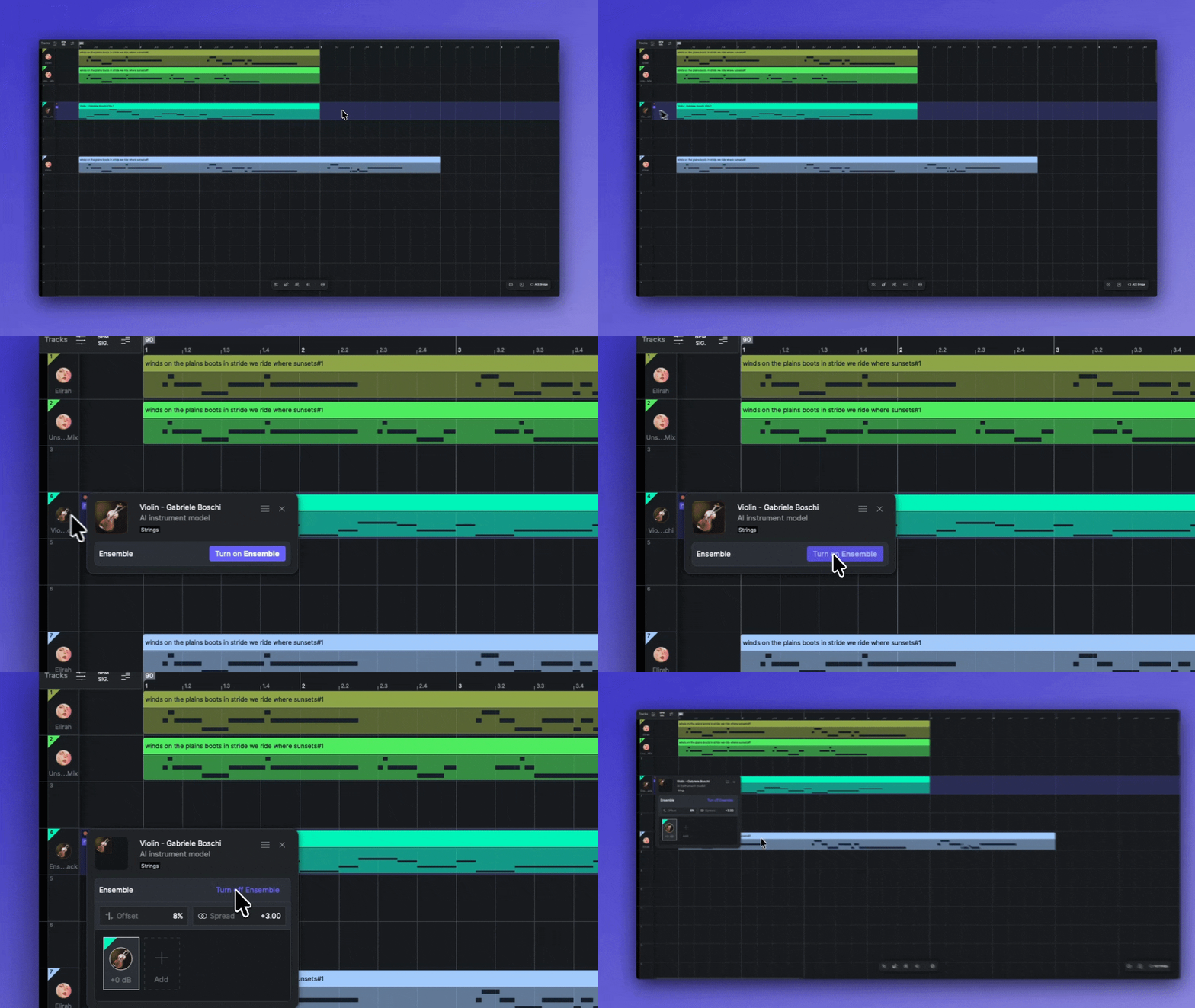
O Modo Unison permite combinar vários Instrumentos de IA em uma Faixa de Instrumento de IA.
Você pode salvar suas predefinições personalizadas de Unison na Biblioteca de Instrumentos. Também estão disponíveis várias predefinições prontas.
Para usar uma predefinição de Unison, arraste-a para a Tela ou para o cabeçalho da Faixa.
{% hint style="info" %}
No ACE Studio 2.1.1 e anteriores, o Modo Unison para Faixas de Instrumento de IA era chamado **Conjunto**.
{% endhint %}
## Ativar ou desativar o Modo Unison
Para usar o Modo Unison, clique Ativar o Modo Unison no painel da Faixa de Instrumento de IA. Desativar o Modo Unison limpa as Configurações.
### Adicionar ou remover Instrumentos
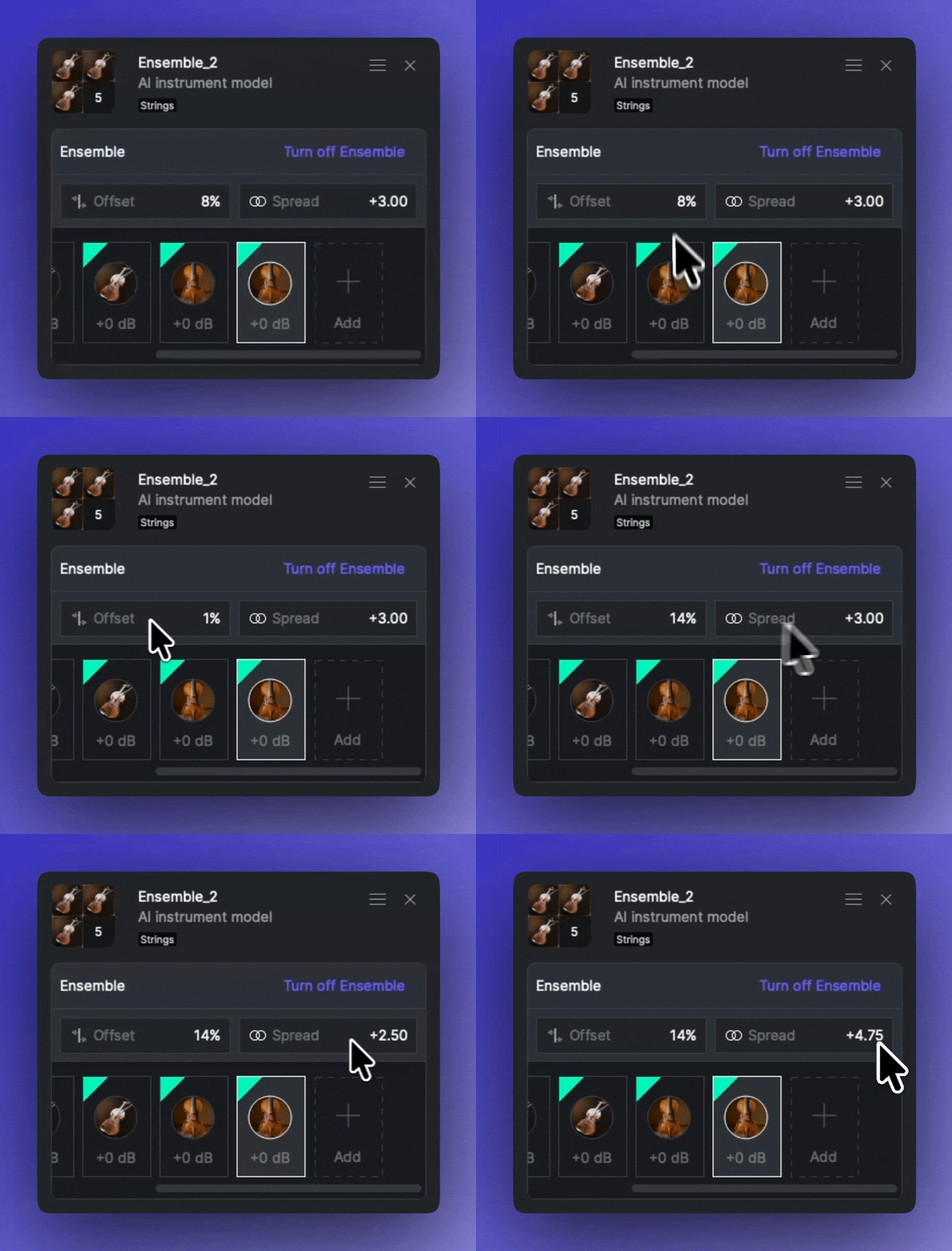
* Clique no + Adicionar botão para duplicar os Instrumentos existentes.
* Arraste novos Instrumentos da Biblioteca para adicioná-los à Faixa Unison.
* Organize a ordem dos Instrumentos arrastando-os.
### Editar Parâmetros
* Espalhar: Controla a largura estéreo do som sobreposto.
* Deslocamento: Ajusta pequenas diferenças de tempo entre Instrumentos para um efeito mais natural.
* Ganho: Define o volume de cada Instrumento.
## FX para o Modo Unison
Se quiser criar uma sensação de espaço, use reverb ou outros efeitos na cadeia de FX.
Para saber mais sobre efeitos, consulte [Efeitos](/docs/product-wiki-pt/projeto/mixing/effects.md).
## Salvar como Predefinição
No menu do painel da Faixa, você pode salvar a configuração atual de Unison como uma predefinição. Você pode personalizar o nome e as etiquetas da predefinição para facilitar a localização. Sua predefinição é salva na aba Unison da Biblioteca de Instrumentos.
As predefinições que você salvar serão armazenadas na nuvem e vinculadas à sua conta.
---
# Agent Instructions
This documentation is published with GitBook. GitBook is the documentation platform designed so that both humans and AI agents can read, navigate, and reason over technical content effectively. Learn more at gitbook.com.
## Querying This Documentation
If you need additional information that is not directly available in this page, you can query the documentation by asking a question.
Perform an HTTP GET request on the following URL with the `ask` and `goal` query parameters:
```
GET https://docs.acestudio.ai/docs/product-wiki-pt/instrumentos/create-instrument-sounds/unison-mode-for-instruments.md?ask=&goal=
```
`ask` is the immediate question: it should be specific, self-contained, and written in natural language.
`goal` is what the user is ultimately trying to achieve, the reason they need the answer. Sharing it helps GitBook give you a better, more relevant answer. A goal is most helpful when it describes the outcome the user wants rather than restating the question. For example, with `ask=how do I create an API token`, a goal like `automate deployments from our CI pipeline` lets GitBook tailor the answer to that use case.
The response will contain a direct answer to the question and relevant excerpts and sources from the documentation.
Use this mechanism when the answer is not explicitly present in the current page, you need clarification or additional context, or you want to retrieve related documentation sections.