> For the complete documentation index, see [llms.txt](https://docs.acestudio.ai/llms.txt). Markdown versions of documentation pages are available by appending `.md` to page URLs; this page is available as [Markdown](https://docs.acestudio.ai/docs/product-wiki-pt/ferramentas-de-ia/sound-effects.md).
# Efeitos Sonoros
Gere efeitos sonoros no seu Projeto do ACE Studio.
## O que é o Gerador de Efeitos Sonoros
O Gerador de Efeitos Sonoros é uma ferramenta de IA para gerar elementos de sound design dentro do ACE Studio. Você pode usá-la para criar efeitos que correspondam ao seu prompt.
## Como usar o Gerador de Efeitos Sonoros
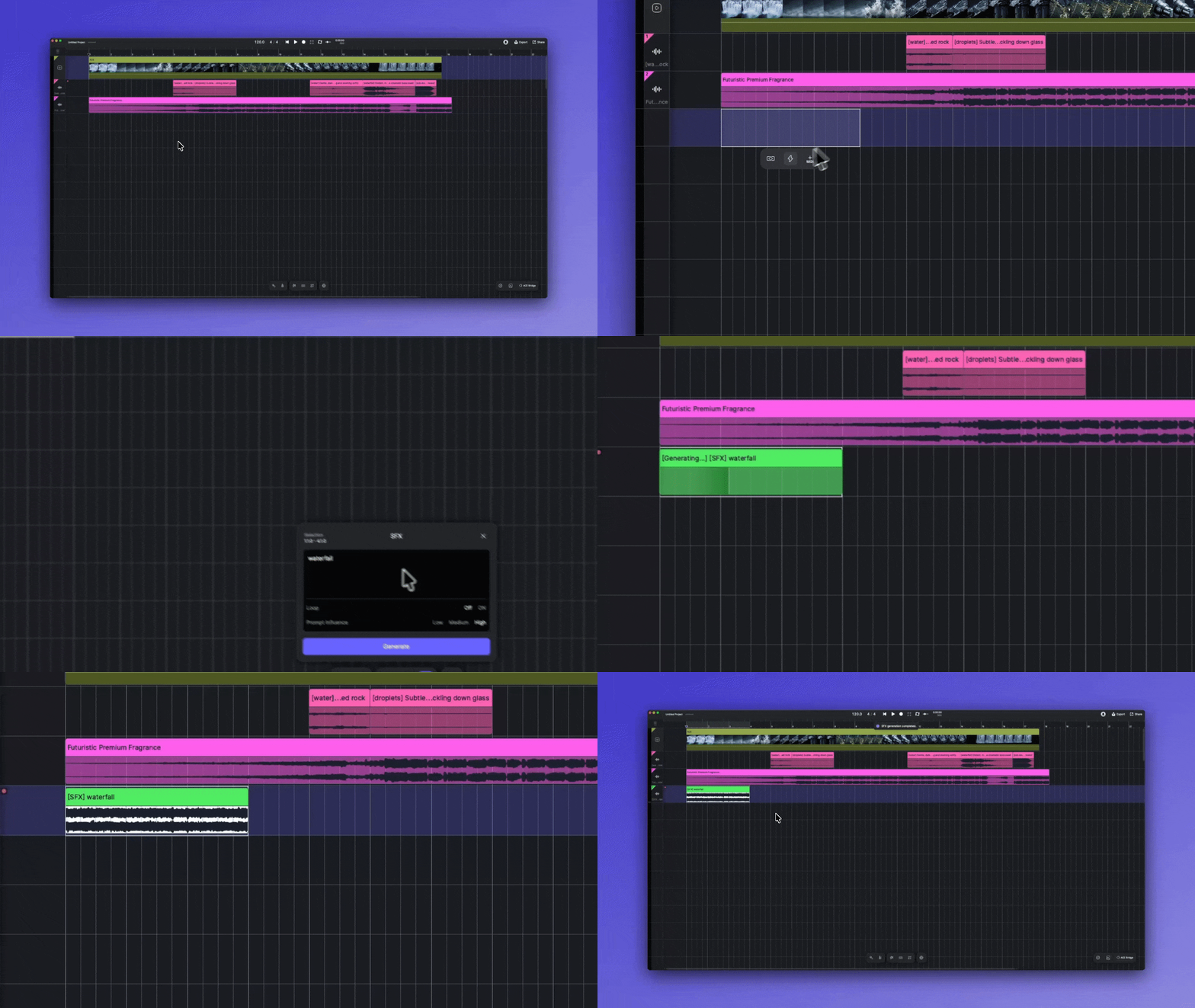
O Gerador de Efeitos Sonoros funciona em uma região selecionada da linha do tempo. Crie uma seleção primeiro, depois abra a ferramenta e gere efeitos para esse Alcance.
### Abrir o Gerador de Efeitos Sonoros
Há 2 maneiras de abrir Efeitos Sonoros:
* Clique **Efeitos Sonoros** na barra de ferramentas principal.
* Selecione uma região e clique em :bolt:**ícone de Efeitos Sonoros**.
### Gerar Efeitos Sonoros
1. Clique e arraste na Tela para criar uma seleção de tempo. Isso define a duração e a posição do seu novo efeito sonoro.
2. Digite uma descrição do efeito sonoro que você deseja (por exemplo, “A chuva torrencial caiu na estrada de paralelepípedos.”).
3. Ajustar Configurações
* Ativar **Loop** ativado criará um Loop contínuo. Isso garantirá que o final se misture ao início sem deixar uma lacuna perceptível.
* Use a configuração de influência do prompt para ajustar o quão fielmente a saída deve corresponder ao prompt.
4. Clique Gerar .
---
# Agent Instructions
This documentation is published with GitBook. GitBook is the documentation platform designed so that both humans and AI agents can read, navigate, and reason over technical content effectively. Learn more at gitbook.com.
## Querying This Documentation
If you need additional information that is not directly available in this page, you can query the documentation dynamically by asking a question.
Perform an HTTP GET request on the current page URL with the `ask` query parameter, and the optional `goal` query parameter:
```
GET https://docs.acestudio.ai/docs/product-wiki-pt/ferramentas-de-ia/sound-effects.md?ask=&goal=
```
`ask` is the immediate question: it should be specific, self-contained, and written in natural language.
`goal` is optional and describes the broader end goal you are ultimately trying to accomplish on behalf of the user. GitBook uses it to tailor the answer towards what is most useful for that goal.
The response will contain a direct answer to the question and relevant excerpts and sources from the documentation.
Use this mechanism when the answer is not explicitly present in the current page, you need clarification or additional context, or you want to retrieve related documentation sections.