> For the complete documentation index, see [llms.txt](https://docs.acestudio.ai/llms.txt). Markdown versions of documentation pages are available by appending `.md` to page URLs; this page is available as [Markdown](https://docs.acestudio.ai/docs/product-wiki-ja/purojekuto/mixing/mixer.md).
# ミキサー
ミキサーでトラックの音量、パン、エフェクトを管理します。
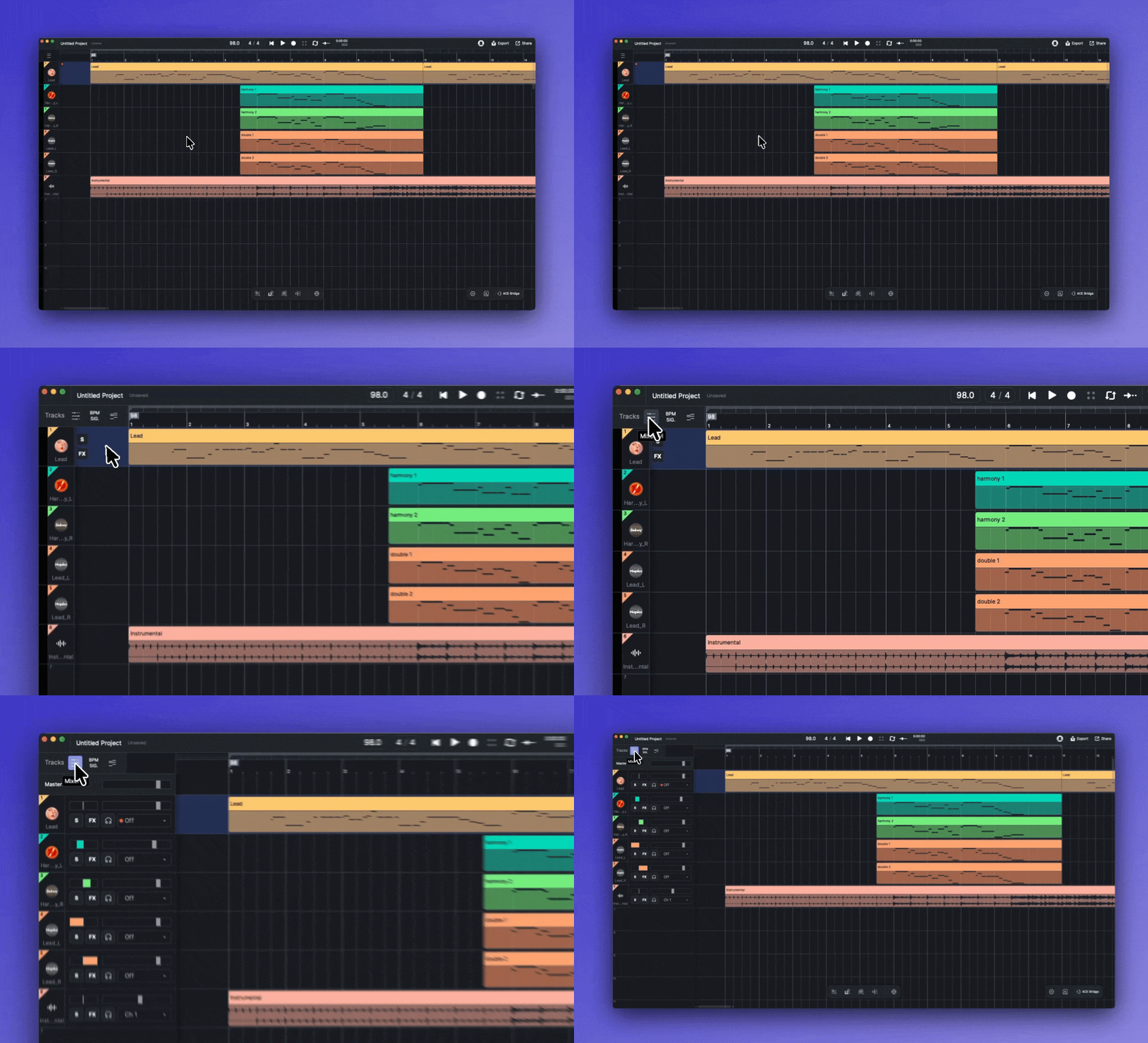
ミキサーでは、プロジェクト内の各トラックを詳細にコントロールできます。これはトラックリストの左側から展開するパネルで、各トラックの音量、パン、エフェクト、ルーティングにアクセスできます。
ミキサーを開く、または折りたたむには、メインツールバーのミキサーアイコンをクリックするか、ショートカットを使用します M.
## ミキサーでトラックをミックスする
ミキサーを開くと、マスタートラックとプロジェクト内のすべてのトラックのチャンネルストリップが表示されます。
### マスター
この **マスター** ストリップは常にミキサーの最上部にあります。
これはプロジェクト全体の出力をコントロールします。
ここにはメインのボリュームフェーダーと、その専用の **FX** パネルが含まれます。
を開いて [Fxパネル](/docs/product-wiki-ja/purojekuto/mixing/effects.md) マスターにインサートを追加します。
パネルのヘッダーには **マスター** と表示され、マスターバスを編集中であることを示します。
これは、ミックス全体に影響するミックスバス処理に使用します。
典型的な例としては、 [Little Limiter](/docs/product-wiki-ja/purojekuto/mixing/effects/built-in-effects.md) を最後のスロットに挿してピークを抑え、最終出力の上限を設定する、またはマスタリング用のサードパーティ製プラグインがあります。
### トラックチャンネル
マスタートラックの下では、各トラックに次のコントロールを備えた専用のチャンネルストリップがあります。
* フェーダー: トラックの音量をコントロールします。フェーダーを上下にドラッグしてレベルを調整します。フェーダーをダブルクリックすると 0 dB にリセットされます。
* Pan: トラックのステレオ定位(左または右)を調整します。ノブを左右にドラッグします。ダブルクリックすると中央にリセットされます。
* ソロ S: 他のすべてのトラックをミュートし、ソロにしたトラックだけを聴けるようにします。 Ctrl / Command.
* ミュート: フェーダーレベルを変えずにトラックを無音にします。
* FX: このトラックのエフェクトパネルを開きます。
* 入力チャンネル: トラックのオーディオまたはMIDIソースを選択します。使用可能なオプションはトラックの種類によって異なります:
* オーディオトラックの場合: 接続されているオーディオインターフェースの使用可能な入力チャンネルから選択します。
* MIDIトラックの場合: 接続されたMIDIデバイスと特定のMIDIチャンネルを選択します。ボーカルトラックでは、ポリフォニックとモノフォニックの入力モードを選択できます。
---
# Agent Instructions
This documentation is published with GitBook. GitBook is the documentation platform designed so that both humans and AI agents can read, navigate, and reason over technical content effectively. Learn more at gitbook.com.
## Querying This Documentation
If you need additional information that is not directly available in this page, you can query the documentation dynamically by asking a question.
Perform an HTTP GET request on the current page URL with the `ask` query parameter, and the optional `goal` query parameter:
```
GET https://docs.acestudio.ai/docs/product-wiki-ja/purojekuto/mixing/mixer.md?ask=&goal=
```
`ask` is the immediate question: it should be specific, self-contained, and written in natural language.
`goal` is optional and describes the broader end goal you are ultimately trying to accomplish on behalf of the user. GitBook uses it to tailor the answer towards what is most useful for that goal.
The response will contain a direct answer to the question and relevant excerpts and sources from the documentation.
Use this mechanism when the answer is not explicitly present in the current page, you need clarification or additional context, or you want to retrieve related documentation sections.