> For the complete documentation index, see [llms.txt](https://docs.acestudio.ai/llms.txt). Markdown versions of documentation pages are available by appending `.md` to page URLs; this page is available as [Markdown](https://docs.acestudio.ai/docs/product-wiki-ja/le-qi/third-party-instruments.md).
# サードパーティ製楽器
ACE Studioの楽器トラックで、サードパーティ製VST3およびAU楽器プラグインを読み込みます。
ACE Studio は、サードパーティ製の楽器プラグイン(シンセ、サンプラー、サウンドライブラリ)を **VST3** または **AU** フォーマットでホストし、AI楽器と並べて使用できます。プラグインを **プラグイン** のタブ [楽器ライブラリ](/docs/product-wiki-ja/le-qi/instrument-library.md)から読み込むと、トラックは **楽器トラック** になり、あらゆるDAWと同じようにMIDIクリップを再生します。
***
### 対応フォーマット
| フォーマット | Windows | macOS |
| ------------------ | ------- | ----- |
| **VST3** | ✓ | ✓ |
| **AU** (オーディオユニット) | — | ✓ |
* 64ビット版のみ **プラグインがサポートされています。** Apple Silicon搭載Macでは、プラグインは
* ネイティブで **動作します。**.
* ACE Studio は初回起動時に標準のプラグインフォルダーを完全にスキャンし、以後の起動では変更されたファイルを検出します。スキャン場所と再スキャン方法については、 [設定](/docs/product-wiki-ja/akauntoto/preferences.md#plugins).
***
### プラグインの読み込み
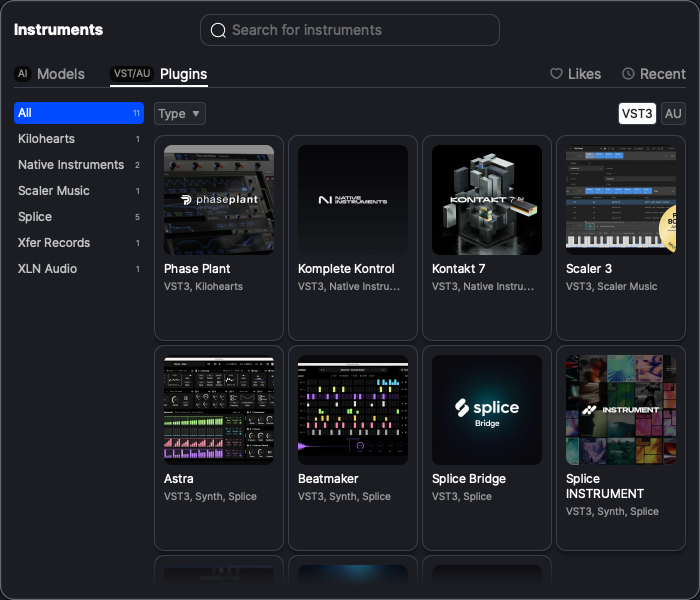
楽器ライブラリを開き、 **プラグイン** タブに切り替えます。Windows ではそのタブのラベルは **VSTプラグイン**、macOS では **VST/AUプラグイン**.
* **ベンダー一覧** です。左側の列では、プラグインがメーカー別にグループ化され、各名前の横に件数が表示されます。 **すべて** がデフォルトで選択されています。検索とTypeフィルターは、選択したベンダー内に適用されます。
* **タイプ** — シンセやSamplerなどのカテゴリで絞り込めます。この方法でフィルターできるのはVST3プラグインのみです。
* **VST3 / AU** — macOS では、2つのフォーマットを切り替えます。ACE Studio はその選択を記憶します。
各カードには、プラグインの画像、名前、そしてフォーマット、タイプ、ベンダーを含むサブタイトルが表示されます。たとえば *VST3、シンセ、Xfer*です。AUプラグインはフォーマットとベンダーのみを表示します。長い名前はホバーすると全文を確認できます。
プラグインを読み込むには、次のいずれかを行います:
* カードをキャンバスの空いている領域にドラッグして、新しいトラックを作成します。
* カードをトラックヘッダーにドラッグします。既存の楽器トラックまたはAI楽器トラックにドロップすると、そのサウンドソースが置き換わります。
* カードをクリックし、次にトラックを置きたいキャンバス上をクリックします。
トラックからプラグインを取り除くには、トラックヘッダーを右クリックして **読み込み解除**.
***
### 楽器トラック
楽器トラックは、 [MIDIトラック](/docs/product-wiki-ja/purojekuto/arrangement-in-canvas/tracks/midi-tracks.md)のサブタイプの1つです。ボーカルトラックやAI楽器トラックのようにMIDIクリップを保持しますが、次の2点で挙動が異なります:
* **トラックヘッダー** — トラックの画像をクリックすると、サウンドソースパネルではなくプラグイン本体のウィンドウが開きます。
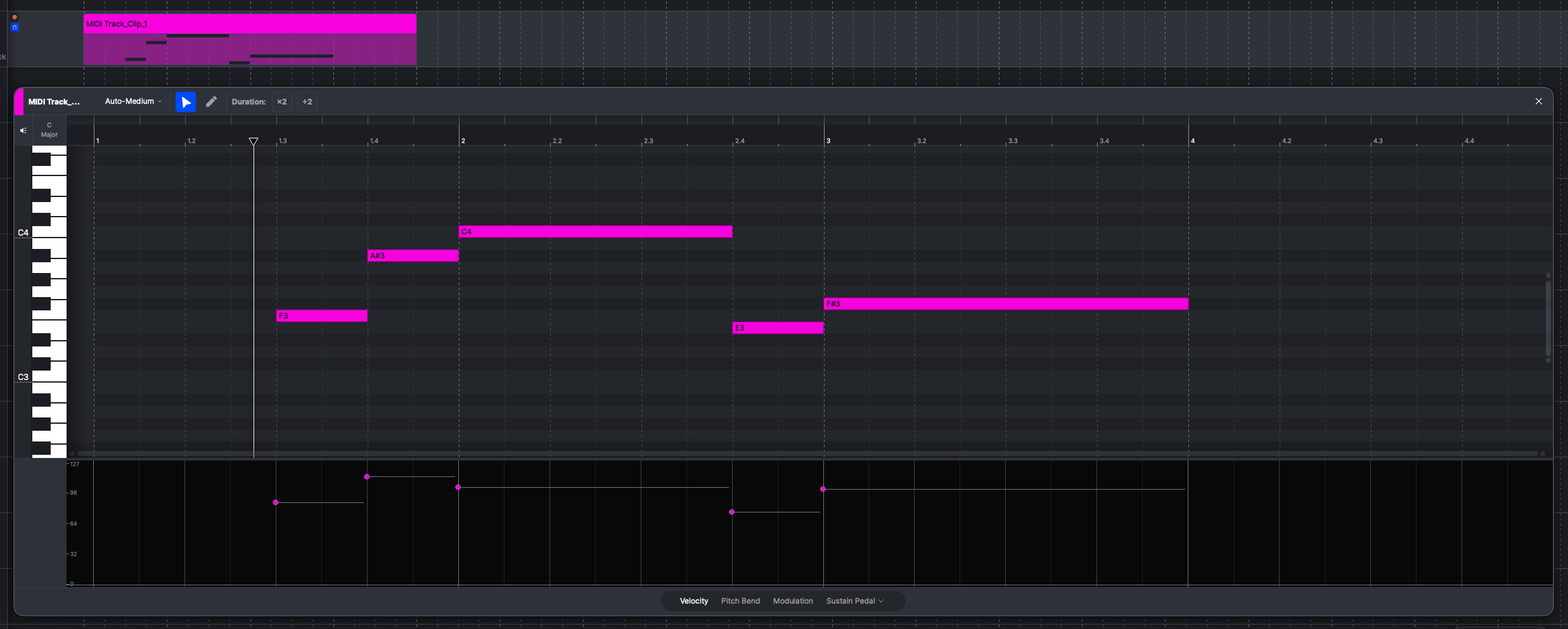
* **ピアノロール** — クリップエディターでは標準的なMIDI編集が表示されます。詳しくは [ベロシティとMIDI CC](#velocity-and-midi-cc) 以下を参照してください。
***
### プラグインウィンドウ
トラックの画像をクリックすると、プラグインウィンドウが開きます。ACE Studio は、プラグイン本体のインターフェースの上にコンパクトなヘッダーを追加します:
* **パワー** — プラグインのオン/オフを切り替えます。
* **プリセットバー** — でプリセットを順送りできます。 < / >、現在のプリセット名を確認し、プリセットメニューを開けます。プリセットはエフェクトプラグインとまったく同じように動作し、ACE Studio の `.acefxpreset` フォーマットや、プラグインのネイティブフォーマットでの書き出しにも対応します。詳しくは [プリセット管理](/docs/product-wiki-ja/purojekuto/mixing/effects/third-party-effects.md#preset-management).
* **MIDI Ch** — トラックがプラグインに送信するMIDIチャンネルを選択します。
***
### ベロシティとMIDI CC
楽器トラックでは、 [クリップエディター](/docs/product-wiki-ja/purojekuto/arrangement-in-canvas/clips/clip-editor.md) のピアノロールにノートの下へコントローラーレーンが表示されます。下部のセレクターで、レーンに表示する内容を選択します:
* **ベロシティ** — ノートごとに1小節を表示します。小節をドラッグして、ノートの強さを変更できます。
* **ピッチベンド** と **モジュレーション** — 常に使用できます。
* **その他のコントローラー** — 最後のスロットはメニューです。サステインペダルやエクスプレッションなど、他のMIDI CCを選ぶとレーンに表示できます。すでに固定スロットがあるコントローラーは、このメニューではグレー表示されます。
#### コントローラーカーブの編集
コントローラーカーブは、アンカーを直線で結んだ一連のカーブです。レーンにアンカーがない場合は、コントローラーのデフォルト値を示す点線が表示され、プラグインにはそのデフォルト値が送られます。
〜を使うと **ポインター** ツール:
* レーンの任意の場所をダブルクリックしてアンカーを追加するか、点線をクリックしてそこに追加します。
* アンカーをドラッグして移動します。
* アンカーをダブルクリックして削除します。
* 複数のアンカーを囲むようにボックスをドラッグして選択し、一括で削除、コピー、貼り付けできます。
〜を使うと **ペン** ツールを使うと、レーン上に直接描いて連続したカーブを作成できます。このモードでは、個々のアンカーではなく線のみが表示されます。
すべてのアンカーを削除すると、レーンは点線のデフォルトラインに戻ります。
---
# Agent Instructions
This documentation is published with GitBook. GitBook is the documentation platform designed so that both humans and AI agents can read, navigate, and reason over technical content effectively. Learn more at gitbook.com.
## Querying This Documentation
If you need additional information that is not directly available in this page, you can query the documentation by asking a question.
Perform an HTTP GET request on the following URL with the `ask` and `goal` query parameters:
```
GET https://docs.acestudio.ai/docs/product-wiki-ja/le-qi/third-party-instruments.md?ask=&goal=
```
`ask` is the immediate question: it should be specific, self-contained, and written in natural language.
`goal` is what the user is ultimately trying to achieve, the reason they need the answer. Sharing it helps GitBook give you a better, more relevant answer. A goal is most helpful when it describes the outcome the user wants rather than restating the question. For example, with `ask=how do I create an API token`, a goal like `automate deployments from our CI pipeline` lets GitBook tailor the answer to that use case.
The response will contain a direct answer to the question and relevant excerpts and sources from the documentation.
Use this mechanism when the answer is not explicitly present in the current page, you need clarification or additional context, or you want to retrieve related documentation sections.