> For the complete documentation index, see [llms.txt](https://docs.acestudio.ai/llms.txt). Markdown versions of documentation pages are available by appending `.md` to page URLs; this page is available as [Markdown](https://docs.acestudio.ai/docs/product-wiki-ja/le-qi/instrument-library.md).
# 楽器ライブラリ
ACE Studioの楽器ライブラリから、AI楽器、ユニゾンプリセット、サードパーティ製楽器プラグインを参照します。
楽器ライブラリでは、AI楽器トラックまたは楽器トラックのサウンドソースを選択します。タブは2つあります: **AIモデル** ACE StudioのAI楽器とユニゾンプリセット用で、 **プラグイン** コンピューターにインストールされているサードパーティ製のVST3およびAU楽器用です。
## 楽器ライブラリを開く
ライブラリを開く方法は3つあります:
### ツールバーから
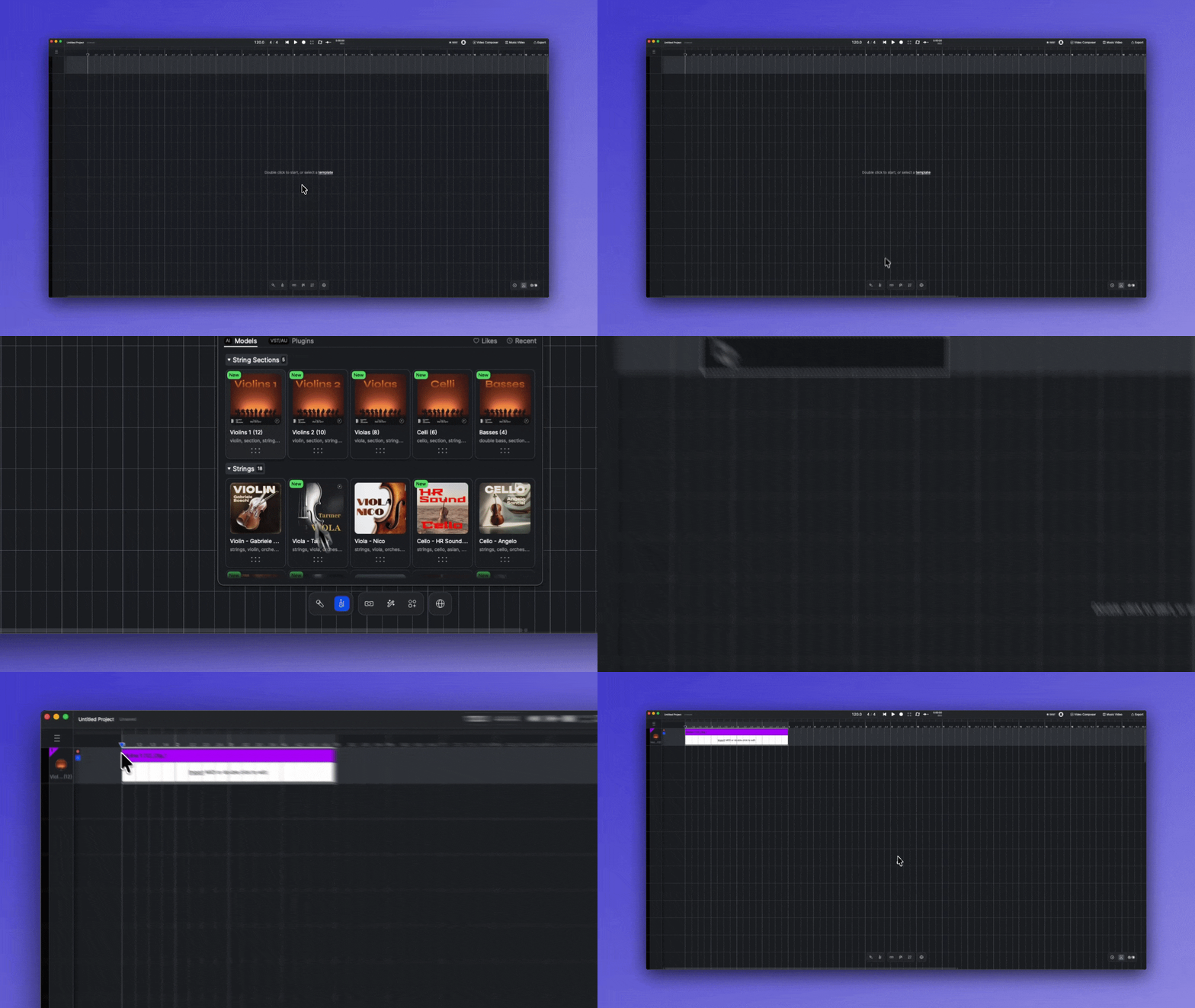
ウィンドウ下部のツールバーにある楽器アイコンをクリックします。楽器をキャンバスにドラッグして追加するか、楽器をクリックしてから配置したいキャンバス上の場所をクリックします。
### キャンバスから
キャンバス上の空のトラックをダブルクリックして、 **楽器** を選択すると楽器ライブラリが開き、そのトラックに読み込む楽器を選べます。
### AI楽器トラックパネルから
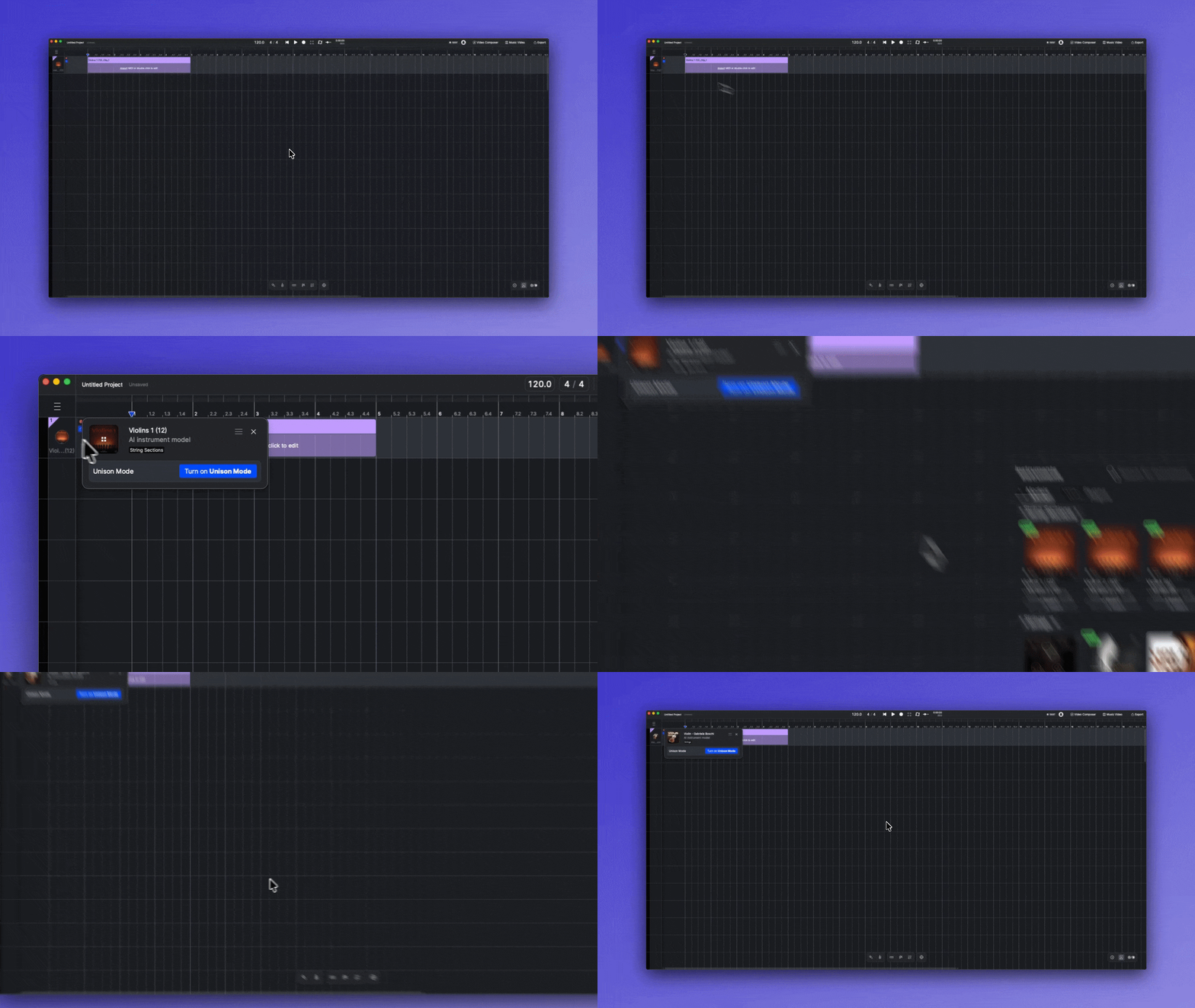
AI楽器トラックでは、トラックヘッダーの画像をクリックしてライブラリを開きます。別の楽器をクリックして現在の楽器を置き換えるか、楽器を [ユニゾン](/docs/product-wiki-ja/le-qi/create-instrument-sounds/unison-mode-for-instruments.md) にドラッグして重ねます。
{% hint style="info" %}
サードパーティ製プラグインをホストしている楽器トラックでは、トラックの画像をクリックすると代わりにプラグインウィンドウが開きます。プラグインを入れ替えるには、ツールバーからライブラリを開き、新しいものをトラックヘッダーにドラッグします。参照してください [サードパーティ製楽器](/docs/product-wiki-ja/le-qi/third-party-instruments.md).
{% endhint %}
### キャンバス上に楽器を追加する
どの方法で楽器を追加しても、対象のトラックに読み込まれ、対応する位置に楽器クリップがキャンバス上に作成されます。
## AIモデル
その **AIモデル** タブには、ACE StudioのプリメイドAI楽器が収録されており、ストリングスセクション、ストリングス、ブラスなどのカテゴリごとに整理されています。カテゴリ見出しをクリックすると、折りたたんだり展開したりできます。
### プリメイド楽器
プリメイド楽器は、ACE Studioがプロの演奏家とその演奏データセットを責任ある方法で用いて制作しています。これらの楽器は、元の演奏者ならではの特徴と表現力を忠実に捉えています。私たちは、多様な音楽制作ニーズに応えるため、プリメイド楽器を継続的に追加しています。
### ユニゾンプリセット
AIモデルタブの一番下までスクロールすると、楽器カテゴリと並んでユニゾンプリセットが表示されます:
* **プリメイドユニゾン** — ACE Studioが作成したプリセットです。
* **カスタムユニゾン** — 保存したプリセットです。カードを右クリックすると、名前の変更、タグの編集、またはアカウントからの削除ができます。
この機能の詳細については、 [楽器のユニゾンモード](/docs/product-wiki-ja/le-qi/create-instrument-sounds/unison-mode-for-instruments.md).
## プラグイン
その **プラグイン** タブには、コンピューターにインストールされているサードパーティ製楽器プラグインがベンダーごとに一覧表示されます。対応形式、フィルター、楽器トラックの仕組みについては、 [サードパーティ製楽器](/docs/product-wiki-ja/le-qi/third-party-instruments.md).
## 閲覧ツール
これらのツールは、どちらのタブでも同じように動作します。
### 検索
検索バーをクリックして検索モードに入り、名前で楽器を検索します。検索バー右側の閉じるボタンをクリックすると、検索モードを終了します。
### いいねと最近使った項目
* **いいね** — カードのハートをクリックしていいねします。クリックして **いいね** ライブラリ右上で、いいねした楽器だけを表示します。いいねはこのコンピューターに保存されます。
* **最近使用** — クリックして **最近使用** 直近で使用した10個の楽器を表示します。
### カード操作
カードにカーソルを合わせると、ボタンが表示されます:
* **試聴** — 楽器の短いオーディオデモを再生します。デモのない楽器にはこのボタンは表示されません。
* **いいね** — 楽器をいいねに追加します。
* **情報** — ライブラリ左側に、その楽器の詳細を表示する情報パネルを開きます。別のカードの情報をクリックするとパネルは置き換わり、タブを切り替えるかライブラリを閉じるとパネルも閉じます。
サードパーティ製プラグインのサポート **いいね** のみ。
カード下部の点線のハンドルはドラッグ用です。そこをキャンバスまたはトラックヘッダーにドラッグすると、楽器を読み込めます。
---
# Agent Instructions
This documentation is published with GitBook. GitBook is the documentation platform designed so that both humans and AI agents can read, navigate, and reason over technical content effectively. Learn more at gitbook.com.
## Querying This Documentation
If you need additional information that is not directly available in this page, you can query the documentation by asking a question.
Perform an HTTP GET request on the following URL with the `ask` and `goal` query parameters:
```
GET https://docs.acestudio.ai/docs/product-wiki-ja/le-qi/instrument-library.md?ask=&goal=
```
`ask` is the immediate question: it should be specific, self-contained, and written in natural language.
`goal` is what the user is ultimately trying to achieve, the reason they need the answer. Sharing it helps GitBook give you a better, more relevant answer. A goal is most helpful when it describes the outcome the user wants rather than restating the question. For example, with `ask=how do I create an API token`, a goal like `automate deployments from our CI pipeline` lets GitBook tailor the answer to that use case.
The response will contain a direct answer to the question and relevant excerpts and sources from the documentation.
Use this mechanism when the answer is not explicitly present in the current page, you need clarification or additional context, or you want to retrieve related documentation sections.