> For the complete documentation index, see [llms.txt](https://docs.acestudio.ai/llms.txt). Markdown versions of documentation pages are available by appending `.md` to page URLs; this page is available as [Markdown](https://docs.acestudio.ai/docs/product-wiki-ja/le-qi/create-instrument-sounds/editing-notes.md).
# ノートの編集
ACE StudioでAI楽器用のMIDIノートを編集します。
## ノートのツール
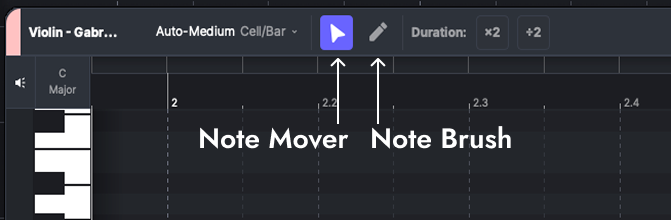
楽器の MIDI ノート編集で使えるツールは 2 種類あります:
### ノート移動ツール
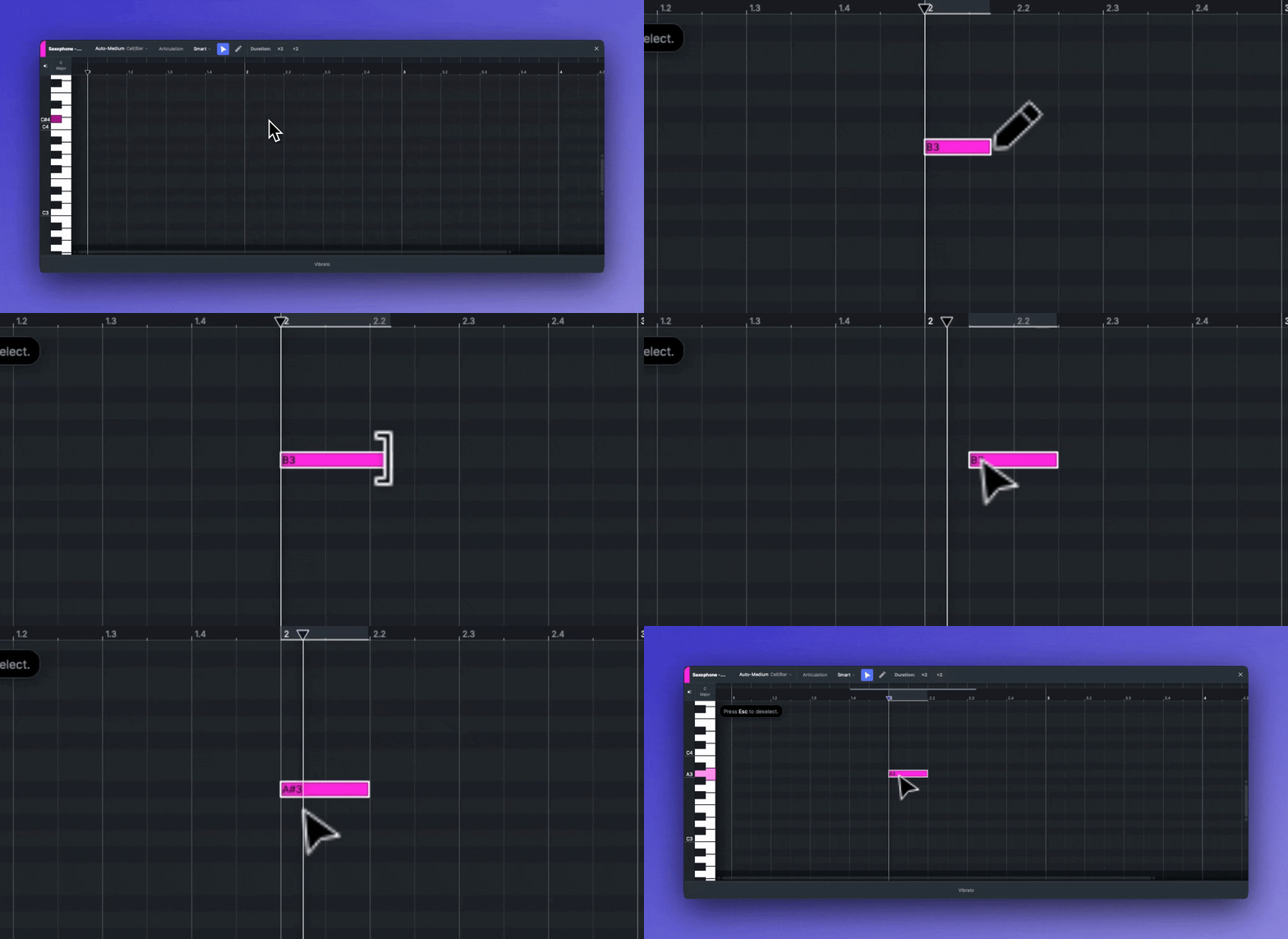
ノート移動ツールは、ノートの作成、選択、移動、調整に使う標準ツールです。(ショートカットキー V )
* グリッドをダブルクリックすると、デフォルト長さが 1 セルの半分のノートを作成できます。マウスを離す前にドラッグすると長さを調整できます。
* ノートをクリックして選択します。ドラッグして選択範囲を作ると複数のノートを選択できます。最初のノートと最後のノートをクリックして、押しながら複数選択することもできます Shift すると、それらを移動、調整、削除、切り取り、コピー、複製できます。
* 任意のノートまたは選択したノートをドラッグして移動します。
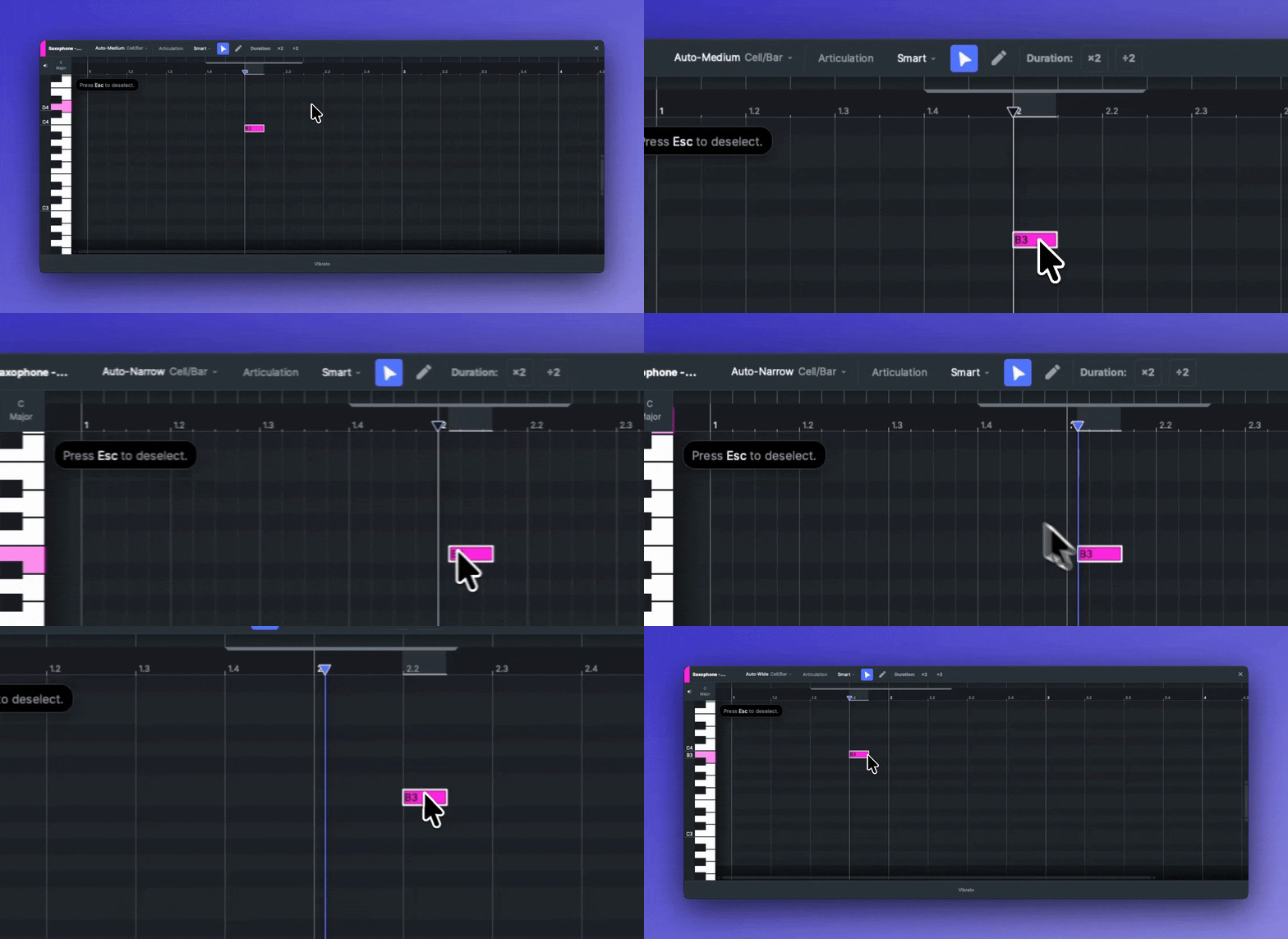
* ノートを移動すると、デフォルトではグリッドにスナップします。押し続けると Ctrl / ⌘ Command スナップせずに移動できます。
* 矢印キーでも移動できます ↑↓←→ ノートを移動できます。(押しながら Shift と ↑↓ オクターブ単位でノートを移動できます)
* ノートの左/右端をドラッグして音符の長さを調整します。(ショートカットキー Shift + ←→)。デフォルトではグリッドにスナップします。押しながら Ctrl / ⌘ Command スナップせずに移動できます。
* 複数のノートを選択すると、音符の長さをまとめて調整できます。
### 鉛筆ツール
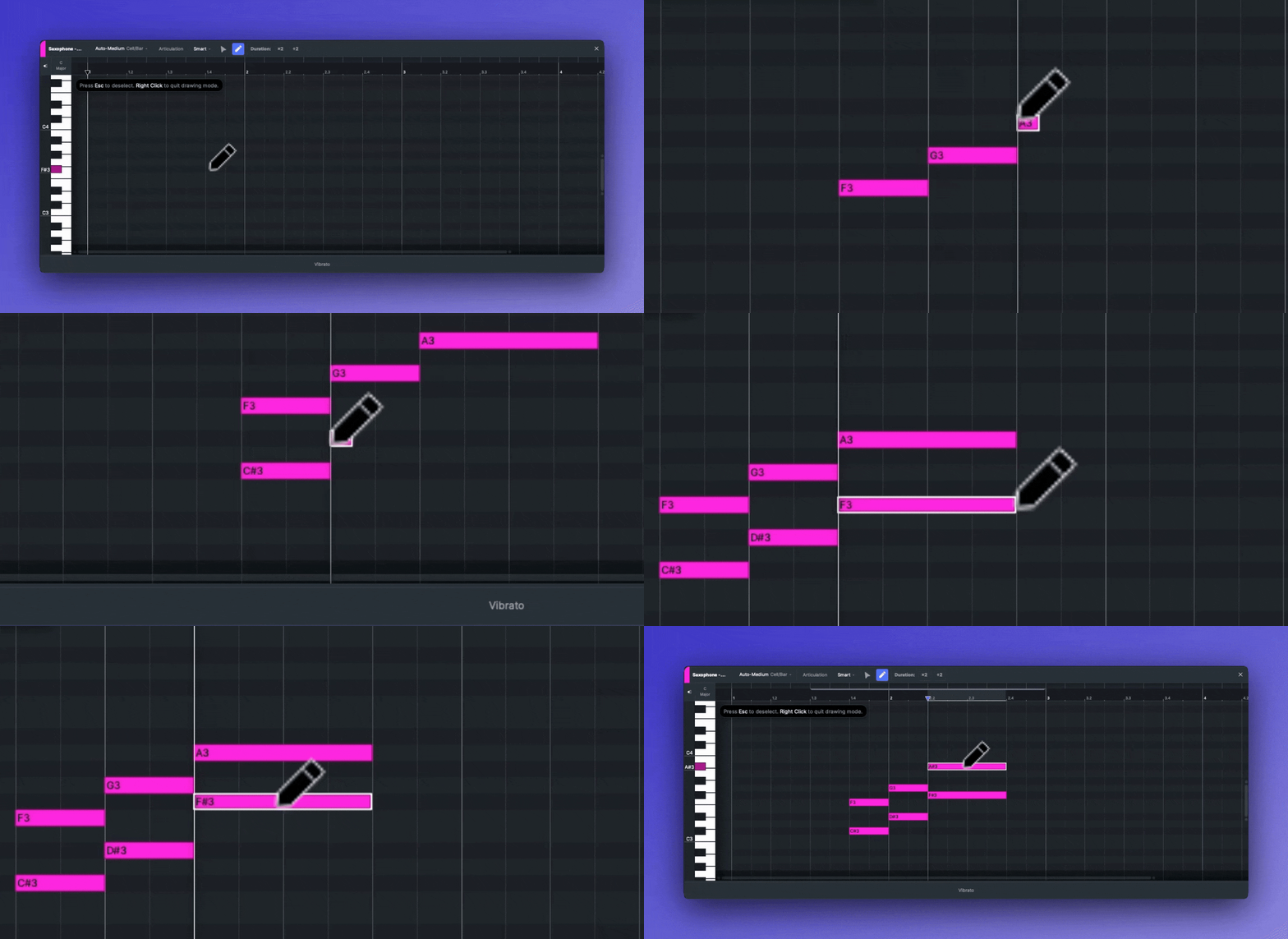
鉛筆ツールはノートを描画するためのツールです。(ショートカットキー B )
* ドラッグして任意のサイズのノートを作成します。デフォルトではグリッドにスナップします。押しながら Ctrl / ⌘ Command スナップせずに移動できます。
* ノートの範囲内に描画すると、メリスマティックなノートを作成できます。
* 既存のノートをドラッグして移動します。
### グリッドとスナップ
グリッドとスナップ機能を使うと、ノートをタイムラインにどのように揃えるかを制御できます。メロディ編集の精度を高められます。
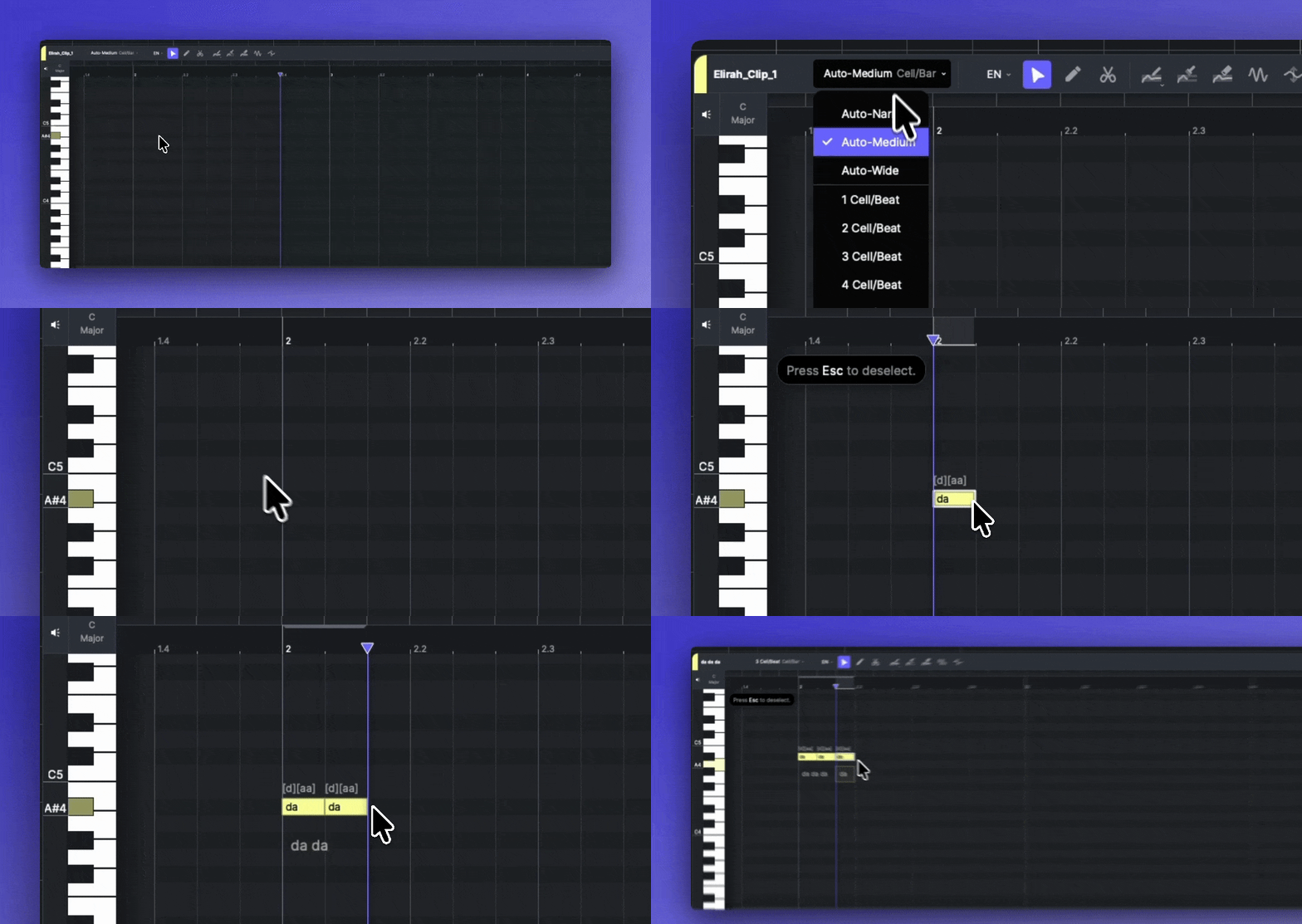
* Auto - 詳細表示: ピアノロールのズームレベルに応じて、グリッドサイズを狭い間隔に自動調整します。
* Auto - 標準(デフォルト): ピアノロールのズームレベルに応じて、グリッドサイズを標準の間隔に自動調整します。
* Auto - 簡略表示: ピアノロールのズームレベルに応じて、グリッドサイズを広い間隔に自動調整します。
* 1-16 セル/拍: 各拍を 1-16 のグリッドセルに分割します。
* オフ: グリッドへのスナップを無効にします。ノートやイベントをタイムラインに合わせず自由に配置できます。
{% hint style="success" %}
ヒント: 3 セル/拍を選ぶと、3 連符を入力できます。
{% endhint %}
## コード/音階の背景
#### 音階
* 音階ボタンをクリックして、背景の表示/非表示を切り替えます。
* 右側の小さな三角をクリックすると設定が表示され、音階を設定したり、その音階外のすべてのノートを折りたたんだりできます。
#### コード
背景の設定では、最初のドロップダウンメニューからコードモードに切り替えられます。
コード背景モードでは、現在のコードに含まれるすべてのノートが色付きで表示されます。コード進行の作成については、こちらを参照してください [コードトラック](/docs/product-wiki-ja/purojekuto/arrangement-in-canvas/chord-track.md).
## プレビュー音
ピアノ鍵盤をクリックしたとき、またはノートをクリック、移動、作成したときに、現在の楽器のデフォルトのプレビュー音が再生されます。ピアノ鍵盤の左上にあるスピーカーアイコンをクリックすると、音をオフにできます。
## ショートカット
| 操作 | ショートカットキー |
| -------------- | --------------------------------------------------- |
| ノート移動ツールを使用 | V |
| 鉛筆ツールを使用 | B |
| ノートを移動 | ↑↓←→ |
| ノートをオクターブ単位で移動 | Shift + ↑↓ |
| ノートの長さを調整 | Shift + ←→ |
| スナップを解除 | 押し続けると Ctrl / ⌘ Command |
---
# Agent Instructions
This documentation is published with GitBook. GitBook is the documentation platform designed so that both humans and AI agents can read, navigate, and reason over technical content effectively. Learn more at gitbook.com.
## Querying This Documentation
If you need additional information that is not directly available in this page, you can query the documentation by asking a question.
Perform an HTTP GET request on the following URL with the `ask` and `goal` query parameters:
```
GET https://docs.acestudio.ai/docs/product-wiki-ja/le-qi/create-instrument-sounds/editing-notes.md?ask=&goal=
```
`ask` is the immediate question: it should be specific, self-contained, and written in natural language.
`goal` is what the user is ultimately trying to achieve, the reason they need the answer. Sharing it helps GitBook give you a better, more relevant answer. A goal is most helpful when it describes the outcome the user wants rather than restating the question. For example, with `ask=how do I create an API token`, a goal like `automate deployments from our CI pipeline` lets GitBook tailor the answer to that use case.
The response will contain a direct answer to the question and relevant excerpts and sources from the documentation.
Use this mechanism when the answer is not explicitly present in the current page, you need clarification or additional context, or you want to retrieve related documentation sections.
 {% endhint %}
## コード/音階の背景
#### 音階
* 音階ボタンをクリックして、背景の表示/非表示を切り替えます。
* 右側の小さな三角をクリックすると設定が表示され、音階を設定したり、その音階外のすべてのノートを折りたたんだりできます。
#### コード
背景の設定では、最初のドロップダウンメニューからコードモードに切り替えられます。
コード背景モードでは、現在のコードに含まれるすべてのノートが色付きで表示されます。コード進行の作成については、こちらを参照してください [コードトラック](/docs/product-wiki-ja/purojekuto/arrangement-in-canvas/chord-track.md).
## プレビュー音
ピアノ鍵盤をクリックしたとき、またはノートをクリック、移動、作成したときに、現在の楽器のデフォルトのプレビュー音が再生されます。ピアノ鍵盤の左上にあるスピーカーアイコンをクリックすると、音をオフにできます。
## ショートカット
| 操作 | ショートカットキー |
| -------------- | --------------------------------------------------- |
| ノート移動ツールを使用 | V |
| 鉛筆ツールを使用 | B |
| ノートを移動 | ↑ ↓ ← → |
| ノートをオクターブ単位で移動 | Shift + ↑ ↓ |
| ノートの長さを調整 | Shift + ← → |
| スナップを解除 | 押し続けると Ctrl / ⌘ Command |
---
# Agent Instructions
This documentation is published with GitBook. GitBook is the documentation platform designed so that both humans and AI agents can read, navigate, and reason over technical content effectively. Learn more at gitbook.com.
## Querying This Documentation
If you need additional information that is not directly available in this page, you can query the documentation by asking a question.
Perform an HTTP GET request on the following URL with the `ask` and `goal` query parameters:
```
GET https://docs.acestudio.ai/docs/product-wiki-ja/le-qi/create-instrument-sounds/editing-notes.md?ask=
{% endhint %}
## コード/音階の背景
#### 音階
* 音階ボタンをクリックして、背景の表示/非表示を切り替えます。
* 右側の小さな三角をクリックすると設定が表示され、音階を設定したり、その音階外のすべてのノートを折りたたんだりできます。
#### コード
背景の設定では、最初のドロップダウンメニューからコードモードに切り替えられます。
コード背景モードでは、現在のコードに含まれるすべてのノートが色付きで表示されます。コード進行の作成については、こちらを参照してください [コードトラック](/docs/product-wiki-ja/purojekuto/arrangement-in-canvas/chord-track.md).
## プレビュー音
ピアノ鍵盤をクリックしたとき、またはノートをクリック、移動、作成したときに、現在の楽器のデフォルトのプレビュー音が再生されます。ピアノ鍵盤の左上にあるスピーカーアイコンをクリックすると、音をオフにできます。
## ショートカット
| 操作 | ショートカットキー |
| -------------- | --------------------------------------------------- |
| ノート移動ツールを使用 | V |
| 鉛筆ツールを使用 | B |
| ノートを移動 | ↑ ↓ ← → |
| ノートをオクターブ単位で移動 | Shift + ↑ ↓ |
| ノートの長さを調整 | Shift + ← → |
| スナップを解除 | 押し続けると Ctrl / ⌘ Command |
---
# Agent Instructions
This documentation is published with GitBook. GitBook is the documentation platform designed so that both humans and AI agents can read, navigate, and reason over technical content effectively. Learn more at gitbook.com.
## Querying This Documentation
If you need additional information that is not directly available in this page, you can query the documentation by asking a question.
Perform an HTTP GET request on the following URL with the `ask` and `goal` query parameters:
```
GET https://docs.acestudio.ai/docs/product-wiki-ja/le-qi/create-instrument-sounds/editing-notes.md?ask=