> For the complete documentation index, see [llms.txt](https://docs.acestudio.ai/llms.txt). Markdown versions of documentation pages are available by appending `.md` to page URLs; this page is available as [Markdown](https://docs.acestudio.ai/docs/product-wiki-ja/aitsru/sound-effects.md).
# 効果音
ACE Studioプロジェクトで効果音を生成します。
## Sound Effects Generatorとは
Sound Effects Generatorは、ACE Studio内でサウンドデザイン要素を生成するためのAIツールです。プロンプトに合ったエフェクトを作成できます。
## Sound Effects Generatorの使い方
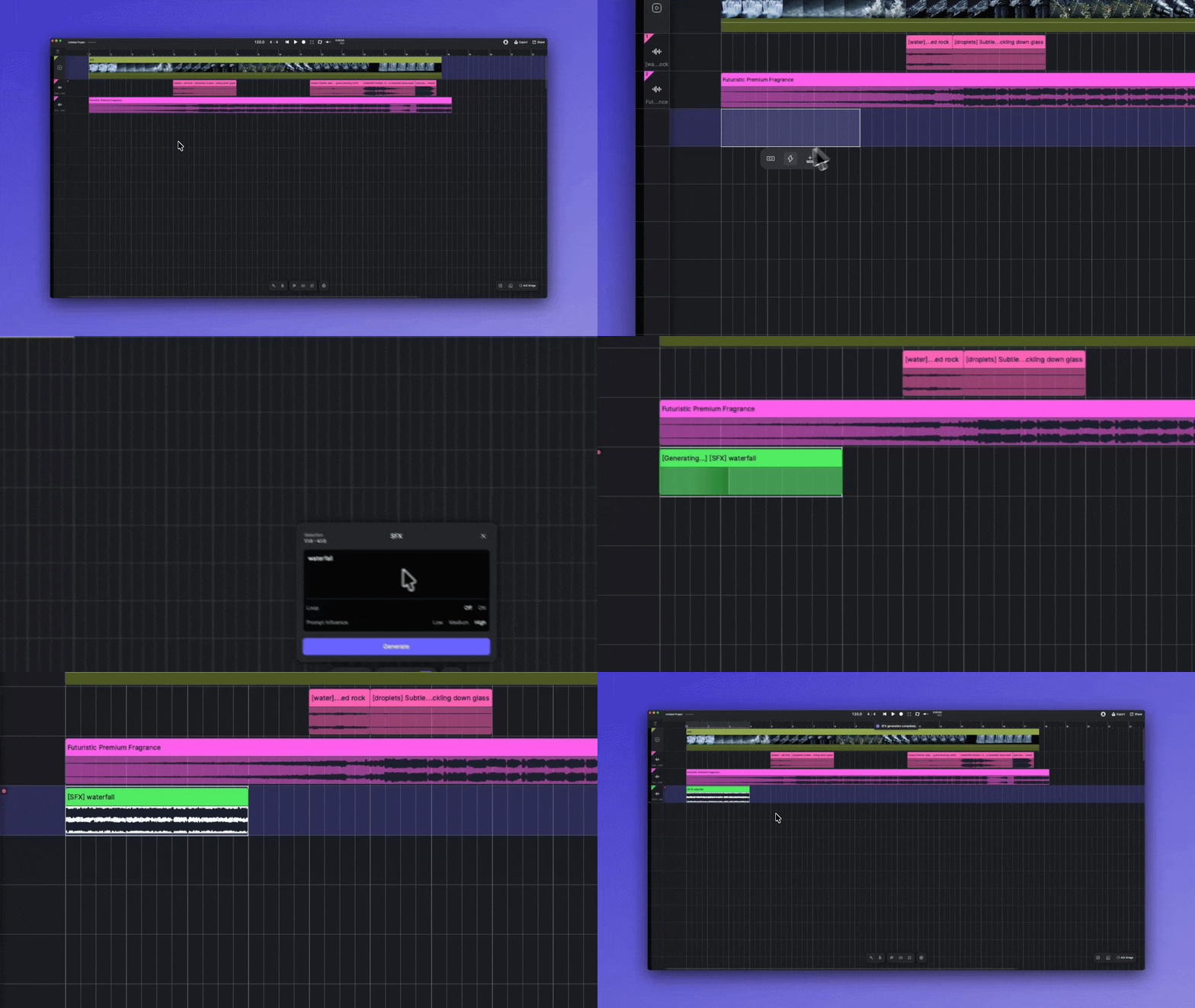
Sound Effects Generatorは、タイムライン上の選択範囲で動作します。まず範囲を選択し、ツールを開いてその範囲にエフェクトを生成します。
### Sound Effects Generatorを開く
Sound Effectsを開く方法は2つあります:
* クリック **サウンドエフェクト** メインツールバーにあります。
* 範囲を選択してから、 :bolt:**サウンドエフェクトアイコン**.
### サウンドエフェクトを生成
1. キャンバス上をクリックしてドラッグし、時間範囲を作成します。これにより、新しいサウンドエフェクトの長さと位置が決まります。
2. 生成したいサウンドエフェクトの説明を入力します(例: 「土砂降りの雨が石畳の道に降り注ぐ。」)。
3. 設定を調整
* 切り替え **ループモード** をオンにすると、シームレスなループが作成されます。これにより、終わりが始まりになめらかにつながり、目立つ隙間が残りません。
* プロンプトの影響度設定を使って、出力がプロンプトにどれだけ近く一致するかを調整します。
4. クリック 生成 .
---
# Agent Instructions
This documentation is published with GitBook. GitBook is the documentation platform designed so that both humans and AI agents can read, navigate, and reason over technical content effectively. Learn more at gitbook.com.
## Querying This Documentation
If you need additional information that is not directly available in this page, you can query the documentation dynamically by asking a question.
Perform an HTTP GET request on the current page URL with the `ask` query parameter, and the optional `goal` query parameter:
```
GET https://docs.acestudio.ai/docs/product-wiki-ja/aitsru/sound-effects.md?ask=&goal=
```
`ask` is the immediate question: it should be specific, self-contained, and written in natural language.
`goal` is optional and describes the broader end goal you are ultimately trying to accomplish on behalf of the user. GitBook uses it to tailor the answer towards what is most useful for that goal.
The response will contain a direct answer to the question and relevant excerpts and sources from the documentation.
Use this mechanism when the answer is not explicitly present in the current page, you need clarification or additional context, or you want to retrieve related documentation sections.