> For the complete documentation index, see [llms.txt](https://docs.acestudio.ai/llms.txt). Markdown versions of documentation pages are available by appending `.md` to page URLs; this page is available as [Markdown](https://docs.acestudio.ai/docs/product-wiki-ja/aibkarushinse/creating-ai-vocals/unison-mode-for-vocals.md).
# ボーカルのユニゾンモード
複数のAIボイスをACE Studioで1つのユニゾントラックに統合します。
## ユニゾンモードとは?
ユニゾンモードを使うと、複数のAIボイスを1つのボーカルトラックにまとめられます。
カスタムのユニゾンプリセットをボイスライブラリに保存できます。あらかじめ用意されたプリセットもあります。
ユニゾンプリセットを使うには、キャンバスまたはトラックヘッダーにドラッグします。
{% hint style="info" %}
ACE Studio 2.1.1以前では、ボーカルトラック向けのユニゾンモードは **合唱モード**.
{% endhint %}
## ユニゾンモードのオン/オフ
### ユニゾンモードを有効/無効にする
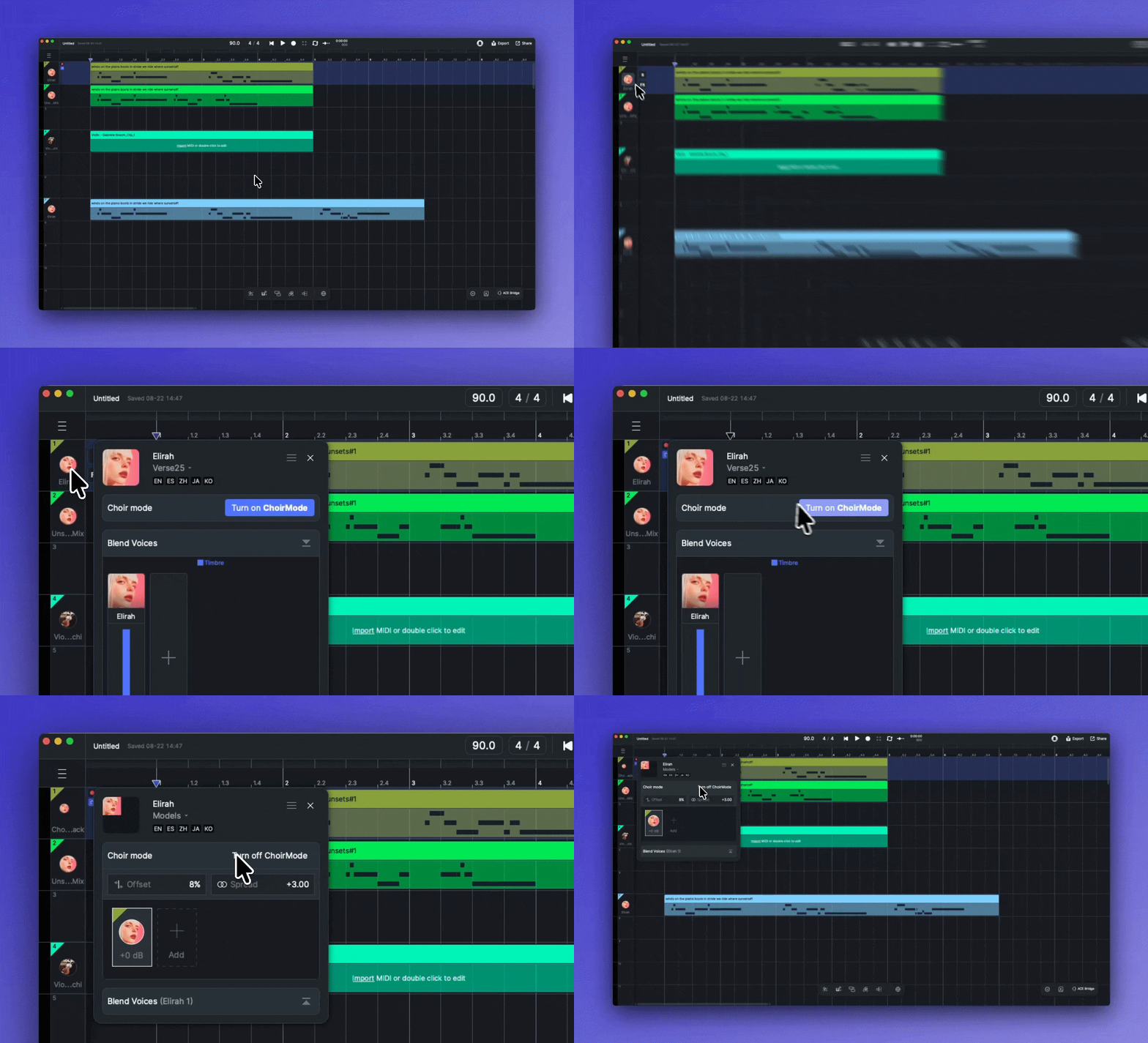
ボーカルトラックのヘッダーをクリックしてトラックパネルを開きます。ユニゾンモードを有効にするには、 ユニゾンモードをオンにする。ユニゾンモードをオフにすると、設定がクリアされます。
ボーカルトラックを右クリックして、選択することもできます。 **ユニゾントラックに変換**.
### ボイスを追加または削除
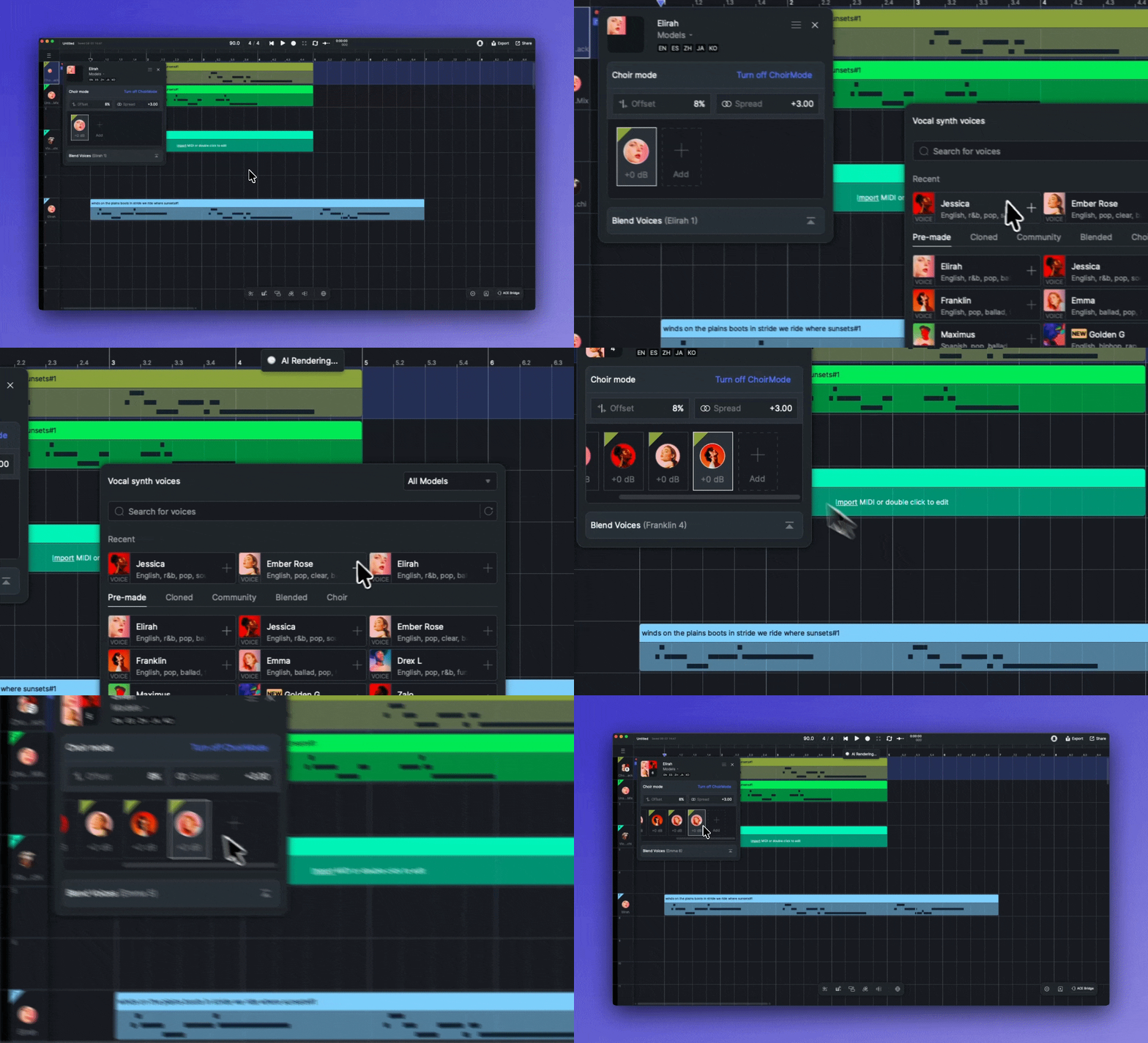
* クリック + 追加 してボイスライブラリを開き、シンガーをクリックしてユニゾントラックに追加します。
* シンガーを右クリックして、複製または削除します。
* ボイスの順序は、ドラッグして並べ替えます。
### パラメータを編集
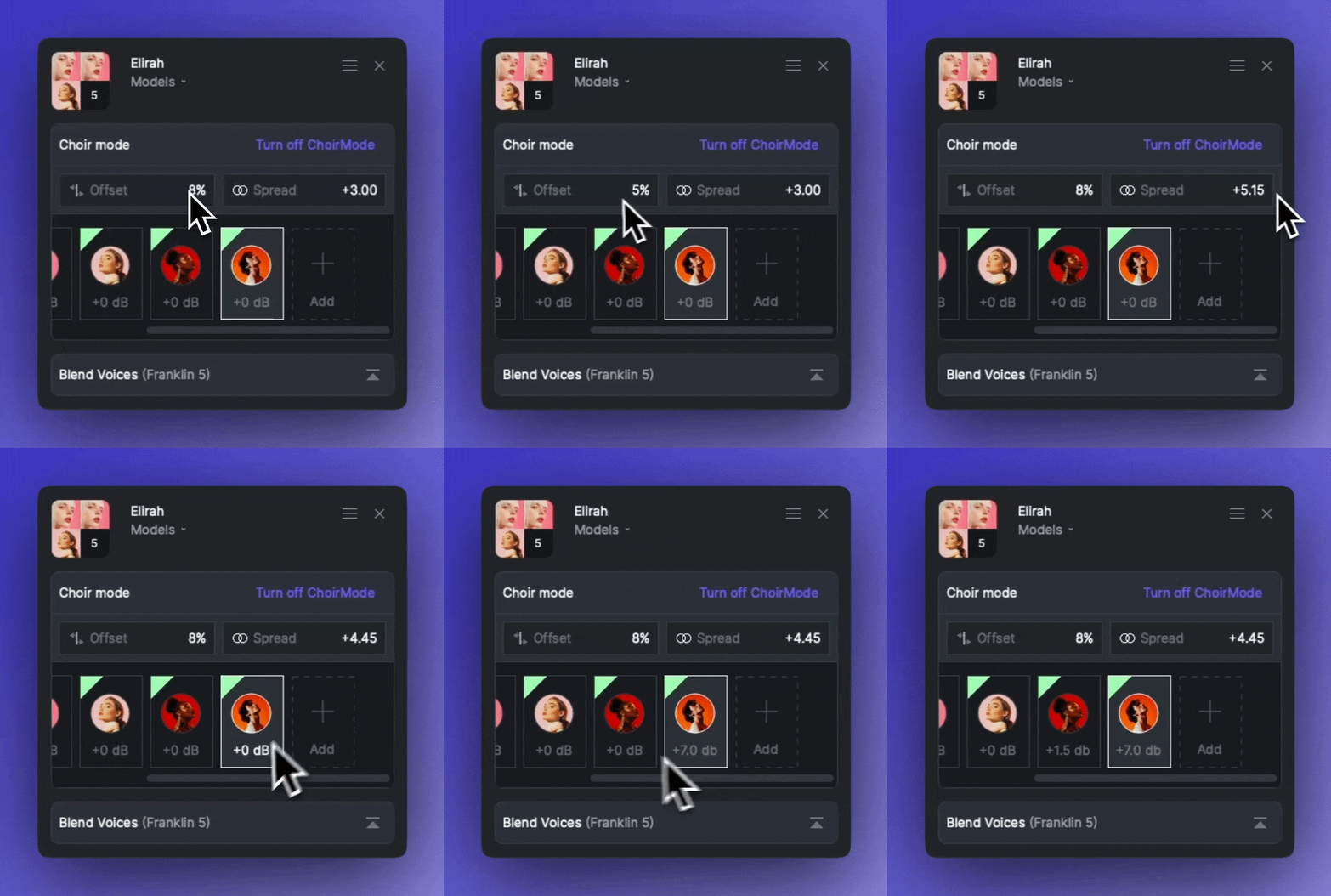
* オフセット: ボイス間のわずかなタイミング差を調整し、より自然な効果を得られます。
* スプレッド: 重ねたサウンドのステレオ幅を調整します。
* ゲイン: アバター下の各シンガーの音量を設定します。
## ユニゾンモードのエフェクト
空間感を出したい場合やバックボーカルとして使いたい場合は、ルームエフェクトを使用してください。
エフェクトの詳細については、 [ルームエフェクト](/docs/product-wiki-ja/purojekuto/mixing/effects/room-effect.md).
## プリセットとして保存
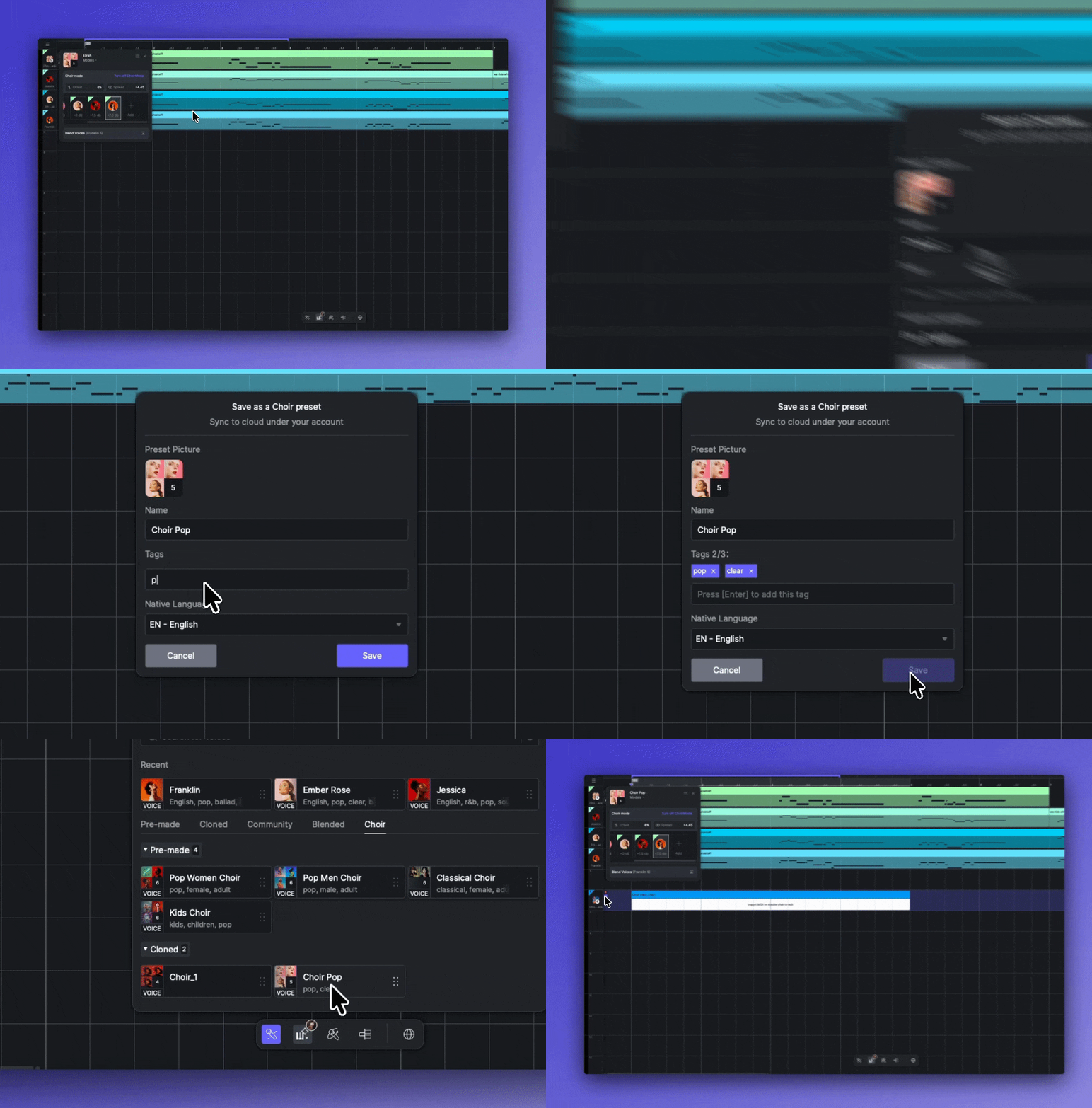
トラックパネルのメニューから、現在のユニゾン設定をプリセットとして保存できます。プリセットの名前、タグ、言語をカスタマイズして、すばやく呼び出せます。プリセットはボイスライブラリのユニゾンタブに保存されます。
保存したプリセットはクラウドに保存され、アカウントにリンクされます。
---
# Agent Instructions
This documentation is published with GitBook. GitBook is the documentation platform designed so that both humans and AI agents can read, navigate, and reason over technical content effectively. Learn more at gitbook.com.
## Querying This Documentation
If you need additional information that is not directly available in this page, you can query the documentation by asking a question.
Perform an HTTP GET request on the following URL with the `ask` and `goal` query parameters:
```
GET https://docs.acestudio.ai/docs/product-wiki-ja/aibkarushinse/creating-ai-vocals/unison-mode-for-vocals.md?ask=&goal=
```
`ask` is the immediate question: it should be specific, self-contained, and written in natural language.
`goal` is what the user is ultimately trying to achieve, the reason they need the answer. Sharing it helps GitBook give you a better, more relevant answer. A goal is most helpful when it describes the outcome the user wants rather than restating the question. For example, with `ask=how do I create an API token`, a goal like `automate deployments from our CI pipeline` lets GitBook tailor the answer to that use case.
The response will contain a direct answer to the question and relevant excerpts and sources from the documentation.
Use this mechanism when the answer is not explicitly present in the current page, you need clarification or additional context, or you want to retrieve related documentation sections.