> For the complete documentation index, see [llms.txt](https://docs.acestudio.ai/llms.txt). Markdown versions of documentation pages are available by appending `.md` to page URLs; this page is available as [Markdown](https://docs.acestudio.ai/docs/product-wiki-it/agente-ia/external-agent-access/claude-desktop-and-cowork.md).

# Claude Desktop & Cowork

Collega Claude Desktop (Chat & Cowork) ad ACE Studio tramite MCP.

Connetti Claude Desktop ad ACE Studio tramite un server MCP (Modello Context Protocol) locale per ispezionare, organizzare e modificare direttamente da Claude i tuoi progetti musicali.

{% hint style="info" %}
Questa guida illustra la configurazione di **Chat** e **Cowork** in Claude Desktop.

Se stai usando **Code** modalità (Claude Code), utilizza impostazioni di configurazione separate. Vai su [External Agent Access](/docs/product-wiki-it/agente-ia/external-agent-access.md) per consentire all'agente di configurarsi automaticamente oppure usa la `claude mcp add` comando da terminale.
{% endhint %}

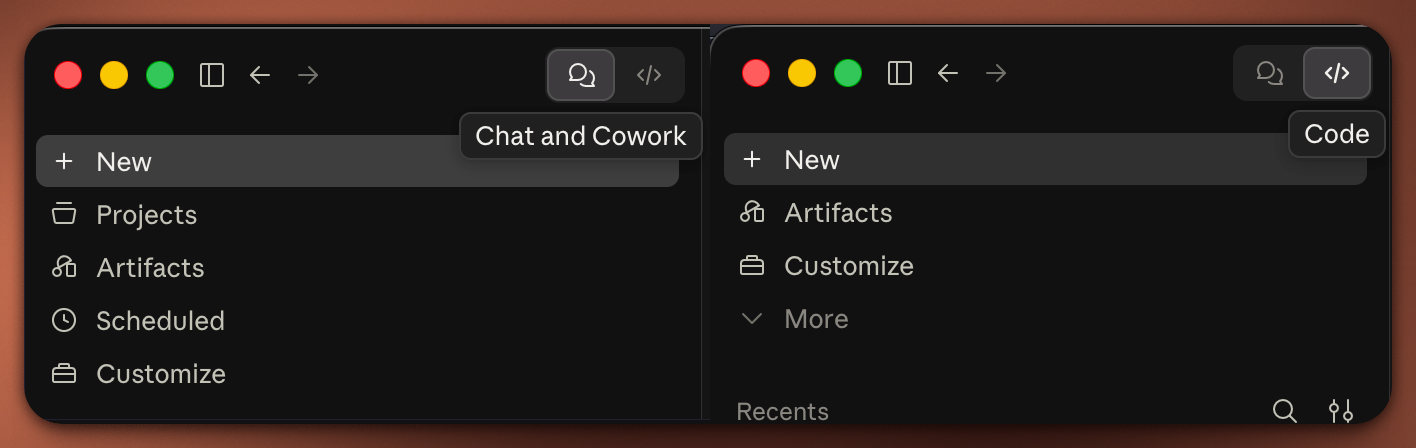
Passa da una modalità all’altra usando il selettore della modalità nell’angolo in alto a sinistra di Claude Desktop:

<figure><img src="https://1987634568-files.gitbook.io/~/files/v0/b/gitbook-x-prod.appspot.com/o/spaces%2Fsn71WYzecYYQw3KkF40b%2Fuploads%2Fgit-blob-88d0c92ad5382c3dc71ccacb0a5cd3cc040e4233%2Fclaude-desktop-mode-selector.png?alt=media" alt="Mode selector in Claude Desktop showing Chat, Cowork, and Code"><figcaption><p>Selettore della modalità in Claude Desktop</p></figcaption></figure>

***

### Passaggio 1: apri Impostazioni

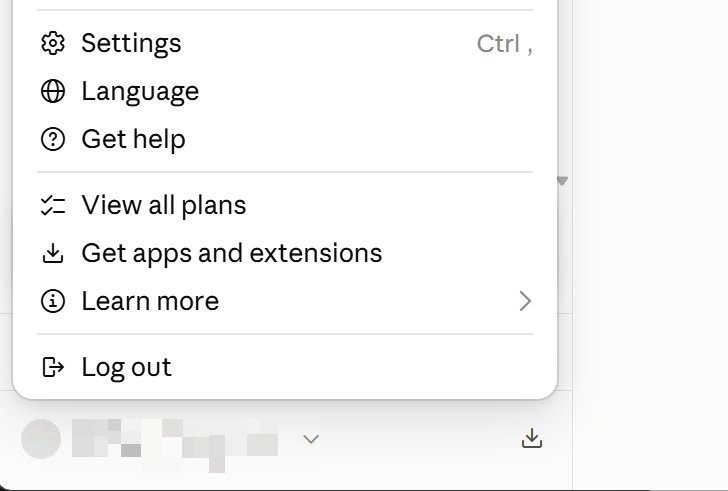
Apri **Impostazioni** in Claude Desktop:

* Fai clic sul nome del tuo profilo nell’angolo in basso a sinistra e seleziona **Impostazioni**, o
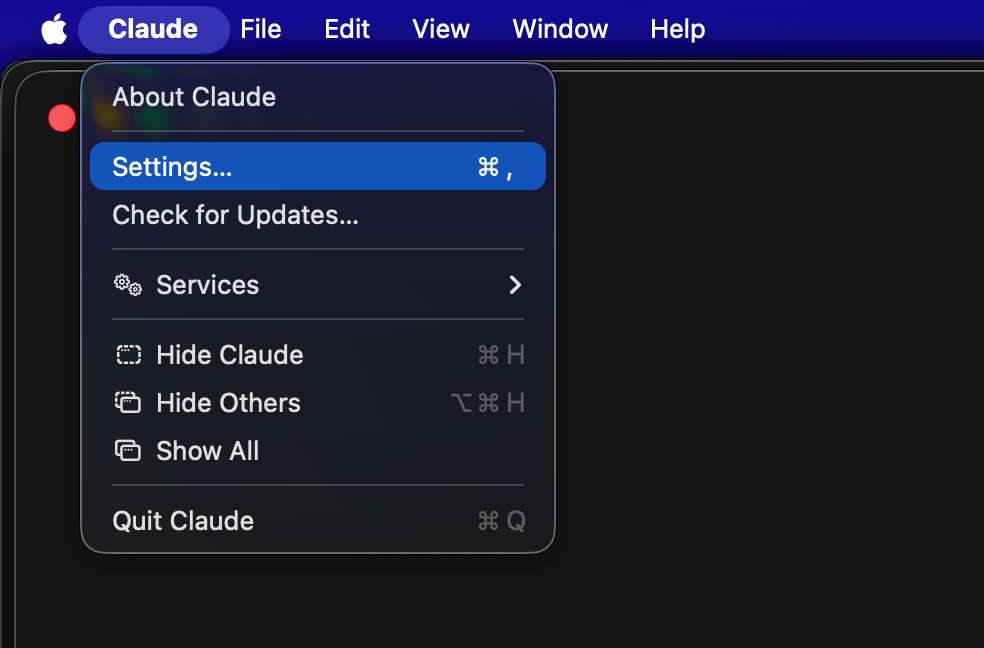
* Usa il menu dell'app: **Claude → Impostazioni...** (`Cmd+,` su macOS oppure `Ctrl+,` su Windows).

{% tabs %}
{% tab title="Menu profilo" %}

<figure><img src="https://1987634568-files.gitbook.io/~/files/v0/b/gitbook-x-prod.appspot.com/o/spaces%2Fsn71WYzecYYQw3KkF40b%2Fuploads%2Fgit-blob-4d652fee91fc0c7e6fb11371bbd0546fc561bca8%2Fclaude-desktop-open-settings-profile.png?alt=media" alt="Open Settings from user profile menu"><figcaption><p>Accedi a Impostazioni dal menu profilo in basso a sinistra</p></figcaption></figure>
{% endtab %}

{% tab title="Menu Applicazione (macOS)" %}

<figure><img src="https://1987634568-files.gitbook.io/~/files/v0/b/gitbook-x-prod.appspot.com/o/spaces%2Fsn71WYzecYYQw3KkF40b%2Fuploads%2Fgit-blob-ab2f2f30e730e3205c7bf38b278f1808efaa734f%2Fclaude-desktop-open-settings-macos.png?alt=media" alt="Open Settings from macOS app menu"><figcaption><p>Accedi a Impostazioni dalla barra dei menu di macOS</p></figcaption></figure>
{% endtab %}
{% endtabs %}

***

### Passaggio 2: Apri il file di configurazione

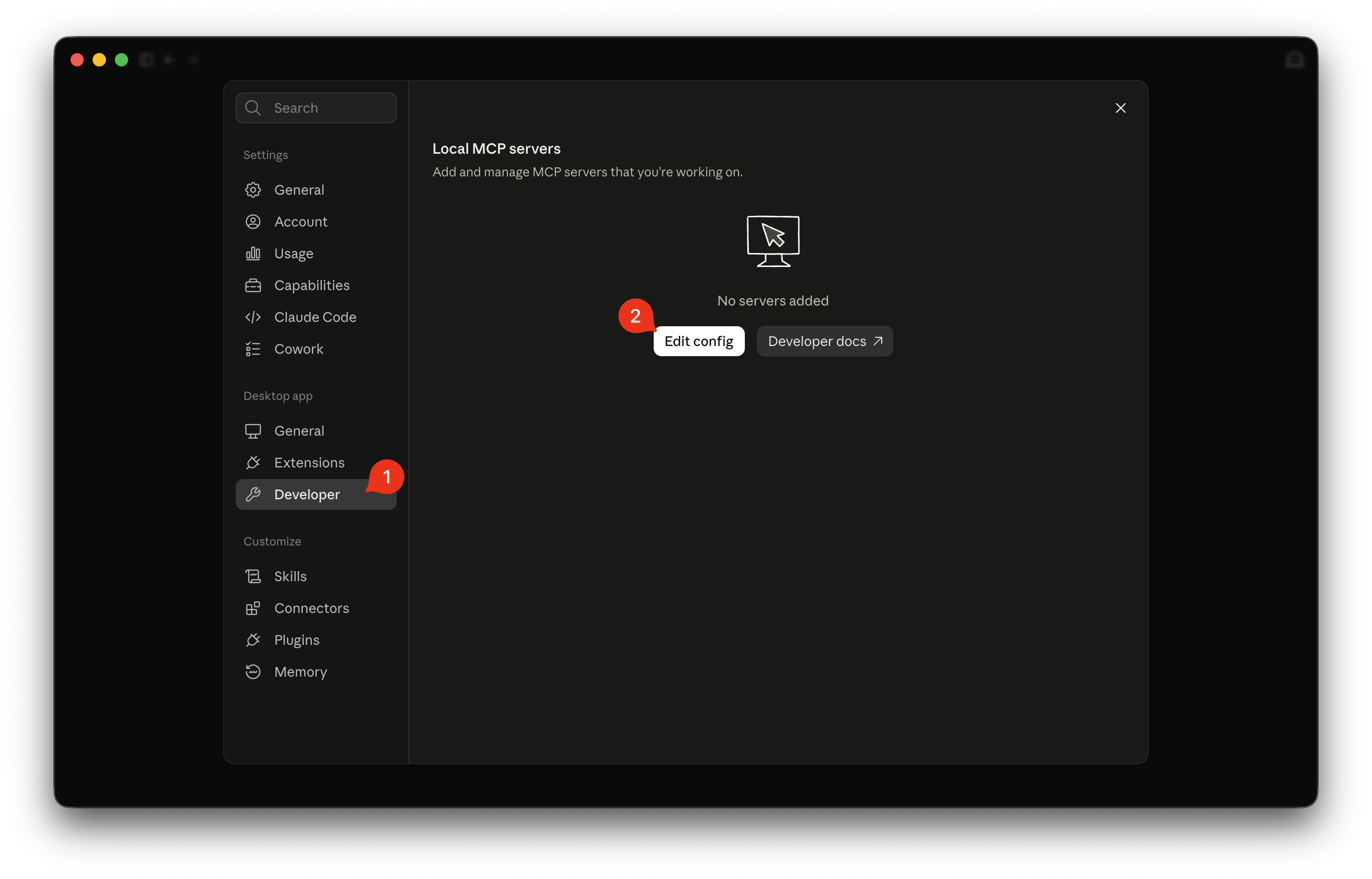
1. Nella finestra Impostazioni, vai a **Sviluppatore** sotto la **App desktop** sezione.
2. Fai clic sul **Modifica configurazione** pulsante.

<figure><img src="https://1987634568-files.gitbook.io/~/files/v0/b/gitbook-x-prod.appspot.com/o/spaces%2Fsn71WYzecYYQw3KkF40b%2Fuploads%2Fgit-blob-429d628635458aa2260f57a684bfb2c4384fa6fb%2Fclaude-desktop-developer-edit-config.png?alt=media" alt="Developer settings tab with Edit Config button"><figcaption><p>Fai clic su "Modifica configurazione" nelle Impostazioni sviluppatore</p></figcaption></figure>

Claude Desktop aprirà il gestore file del sistema (Finder o Esplora file) con `claude_desktop_config.json` selezionato.

***

### Passaggio 3: Aggiungi il server MCP di ACE Studio

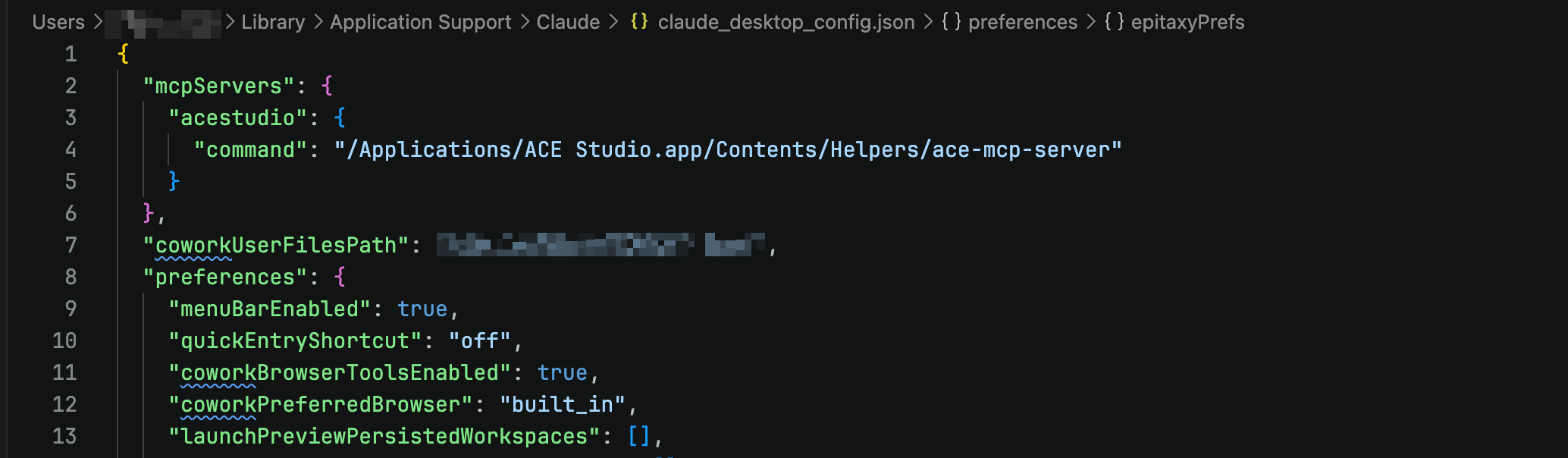
1. Apri `claude_desktop_config.json` in qualsiasi Editor:.
2. In ACE Studio, apri **Preferenze → Generale → Accesso agenti esterni** e fai clic **Copia il comando** accanto a **Server MCP (stdio)** per copiare il tuo comando di avvio esatto.
3. Aggiungi il `ACE Studio` configurazione sotto `mcpServers`:

```json
{
  "mcpServers": {
    "acestudio": {
      "command": "/Applications/ACE Studio.app/Contents/Helpers/ace-mcp-server"
    }
  }
}
```

<figure><img src="https://1987634568-files.gitbook.io/~/files/v0/b/gitbook-x-prod.appspot.com/o/spaces%2Fsn71WYzecYYQw3KkF40b%2Fuploads%2Fgit-blob-d9c3fdd2ed7ede65689f1077697870598e262b7e%2Fclaude-desktop-config-json.png?alt=media" alt="claude_desktop_config.json configured with acestudio server"><figcaption><p><code>claude_desktop_config.json</code> con il server di ACE Studio configurato</p></figcaption></figure>

{% hint style="info" %}
**Escape dei percorsi Windows:** Se scrivi manualmente percorsi Windows con le barre rovesciate nei file JSON, esegui l'escape di ogni barra rovesciata come doppia barra rovesciata (`\\`), oppure usa barre oblique (`/`).
{% endhint %}

4. Salva il file, quindi **riavvia Claude Desktop** completamente.

***

### Passaggio 4: verifica e inizia a usare

#### 1. Conferma lo stato della connessione

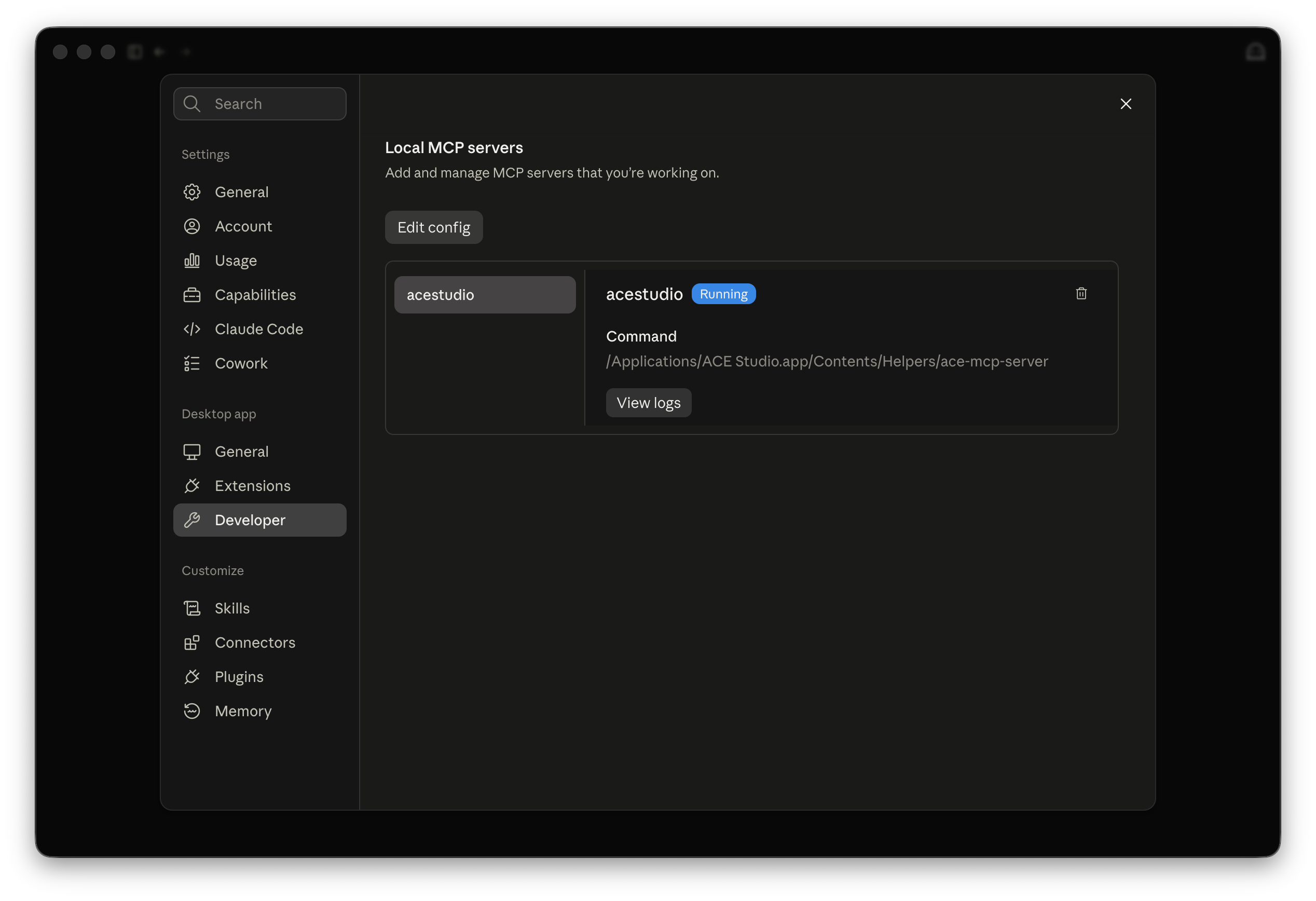
Apri **Impostazioni → Sviluppatore** in Claude Desktop. Ora dovresti vedere **ACE Studio** elencato in **Server MCP locali** con stato in esecuzione.

<figure><img src="https://1987634568-files.gitbook.io/~/files/v0/b/gitbook-x-prod.appspot.com/o/spaces%2Fsn71WYzecYYQw3KkF40b%2Fuploads%2Fgit-blob-4803e3f866334356d77d4bc233f88a64c5ac0c08%2Fclaude-desktop-mcp-connected.png?alt=media" alt="Local MCP Servers showing acestudio connected"><figcaption><p>Server MCP locali che mostrano la connessione acestudio attiva</p></figcaption></figure>

#### 2. Abilita in Chat o Cowork

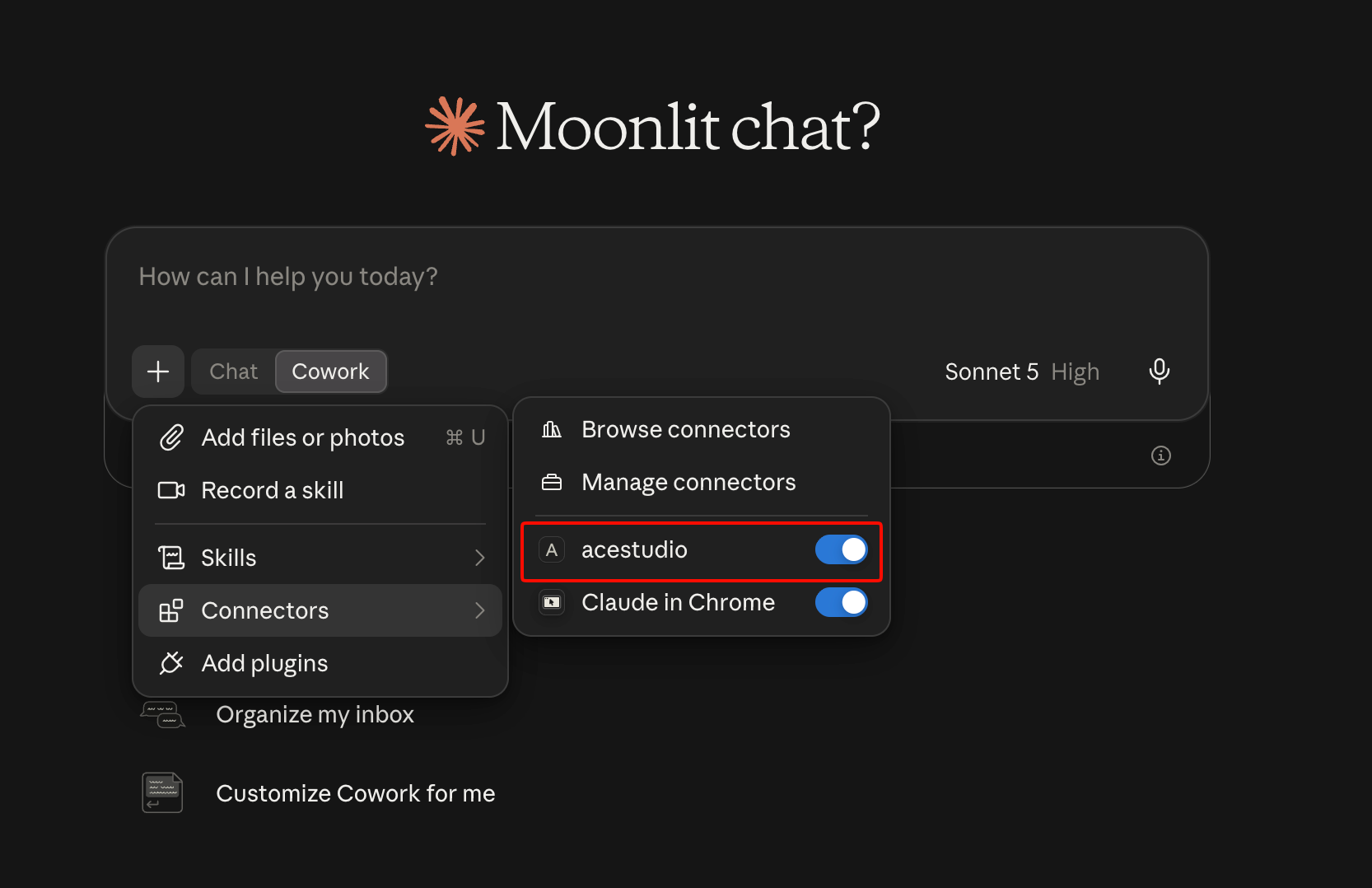
Quando avvii una conversazione in **Chat** o **Cowork**, fai clic sul pulsante **+ / Connettori** sotto la casella di inserimento del messaggio e assicurati che **ACE Studio** sia attivato **ON**.

<figure><img src="https://1987634568-files.gitbook.io/~/files/v0/b/gitbook-x-prod.appspot.com/o/spaces%2Fsn71WYzecYYQw3KkF40b%2Fuploads%2Fgit-blob-1ea14dac4375044032aa43a26769238ff8c8a6b3%2Fclaude-desktop-connector-active.png?alt=media" alt="Connectors menu showing acestudio connector enabled"><figcaption><p>Assicurati che il connettore acestudio sia attivo</p></figcaption></figure>

#### 3. Prova con un prompt

Assicurati che ACE Studio sia aperto e in esecuzione, quindi chiedi a Claude:

```
Controlla le informazioni correnti del Progetto ACE Studio
```

Claude si connetterà ad ACE Studio, analizzerà il progetto aperto e ne restituirà i dettagli (tempo, tonalità, tracce e clip).


---

# Agent Instructions
This documentation is published with GitBook. GitBook is the documentation platform designed so that both humans and AI agents can read, navigate, and reason over technical content effectively. Learn more at gitbook.com.

## Querying This Documentation
If you need additional information that is not directly available in this page, you can query the documentation by asking a question.

Perform an HTTP GET request on the following URL with the `ask` and `goal` query parameters:

```
GET https://docs.acestudio.ai/docs/product-wiki-it/agente-ia/external-agent-access/claude-desktop-and-cowork.md?ask=<question>&goal=<user_goal>
```

`ask` is the immediate question: it should be specific, self-contained, and written in natural language.
`goal` is what the user is ultimately trying to achieve, the reason they need the answer. Sharing it helps GitBook give you a better, more relevant answer. A goal is most helpful when it describes the outcome the user wants rather than restating the question. For example, with `ask=how do I create an API token`, a goal like `automate deployments from our CI pipeline` lets GitBook tailor the answer to that use case.

The response will contain a direct answer to the question and relevant excerpts and sources from the documentation.

Use this mechanism when the answer is not explicitly present in the current page, you need clarification or additional context, or you want to retrieve related documentation sections.