> For the complete documentation index, see [llms.txt](https://docs.acestudio.ai/llms.txt). Markdown versions of documentation pages are available by appending `.md` to page URLs; this page is available as [Markdown](https://docs.acestudio.ai/docs/product-wiki-fr/projet/arrangement-in-canvas/clips/clip-editor.md).
# Éditeur de Clip
Modifiez le contenu de chaque Clip via l’Éditeur de Clip.
Double-cliquez sur un Clip pour ouvrir l'Éditeur de Clip.
## Piano Roll
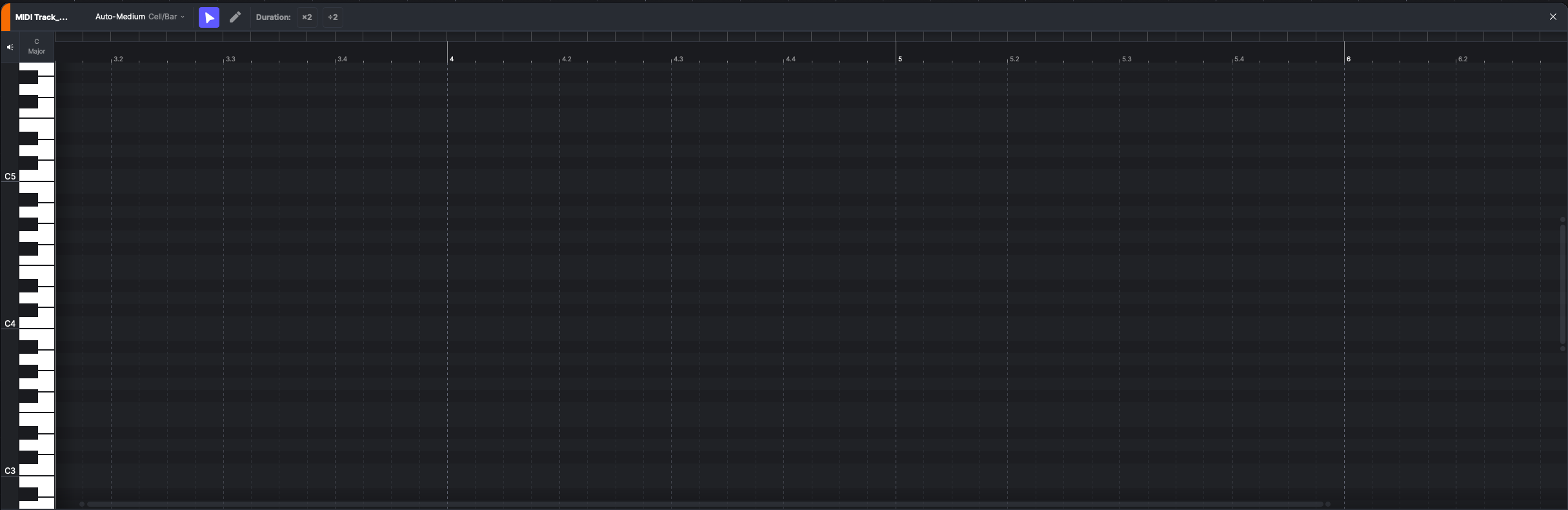
Lorsque la ligne de repère est positionnée sur un MIDI Clip, l'Éditeur de Clip affichera le Piano Roll pour ce Clip.
Pour l'édition du Piano Roll de **Vocal Clips**, veuillez vous reporter à [Édition des notes](/docs/product-wiki-fr/synthetiseur-vocal-ia/creating-ai-vocals/editing-notes.md).
Pour l'édition du Piano Roll de **Instrument Clips**, veuillez vous reporter à [Édition des notes](/docs/product-wiki-fr/instruments/create-instrument-sounds/editing-notes.md).
Pour les clips sur une **Piste Instrument** hébergeant un plug-in tiers, le Piano Roll affiche l'édition MIDI standard avec **Vélocité** et **CC MIDI** pistes sous les notes au lieu des paramètres IA. Veuillez vous reporter à [Instruments tiers](/docs/product-wiki-fr/instruments/third-party-instruments.md).
## Éditeur audio
Quand la ligne de marqueur est positionnée sur un Clip audio, l’Éditeur de Clip affichera l’Éditeur audio pour ce Clip.
Les marqueurs en forme de drapeau sur la règle indiquent le début et la Fin du Clip. Faites-les glisser pour rogner le Clip.
* **Gain** – faites glisser pour ajuster le volume du Clip.
* **Hauteur** – décale la hauteur du Clip par Demi-tons. Le Formant reste inchangé.
* **Formant** – décale le Formant sans modifier la hauteur.
* **Normaliser** – ajuste le gain une seule fois pour que le pic du Clip atteigne -3 dB.
* **Inverser** – lit tout le Clip à l’envers. Les marqueurs Warp, les fondus, la sélection et la plage de découpe sont inversés avec l’Audio. La position du Clip sur la timeline et sa valeur BPM restent inchangées.
* **Warp** – étire le Clip dans le temps à l’aide de marqueurs Warp, ou aligne-le sur le Tempo du Projet. Veuillez consulter [Étirement Audio](/docs/product-wiki-fr/projet/arrangement-in-canvas/clips/audio-warp.md).
* **Outils d'IA**
* **Vocal vers MIDI** – convertir cet Audio en un Clip MIDI avec des Paroles sur les notes. Pour plus d'informations, veuillez vous référer à [Vocal vers MIDI](/docs/product-wiki-fr/outils-dia/vocal-to-midi.md).
* **Séparateur de stems** – Séparer cet audio en Pistes. C'est le même outil que le [Séparateur de stems](/docs/product-wiki-fr/outils-dia/stem-splitter.md).
* **Analyser le Tempo** – en bas de l’Éditeur audio. Détecte le BPM de cet Audio et l’affiche ici sous forme de **BPM analysés** et en haut à droite du Clip. Pour un Audio d’une minute ou plus, le BPM est détecté automatiquement lorsque le Clip est ajouté. La valeur est fournie à titre indicatif uniquement et n’affecte pas la lecture. Vous pouvez la modifier manuellement ou la supprimer.
#### Zoomer et déplacer la vue
* Faites glisser horizontalement sur la règle temporelle pour déplacer la vue.
* Faites glisser verticalement sur la règle temporelle pour zoomer horizontalement. Vous pouvez également maintenir Ctrl/⌘Command et faire défiler la molette de la souris pour zoomer.
* Faites glisser sur la grille avec le bouton central de la souris pour déplacer la vue.
---
# Agent Instructions
This documentation is published with GitBook. GitBook is the documentation platform designed so that both humans and AI agents can read, navigate, and reason over technical content effectively. Learn more at gitbook.com.
## Querying This Documentation
If you need additional information that is not directly available in this page, you can query the documentation by asking a question.
Perform an HTTP GET request on the following URL with the `ask` and `goal` query parameters:
```
GET https://docs.acestudio.ai/docs/product-wiki-fr/projet/arrangement-in-canvas/clips/clip-editor.md?ask=&goal=
```
`ask` is the immediate question: it should be specific, self-contained, and written in natural language.
`goal` is what the user is ultimately trying to achieve, the reason they need the answer. Sharing it helps GitBook give you a better, more relevant answer. A goal is most helpful when it describes the outcome the user wants rather than restating the question. For example, with `ask=how do I create an API token`, a goal like `automate deployments from our CI pipeline` lets GitBook tailor the answer to that use case.
The response will contain a direct answer to the question and relevant excerpts and sources from the documentation.
Use this mechanism when the answer is not explicitly present in the current page, you need clarification or additional context, or you want to retrieve related documentation sections.