> For the complete documentation index, see [llms.txt](https://docs.acestudio.ai/llms.txt). Markdown versions of documentation pages are available by appending `.md` to page URLs; this page is available as [Markdown](https://docs.acestudio.ai/docs/product-wiki-es/proyecto/arrangement-in-canvas/clips/clip-editor.md).
# Editor de Clips
Edita el contenido de cada Clip a través del Editor de Clips.
Haz doble clic en un clip para abrir el Editor de Clips.
## Piano Roll
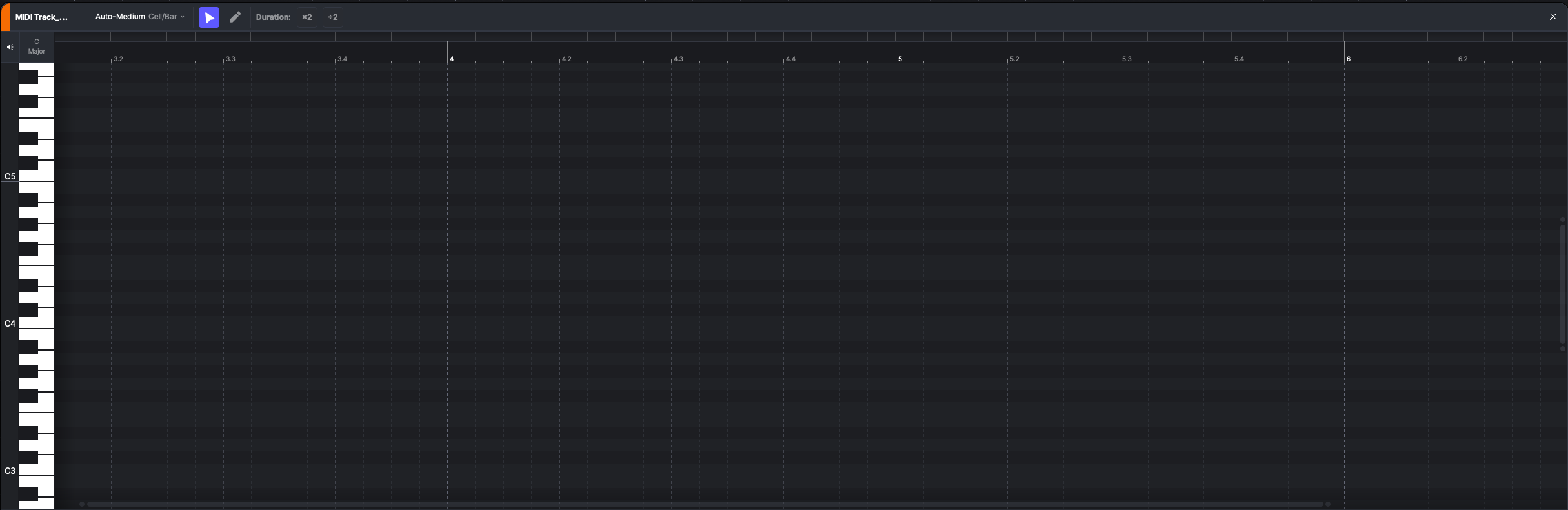
Cuando la línea del marcador está situada sobre un Clip MIDI, el Editor de Clips mostrará el Piano Roll de ese Clip.
Para la edición de Piano Roll de **Clips vocales**, por favor, consulta [Edición de notas](/docs/product-wiki-es/sintetizador-vocal-ia/creating-ai-vocals/editing-notes.md).
Para la edición de Piano Roll de **Clips de Instrumento**, por favor, consulta [Edición de notas](/docs/product-wiki-es/instrumentos/create-instrument-sounds/editing-notes.md).
Para clips en una **Pista de Instrumento** al alojar un complemento de terceros, el Piano Roll muestra la edición estándar de MIDI con **Velocidad** y **CC de MIDI** pistas debajo de las notas en lugar de los parámetros de IA. Consulte [Instrumentos de terceros](/docs/product-wiki-es/instrumentos/third-party-instruments.md).
## Editor de audio
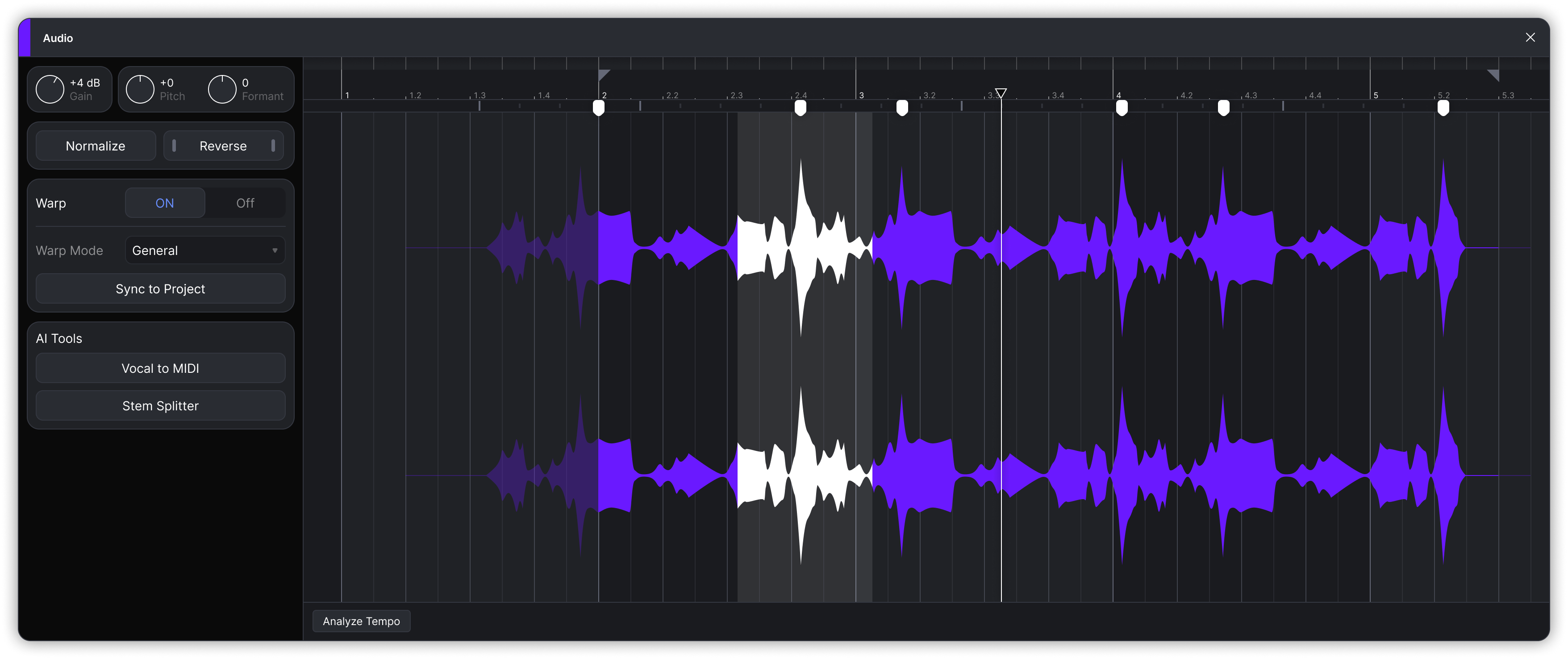
Cuando la línea del marcador se sitúa sobre un Clip de audio, el Editor de Clips mostrará el Editor de audio de ese Clip.
Los marcadores de bandera en la regla muestran el inicio y Fin: del Clip. Arrástralos para recortar el Clip.
* **Ganancia** – arrastra para ajustar el volumen del Clip.
* **Tono** – desplaza el tono del Clip en Semitonos. El Formante permanece sin cambios.
* **Formante** – desplaza el Formante sin cambiar el tono.
* **Normalizar** – ajusta la ganancia una sola vez para que el pico del Clip alcance -3 dB.
* **Invertir** – reproduce todo el Clip al revés. Los marcadores Warp, los fundidos, la selección y el rango de recorte se invierten junto con el Audio. La posición del Clip en la línea de tiempo y su valor de BPM permanecen iguales.
* **Warp** – estira temporalmente el Clip con marcadores Warp, o alinéelo al Tempo del Proyecto. Consulte [Warp de Audio](/docs/product-wiki-es/proyecto/arrangement-in-canvas/clips/audio-warp.md).
* **Herramientas de IA**
* **Vocal a MIDI** – convierte este Audio en un Clip MIDI con Letras en las notas. Para más información, consulta [Vocal a MIDI](/docs/product-wiki-es/herramientas-de-ia/vocal-to-midi.md).
* **Separador de pistas** – dividir este audio en pistas. Esta es la misma herramienta que la [Separador de pistas](/docs/product-wiki-es/herramientas-de-ia/stem-splitter.md).
* **Analizar Tempo** – en la parte inferior del Editor de audio. Detecta los BPM de este audio y los muestra aquí como **BPM analizado** y en la parte superior derecha del Clip. Para Audio de 1 minuto o más, el BPM se detecta automáticamente cuando se añade el Clip. El valor es solo de referencia y no afecta a la reproducción. Puedes editarlo manualmente o borrarlo.
#### Acercar y mover la vista
* Arrastra horizontalmente sobre la regla de tiempo para desplazar la vista.
* Arrastra verticalmente sobre la regla de tiempo para hacer zoom horizontal. También puedes mantener Ctrl/⌘Command y desplazarte con la rueda del ratón para hacer zoom.
* Arrastra con el botón central del ratón sobre la cuadrícula para mover la vista.
---
# Agent Instructions
This documentation is published with GitBook. GitBook is the documentation platform designed so that both humans and AI agents can read, navigate, and reason over technical content effectively. Learn more at gitbook.com.
## Querying This Documentation
If you need additional information that is not directly available in this page, you can query the documentation by asking a question.
Perform an HTTP GET request on the following URL with the `ask` and `goal` query parameters:
```
GET https://docs.acestudio.ai/docs/product-wiki-es/proyecto/arrangement-in-canvas/clips/clip-editor.md?ask=&goal=
```
`ask` is the immediate question: it should be specific, self-contained, and written in natural language.
`goal` is what the user is ultimately trying to achieve, the reason they need the answer. Sharing it helps GitBook give you a better, more relevant answer. A goal is most helpful when it describes the outcome the user wants rather than restating the question. For example, with `ask=how do I create an API token`, a goal like `automate deployments from our CI pipeline` lets GitBook tailor the answer to that use case.
The response will contain a direct answer to the question and relevant excerpts and sources from the documentation.
Use this mechanism when the answer is not explicitly present in the current page, you need clarification or additional context, or you want to retrieve related documentation sections.