> For the complete documentation index, see [llms.txt](https://docs.acestudio.ai/llms.txt). Markdown versions of documentation pages are available by appending `.md` to page URLs; this page is available as [Markdown](https://docs.acestudio.ai/docs/product-wiki-es/herramientas-de-ia/sound-effects.md).
# Efectos de sonido
Genera efectos de sonido en tu proyecto de ACE Studio.
## Qué es el Generador de efectos de sonido
El Generador de efectos de sonido es una herramienta de IA para generar elementos de diseño sonoro dentro de ACE Studio. Puedes usarla para crear efectos que coincidan con tu prompt.
## Cómo usar el Generador de efectos de sonido
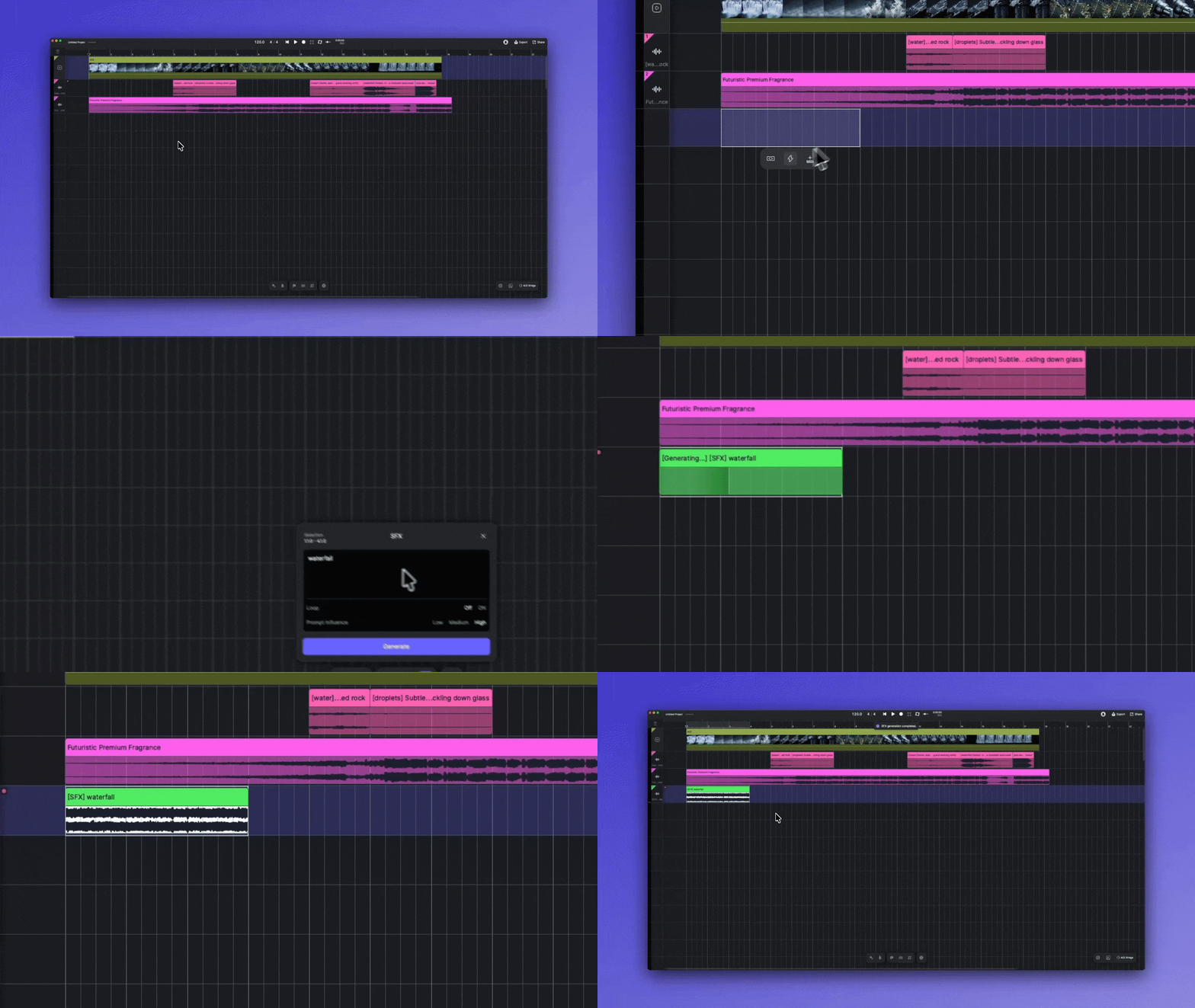
El Generador de efectos de sonido funciona sobre una región seleccionada de la línea de tiempo. Primero crea una selección, luego abre la herramienta y genera efectos para ese Rango.
### Abrir el Generador de efectos de sonido
Hay 2 formas de abrir Efectos de sonido:
* Haz clic en **Efectos de sonido** en la barra de herramientas principal.
* Selecciona una región y luego haz clic en :bolt:**el icono de Efectos de sonido**.
### Generar efectos de sonido
1. Haz clic y arrastra en el Lienzo para crear una selección de tiempo. Esto define la duración y la posición de tu nuevo efecto de sonido.
2. Escribe una descripción del efecto de sonido que quieres (por ejemplo, “La lluvia torrencial cayó sobre la calle adoquinada.”).
3. Ajustar Configuración
* Activando **Bucle** activado creará un bucle continuo. Esto garantizará que el final se mezcle con el inicio sin dejar una pausa perceptible.
* Usa la configuración de influencia del prompt para ajustar qué tan fielmente debe coincidir la salida con el prompt.
4. Haz clic en Generar .
---
# Agent Instructions
This documentation is published with GitBook. GitBook is the documentation platform designed so that both humans and AI agents can read, navigate, and reason over technical content effectively. Learn more at gitbook.com.
## Querying This Documentation
If you need additional information that is not directly available in this page, you can query the documentation dynamically by asking a question.
Perform an HTTP GET request on the current page URL with the `ask` query parameter, and the optional `goal` query parameter:
```
GET https://docs.acestudio.ai/docs/product-wiki-es/herramientas-de-ia/sound-effects.md?ask=&goal=
```
`ask` is the immediate question: it should be specific, self-contained, and written in natural language.
`goal` is optional and describes the broader end goal you are ultimately trying to accomplish on behalf of the user. GitBook uses it to tailor the answer towards what is most useful for that goal.
The response will contain a direct answer to the question and relevant excerpts and sources from the documentation.
Use this mechanism when the answer is not explicitly present in the current page, you need clarification or additional context, or you want to retrieve related documentation sections.