> For the complete documentation index, see [llms.txt](https://docs.acestudio.ai/llms.txt). Markdown versions of documentation pages are available by appending `.md` to page URLs; this page is available as [Markdown](https://docs.acestudio.ai/daw-integration/ace-bridge-2.md).
# ACE Bridge 2
Connect ACE Studio to your DAW for audio and MIDI synchronization using the ACE Bridge 2 plugin.
ACE Bridge 2 is a VST3/AU/AAX instrument plugin that creates a powerful, real-time connection between ACE Studio and your DAW.
It allows for seamless audio streaming, MIDI recording, and advanced synchronization, integrating ACE Studio directly into your production workflow.
## Installation
For Windows :windows: - The ACE Bridge 2 plugin is automatically installed with the ACE Studio installer, and it can be reinstalled by the reinstallation of ACE Studio.
For macOS :apple: - ACE Studio will prompt you to install ACE Bridge 2 on its first launch. You can also manage the installation anytime from **Preferences → Plugins** in ACE Studio.
{% hint style="info" %}
For macOS, you need to enable "Allow in the Background" for ACE Studio to manage ACE Bridge.
{% endhint %}
After installation, you should find it on the VST3/AU/AAX instrument plugin list in your DAW.
## Core Workflow
1. **Insert Plugin:** Add ACE Bridge 2 as an instrument plugin on a MIDI track in your DAW.
2. **Connect to ACE Studio:** Make sure ACE Studio is running before connecting Bridge to ACE Studio.\
3. **Select a Voice/Instrument:**
* Click + to select a voice or instrument. This will create a new track in ACE Studio and link it to this Bridge instance.
* Alternatively, you can link this Bridge to an existing track.\

4. **Use Bridge in Auto Mode:**
* **To Record MIDI:** When you play a part that has MIDI in your DAW, the Bridge will be in a **Record** state, capturing all MIDI from the track and sending it to ACE Studio in real-time.\

* **To Play Back Audio:** When you play a part that has clips in a linked ACE Studio track, the Bridge automatically switches to **Playback** state, streaming the synthesized audio from ACE Studio back to the DAW track.\

5. **Track Preview:** The clips and playhead position from the linked ACE Studio track are shown in this area. This allows you to see what's happening in ACE Studio without leaving your DAW.
{% hint style="info" %}
When you record MIDI from your DAW into ACE Studio, you will hear the piano sampler sound from the Bridge.
{% endhint %}
## Multi-Instances
You can now run multiple instances of ACE Bridge 2 on different MIDI tracks to control several ACE Studio tracks at once.
* Each Bridge instance is independent.
* A track in ACE Studio can only be linked to one Bridge instance at a time.
## Tempo Sync
### ARA Tempo Sync
For rock-solid tempo, time signature, and transport synchronization, use the included **ACE Bridge ARA** plugin.
**What it does:**
* Perfectly syncs your DAW's tempo map and time signature changes to ACE Studio.
* Allows bi-directional synchronization of ACE Studio's and the DAW's transport (play/stop/seek).
**How to Set Up:**
This requires attaching the ARA plugin to a "dummy" audio clip in your DAW.
{% tabs %}
{% tab title="Logic Pro" %}
1. To use ARA with Logic on Apple Silicon, launch Logic in **Rosetta mode**.
2. Click the SYNC TEMPO button in Bridge, then drag the silent dummy audio to Logic's audio track.
3. Apply the **ACE Bridge ARA** plugin as an **Audio FX** to that dummy audio track.
4. Launch the **ACE Bridge ARA** plugin and connect it to ACE Studio.
{% endtab %}
{% tab title="Cubase" %}
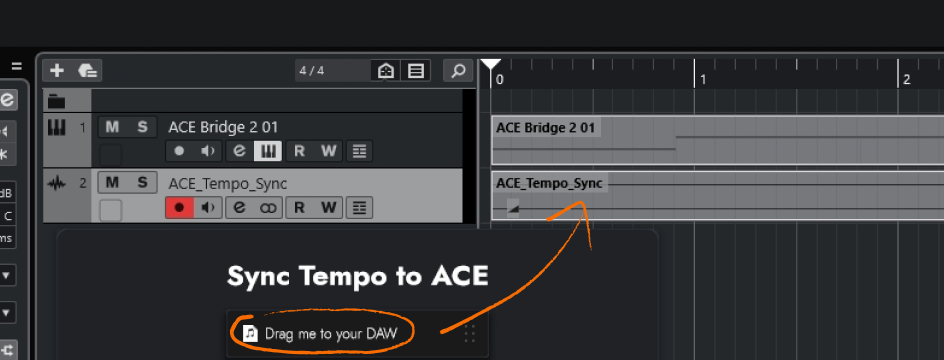
1. Click the SYNC TEMPO button in Bridge, then drag the silent dummy audio to Cubase's audio track.
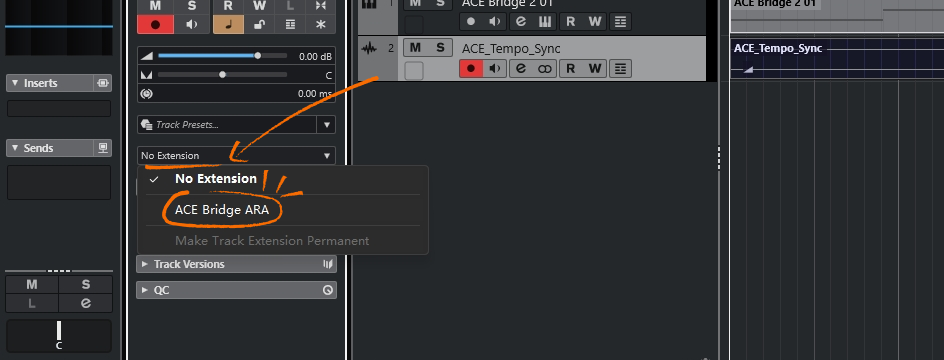
2. Apply the **ACE Bridge ARA** plugin as an **Extension** to that dummy audio track.
3. Launch the **ACE Bridge ARA** plugin and connect it to ACE Studio.
{% endtab %}
{% tab title="Studio One" %}
1. Click the SYNC TEMPO button in Bridge, then drag the silent dummy audio to Logic's audio track.
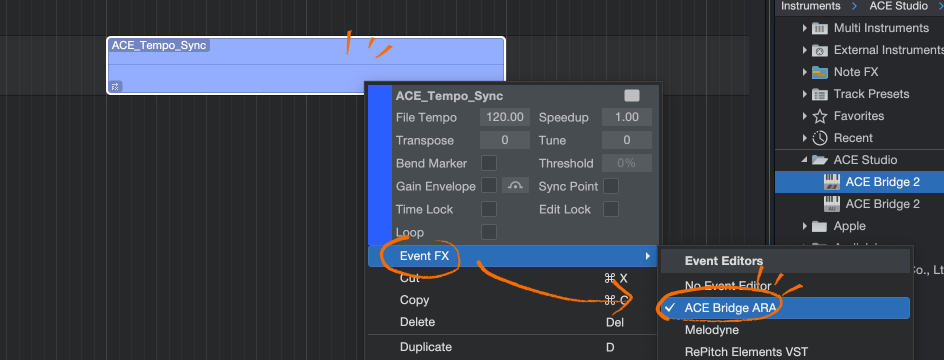
2. Apply the **ACE Bridge ARA** plugin as an **Event FX** to that dummy audio clip.
3. Launch the **ACE Bridge ARA** plugin and connect it to ACE Studio.
{% endtab %}
{% endtabs %}
{% hint style="danger" %}
**Note: Regarding Pro Tools ARA Support**
The Pro Tools ARA plugin included is a *Developer Demo* intended for technical preview only. It is currently non-functional. Please do not attempt to use this plugin in a production environment. Full functionality will be available in a future update.
{% endhint %}
For instructions on using ARA plugins in other ARA-supported DAWs, please refer to your DAW's user manual.
### Sync Tempo During Playback
If your DAW doesn't support ARA, click the SYNC TEMPO button in Bridge, and turn on the 'Sync tempo during playback' switch.
While in this mode, each time playback starts, the plugin will update the current tempo and time signature to ACE Studio.
{% hint style="success" %}
We will keep updating the bridge plugin with new features.
We'd love to hear your feedback:
{% endhint %}
{% hint style="warning" %}
If you can’t find the plugin in your DAW, please refer to [Can’t find ACE Bridge plugin in your DAW?](/trouble-shooting/ace-bridge-issues/cant-find-ace-bridge-plugin-in-your-daw.md).
For Logic, Studio one, Cubase, and Reaper users, please check this [ACE Bridge 2: Special settings in DAW](/trouble-shooting/ace-bridge-issues/ace-bridge-2-special-settings-in-daw.md) while using the ACE Bridge 2.
{% endhint %}
{% hint style="warning" %}
**Debug Mode**
If you encounter any issues while using ACE Bridge 2, you can click the ? button in the lower-left corner of ACE Bridge 2 to open the help panel, and activate Debug Mode in the upper-right corner to enable temporary log recording. The log files exported from ACE Studio will include the logs from ACE Bridge 2. Please send the log files to along with a description of your issue, and we will assist you in resolving it.
{% endhint %}
## ACE Bridge 1
{% hint style="danger" %}
Since version 1.9.7 of ACE Studio, ACE Bridge 1 is no longer supported. Please switch to ACE Bridge 2. If you still need to use the old bridge plugin, you will need to downgrade ACE Studio to a version earlier than 1.9.7.
{% endhint %}
---
# Agent Instructions
This documentation is published with GitBook. GitBook is the documentation platform designed so that both humans and AI agents can read, navigate, and reason over technical content effectively. Learn more at gitbook.com.
## Querying This Documentation
If you need additional information that is not directly available in this page, you can query the documentation by asking a question.
Perform an HTTP GET request on the following URL with the `ask` and `goal` query parameters:
```
GET https://docs.acestudio.ai/daw-integration/ace-bridge-2.md?ask=&goal=
```
`ask` is the immediate question: it should be specific, self-contained, and written in natural language.
`goal` is what the user is ultimately trying to achieve, the reason they need the answer. Sharing it helps GitBook give you a better, more relevant answer. A goal is most helpful when it describes the outcome the user wants rather than restating the question. For example, with `ask=how do I create an API token`, a goal like `automate deployments from our CI pipeline` lets GitBook tailor the answer to that use case.
The response will contain a direct answer to the question and relevant excerpts and sources from the documentation.
Use this mechanism when the answer is not explicitly present in the current page, you need clarification or additional context, or you want to retrieve related documentation sections.

 3. **Select a Voice/Instrument:**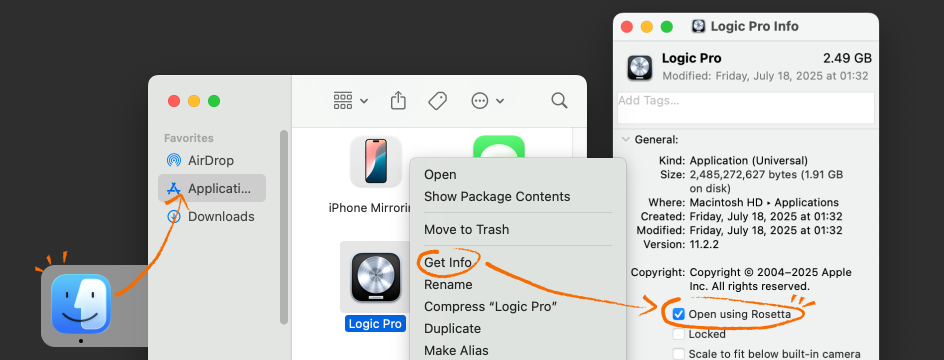



 {% endhint %}
## ACE Bridge 1
{% hint style="danger" %}
Since version 1.9.7 of ACE Studio, ACE Bridge 1 is no longer supported. Please switch to ACE Bridge 2. If you still need to use the old bridge plugin, you will need to downgrade ACE Studio to a version earlier than 1.9.7.
{% endhint %}
{% endhint %}
## ACE Bridge 1
{% hint style="danger" %}
Since version 1.9.7 of ACE Studio, ACE Bridge 1 is no longer supported. Please switch to ACE Bridge 2. If you still need to use the old bridge plugin, you will need to downgrade ACE Studio to a version earlier than 1.9.7.
{% endhint %}