> For the complete documentation index, see [llms.txt](https://docs.acestudio.ai/llms.txt). Markdown versions of documentation pages are available by appending `.md` to page URLs; this page is available as [Markdown](https://docs.acestudio.ai/ai-vocal-synth/creating-ai-vocals/vocal-parameters.md).
# Vocal Parameters
Shape an AI singer's performance in ACE Studio with the Breath & Phoneme, Dynamic, and Advanced vocal parameters.
{% hint style="info" %}
This page describes the vocal parameters for [V2 models](/ai-vocal-synth/voice-library/vocal-synth-models.md#model-generations). If you are using a V1 model, please refer to [Vocal Parameters for V1 Models](/ai-vocal-synth/creating-ai-vocals/vocal-parameters/vocal-parameters-for-v1-models.md). To learn more about the differences between model generations, please refer to [Vocal Synth Models](/ai-vocal-synth/voice-library/vocal-synth-models.md).
{% endhint %}
## Overview
The AI parameters panel sits at the bottom of the Clip Editor. It is where you shape how the AI singer performs your notes and lyrics. For V2 models, the panel has three tabs:
* **Breath & Phoneme** – add breaths and adjust the timing of every phoneme.
* **Dynamic** – control the intensity of the vocal delivery with a single envelope.
* **Advanced** – fine-tune the underlying vocal parameters Air, Falsetto, Tension, and Energy.
If the current AI singer supports [special controls](#special-controls) such as Rap or Opera, they appear as extra tabs next to Dynamic.
## Breath & Phoneme
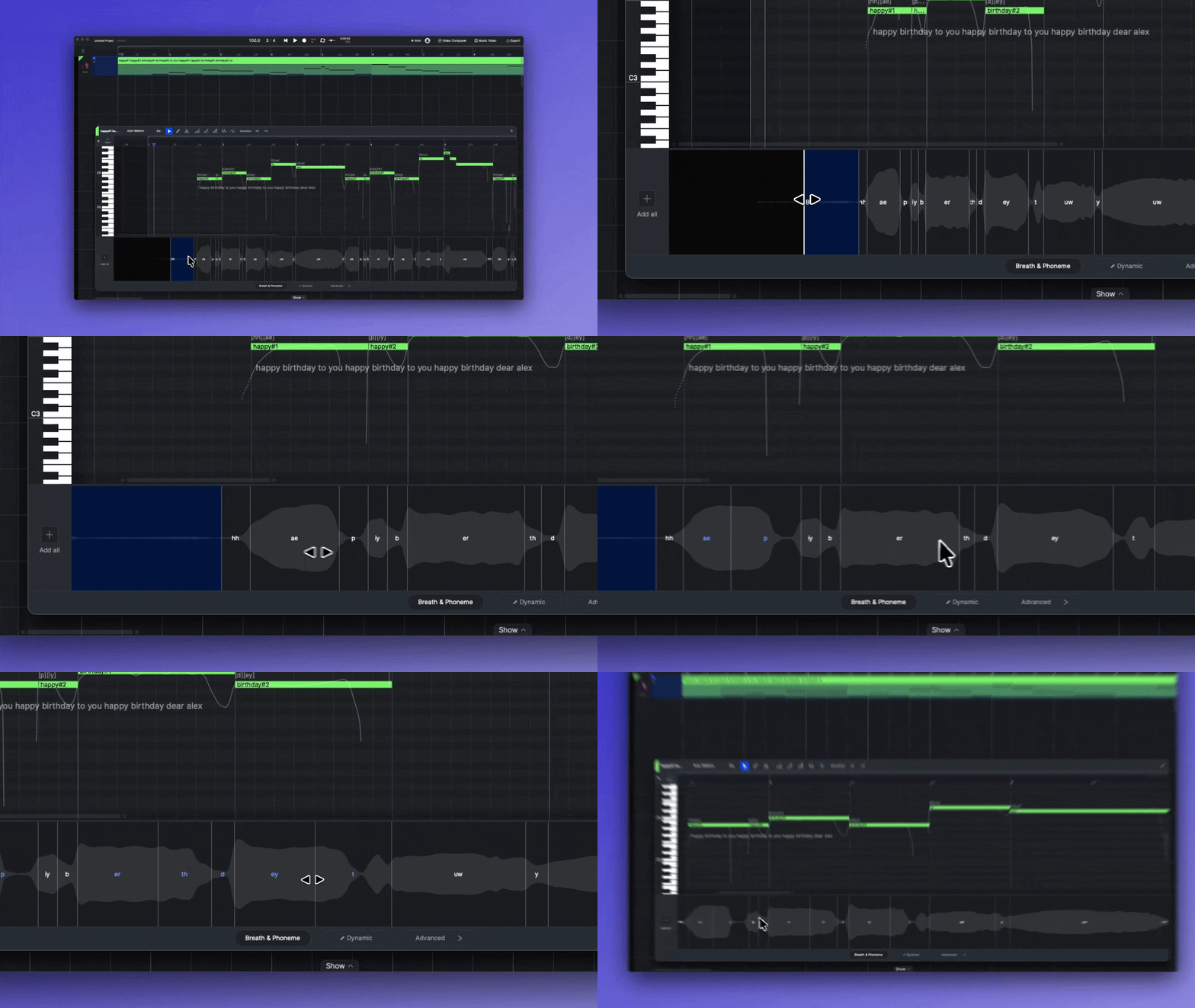
Just like human singers, taking a breath before a phrase makes a vocal performance sound more natural, and the length of each consonant and vowel shapes its articulation. The Breath & Phoneme tab lets you control both.
The lane shows a breath block (labeled **BR.**) wherever a breath has been added, and splits every note into its phonemes, so you can see and adjust exactly how long each sound lasts.
### Adding Breath
{% tabs fullWidth="false" %}
{% tab title="Automatic Addition" %}
Click the Add all button on the left of the lane to add breaths to the entire clip. ACE Studio intelligently places them at appropriate positions, such as the beginning of each phrase.
{% endtab %}
{% tab title="Manual Addition" %}
Click the empty area before a phrase to add a breath there.
{% endtab %}
{% endtabs %}
### Adjusting Breath Duration
Drag the left edge of a breath block to make the breath longer or shorter.
### Adjusting Phoneme Duration
The duration of each phoneme is generated by AI based on the accent and singing style of the current AI voice. To change it, **drag the boundary between two phonemes**. Moving a boundary lengthens one phoneme and shortens its neighbor, so the note itself keeps its length.
This works for both consonants and vowels. A longer consonant gives the syllable a stronger, more deliberate attack; a shorter one makes the transition between notes smoother.
* The boundary at the start of a note is fixed in this lane. To change where a note begins, move or resize the note itself in the piano roll. See [Editing Notes](/ai-vocal-synth/creating-ai-vocals/editing-notes.md).
* Phonemes you have adjusted turn **blue**. Their durations are locked and will not be regenerated by the AI when you change the notes, lyrics, or AI voice, just like a section locked with the fixed brush.
* Keep adjustments within a natural range. If a phoneme is stretched or squeezed to an extreme, the model may not follow the new duration precisely.
{% hint style="info" %}
Phoneme durations are about *timing*. To change *which* phonemes a note sings, edit the phonemes on the note itself. See [Editing Lyrics](/ai-vocal-synth/creating-ai-vocals/editing-lyrics.md#edit-phonemes).
{% endhint %}
## Dynamic
### What Is Dynamic
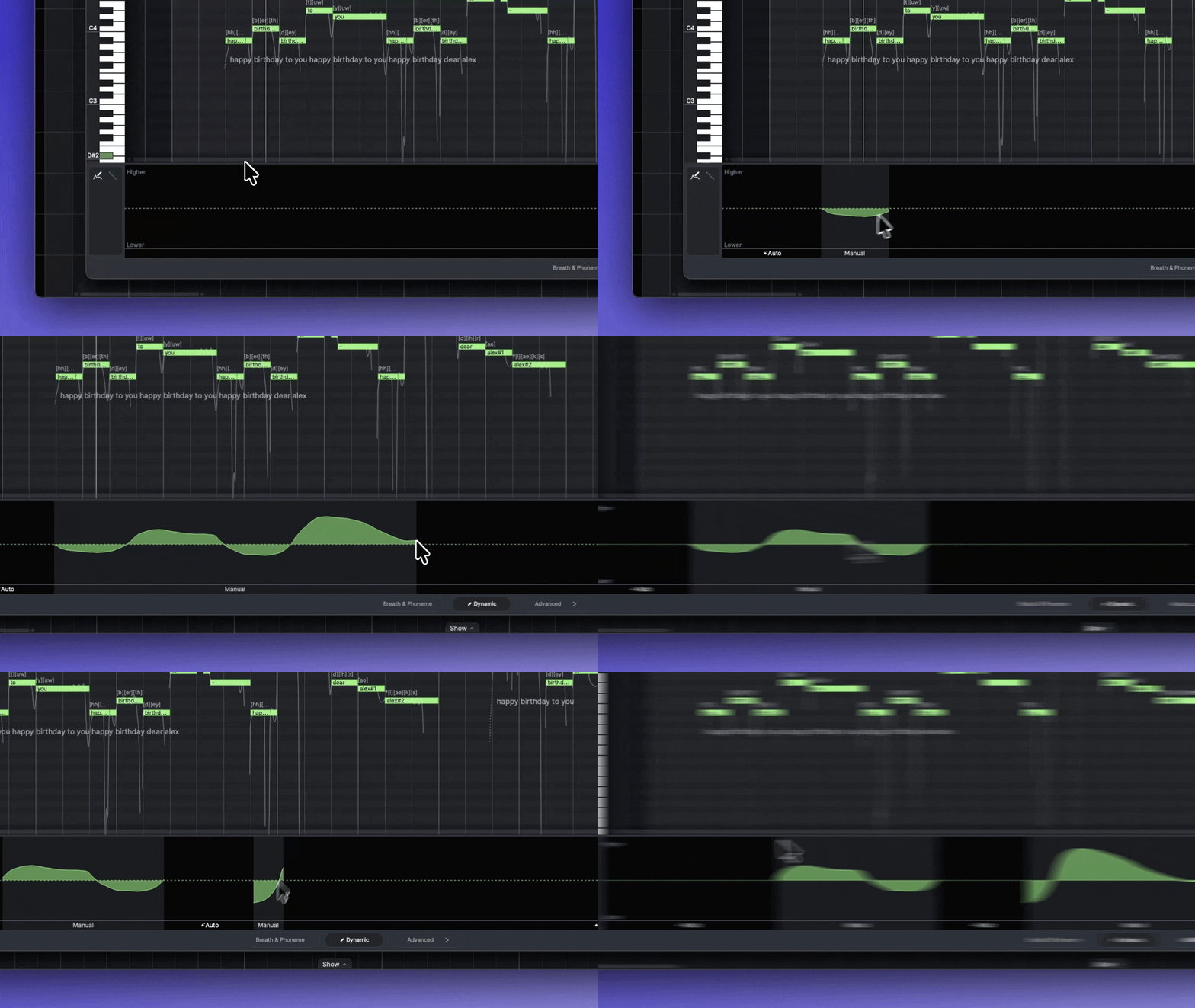
Dynamic is a single envelope that controls the overall intensity of the vocal delivery, from soft and gentle to powerful and full. Push the curve **higher** for more power and impact, ideal for choruses and dramatic moments. Pull it **lower** for a softer, more delicate tone, suited to verses, ballads, and intimate passages.
{% hint style="info" %}
Dynamic replaces the separate Power, Soft, Breathy, and Chest controls of earlier versions. Instead of balancing four parameters that each had a subtle effect, you shape the performance with one intuitive curve, and ACE Studio translates it into the right combination of vocal qualities.
If you open a project that already contains edits to Power, Soft, Breathy, or Chest, the panel keeps showing those four lanes in place of Dynamic so your existing work is preserved. See [Legacy Vocal Controls](#legacy-vocal-controls) below. New projects show Dynamic only.
{% endhint %}
### Auto and Manual
When no envelope is drawn, Dynamic is in **Auto** mode: the AI infers the dynamics from the melody, lyrics, and the singing style of the current AI voice. Wherever you draw, that region switches to **Manual** and follows your curve. The labels along the bottom of the lane show which parts are Auto and which are Manual. The dotted line through the middle of the lane marks the neutral level.
### Editing the Envelope
Two tools are available on the left of the lane:
* **Brush** (default) – **left-click and drag** to draw the envelope freely. **Right-click and drag** to erase; the erased region returns to Auto.
* **Line tool** – drag to draw a straight line, useful for clean crescendos and decrescendos.
### Special Controls
Some AI singers come with a special control that adds a distinctive singing style on top of Dynamic. When the current singer supports one, it appears as an extra tab next to Dynamic. To edit a special control, **left-click and drag** to draw the envelope, and **right-click and drag** to erase it.
Rap
"Rap" controls the rap style of the voice. Increasing this parameter enhances the clarity, speed, and rhythm of the articulation, making the voice more aggressive and street-like. It is suitable for rap sections in hip-hop music, pop songs, or any passages requiring strong rhythmic expression.
Opera
"Opera" injects classical bel canto singing techniques into the voice. Increasing this parameter enhances the resonance and penetration of the voice, adds brilliant vibrato and dramatic tone, making the voice sound more bright and full. It is ideal for singing classical arias, brilliant segments in musicals, or adding a grand, epic feeling to songs.
Chinese Opera
"Chinese Opera" adds the unique charm and singing style of traditional Chinese opera to the voice. Increasing this parameter makes the articulation more distinctive, the tone brighter and higher-pitched, and incorporates the common melismatic and ornamental sounds of Chinese opera. It is suitable for singing opera excerpts or integrating "Chinese style" elements into modern music.
## Advanced
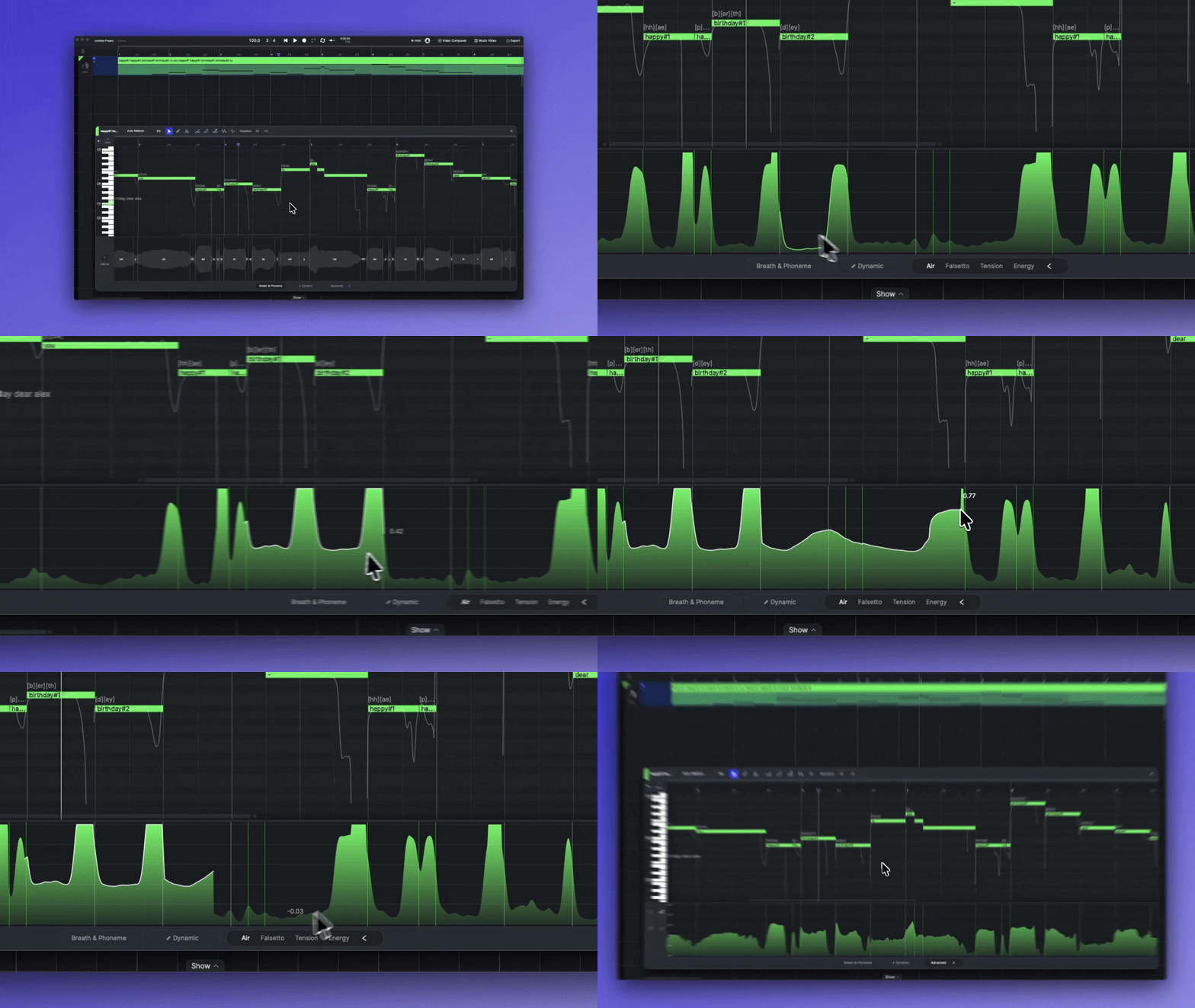
Click Advanced to expand four additional parameters: **Air**, **Falsetto**, **Tension**, and **Energy**. Click the arrow again to collapse them.
Unlike Dynamic, these are not envelopes. They are the **real parameters** of the synthesis: the actual values, from 0 to 1, that the AI generates and feeds into the voice. Just like AI pitch, they are generated from the singing style of the current AI voice, the melody, the lyrics, and the pitch. Whenever any of these elements change, the AI regenerates the parameters for the affected section, piece by piece; even a single changed lyric regenerates every parameter in that piece.
Any part you edit manually becomes a **user parameter**. User parameters are kept as they are and will not be regenerated when you change the notes, lyrics, or pitch.
{% hint style="info" %}
For most songs, Dynamic is all you need. Use the Advanced parameters when you want precise control over a specific vocal quality, and keep the adjustments moderate: extreme values may result in unexpected performance.
{% endhint %}
### Parameters
Air
Controls the airiness of the vocal. Increasing it makes the voice raspier and brighter.
* A slight increase works well on powerful passages.
* Keep changes small; extreme values may result in unexpected performance.
Falsetto
Controls the amount of falsetto in the vocal.
* On low notes, increasing Falsetto may not bring as much falsetto as expected.
* For more falsetto, lower Tension at the same time for a better result.
* Keep changes small; extreme values may result in unexpected performance.
Tension
Controls how tight or relaxed the vocal is.
* Lower values make the voice softer; higher values make it tighter and more strained.
* Keep changes small; extreme values may result in unexpected performance.
Energy
Controls the power of the vocal.
* This is not simply the volume of the sound.
* For a gentle sound, lower Tension at the same time.
### Editing Tools
Four tools are available on the left of the lane:
* **Lifting tool** – drag vertically to raise or lower the value. Create a selection on the grid to limit the change to a range, or hold Shift to change the whole clip.
* **Brush** – draw the curve directly. Right-click to erase.
* **Eraser** – erase your edits and restore the AI-generated values.
* **Fixed brush** – lock a section of the AI-generated curve so it is not regenerated when you change the notes, lyrics, or pitch, without changing its values.
Edits made with the lifting tool or the brush become user parameters.
## Legacy Vocal Controls
Before Dynamic was introduced, V2 models used four separate envelopes: **Power**, **Soft**, **Breathy**, and **Chest**. Projects that already contain edits to any of these keep showing the four lanes in place of Dynamic, and they continue to work as before.
Power
“Power” controls the strength and intensity of the vocal delivery. Increasing this parameter gives the voice more energy and impact, ideal for powerful choruses or dramatic moments.
Soft
“Soft” adjusts the overall gentleness and smoothness of the voice. Higher softness makes the voice sound more delicate and soothing, suitable for ballads or intimate moments.
Breathy
“Breathy” controls the amount of airiness or breath-like quality in the voice. Increasing this parameter adds a whispery, ethereal texture, perfect for dreamy or emotional passages.
Chest
“Chest” enhances the resonance and depth in the lower vocal range, giving the voice a fuller and more grounded tone. This is useful for creating a warm and rich vocal presence.
To edit a legacy control, **left-click and drag** in its lane to draw the envelope, and **right-click and drag** to erase it. Erased areas return to Auto mode.
---
# Agent Instructions
This documentation is published with GitBook. GitBook is the documentation platform designed so that both humans and AI agents can read, navigate, and reason over technical content effectively. Learn more at gitbook.com.
## Querying This Documentation
If you need additional information that is not directly available in this page, you can query the documentation dynamically by asking a question.
Perform an HTTP GET request on the current page URL with the `ask` query parameter, and the optional `goal` query parameter:
```
GET https://docs.acestudio.ai/ai-vocal-synth/creating-ai-vocals/vocal-parameters.md?ask=&goal=
```
`ask` is the immediate question: it should be specific, self-contained, and written in natural language.
`goal` is optional and describes the broader end goal you are ultimately trying to accomplish on behalf of the user. GitBook uses it to tailor the answer towards what is most useful for that goal.
The response will contain a direct answer to the question and relevant excerpts and sources from the documentation.
Use this mechanism when the answer is not explicitly present in the current page, you need clarification or additional context, or you want to retrieve related documentation sections.