> For the complete documentation index, see [llms.txt](https://docs.acestudio.ai/llms.txt). Markdown versions of documentation pages are available by appending `.md` to page URLs; this page is available as [Markdown](https://docs.acestudio.ai/ai-tools/vocal-to-midi.md).
# Vocal to MIDI
Convert vocal tracks into MIDI clips with lyrics for comprehensive vocal production.
## What Is Vocal to MIDI
With this feature, you can convert a vocal track into a MIDI clip with lyrics on each note.
If you want to start your vocal production based on an existing vocal or on the vocal you just recorded, this is the best tool for editing everything of the vocal including melody, lyrics, voice, and emotions.
## Access Vocal to MIDI
There are 3 ways to convert Vocal to MIDI:
* Drag and drop an audio clip on a singer track.
* Click the "Vocal to MIDI" button in the left tool panel of the [audio editor](/project/arrangement-in-canvas/clips/clip-editor.md).
* Right click on an audio clip, select “Vocal to MIDI” from the “AI tools” option.
## Convert
### Select Model and Language
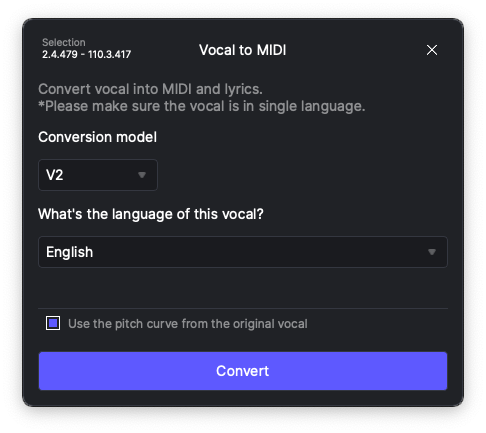
In the Vocal to MIDI panel, first, you must select the conversion model and the language that matches your content.
The V1 model is the previous version supporting four languages: English, Spanish, Chinese, and Japanese. This model tends to recognize "phonemes" rather than "lyrics."
The advanced V2 model supports more languages, including Korean. You can also choose "I'm not sure" to let the model auto-detect the language. This model tends to recognize "lyrics."
### Handling Other Languages or Extracting MIDI Only
To convert vocals in other languages to MIDI or extract only the note information (excluding lyrics), choose the "**MIDI only**" option from the language selection dropdown menu.
### Use Original Pitch
Check the box below to retain the original pitch curve from the input vocal. After conversion, the original pitch will be applied as the user pitch in the clip. If you change the lyrics, make sure to erase the pitch curve; otherwise, the pitch may not align with the new lyrics, leading to unnatural pronunciation.
To learn more about pitch curve, please refer to [Editing Pitch](/ai-vocal-synth/creating-ai-vocals/editing-pitch.md).
{% hint style="info" %}
* This feature is specifically designed for acapella vocals. If the input includes instrumental tracks, delay effects, or reverb effects, accurate conversion may not be guaranteed.
* The converter supports analyzing only one language at a time. If your audio contains multiple languages, please choose the "MIDI only" option or split the audio and process each language separately.
{% endhint %}
---
# Agent Instructions
This documentation is published with GitBook. GitBook is the documentation platform designed so that both humans and AI agents can read, navigate, and reason over technical content effectively. Learn more at gitbook.com.
## Querying This Documentation
If you need additional information that is not directly available in this page, you can query the documentation by asking a question.
Perform an HTTP GET request on the following URL with the `ask` and `goal` query parameters:
```
GET https://docs.acestudio.ai/ai-tools/vocal-to-midi.md?ask=&goal=
```
`ask` is the immediate question: it should be specific, self-contained, and written in natural language.
`goal` is what the user is ultimately trying to achieve, the reason they need the answer. Sharing it helps GitBook give you a better, more relevant answer. A goal is most helpful when it describes the outcome the user wants rather than restating the question. For example, with `ask=how do I create an API token`, a goal like `automate deployments from our CI pipeline` lets GitBook tailor the answer to that use case.
The response will contain a direct answer to the question and relevant excerpts and sources from the documentation.
Use this mechanism when the answer is not explicitly present in the current page, you need clarification or additional context, or you want to retrieve related documentation sections.