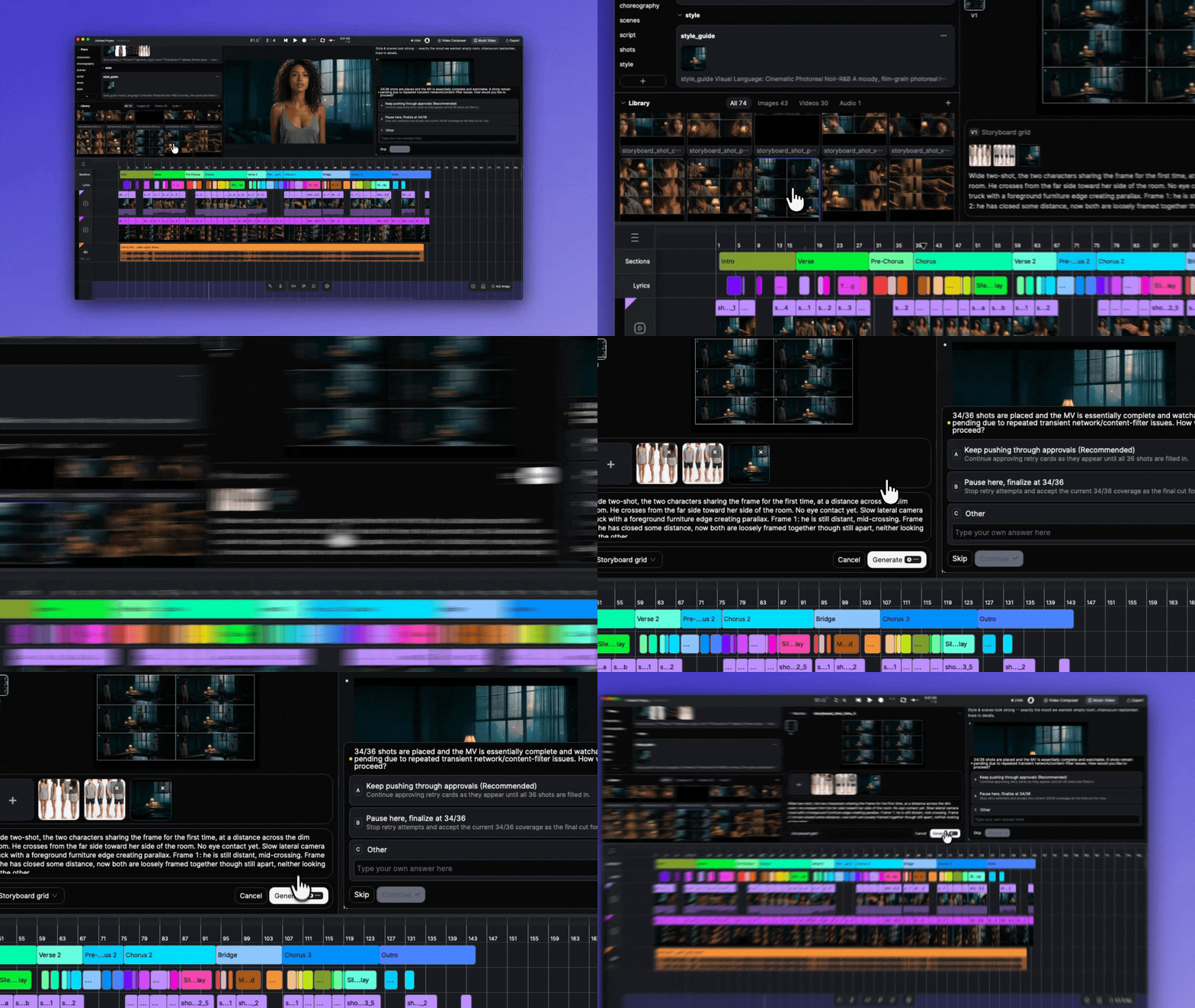
> For the complete documentation index, see [llms.txt](https://docs.acestudio.ai/llms.txt). Markdown versions of documentation pages are available by appending `.md` to page URLs; this page is available as [Markdown](https://docs.acestudio.ai/ai-tools/music-video/editing-and-iteration.md).
# Editing & Iteration
Revise shots, tweak images, edit the Canvas by hand, fix song timing, and pick up an unfinished music video project.
Your finished music video is never locked. This page covers everything you can change after (or during) a production — and how to come back to a project you left halfway.
## How to Revise a Shot
Tell the Director what's wrong, in plain words: "the spin in the chorus glitches," "the transition into the bridge feels abrupt," "make the opening shot longer."
The Director turns your note into a precise generation brief and regenerates **only the affected shots** — everything else stays untouched. The new version replaces the old one on the [Canvas](/project/arrangement-in-canvas/canvas.md) automatically.
## How to Edit the Director's Documents
Every document the Director writes is open to you — the creative plan, the choreography docs, each shot script, and even the generation prompts inside them. You can read any of them at any point, and edit them directly if you want something changed; the Director works from the latest version.
Editing by hand is the precise option. Telling the Director what to change works just as well.
## How to Tweak a Generated Image
For small changes to a character sheet, per-scene look, or scene reference — a different hair color, another outfit — open the image and use Edit in the image viewer.
Edit an image in the viewer
Changes made this way become a new version of the **same asset**, so the Library stays clean — no pile of near-duplicate images. If you want a fundamentally different image rather than an adjustment, tell the Director instead.
## How to Browse & Pick Image Versions
When you ask the Director to revise an image, it may generate several versions of the same asset. To compare them:
1. Click the image in the **Library** panel.
2. A version list appears next to the preview — V1, V2, V3…
3. Click through to preview each version.
4. Tell the Director which one to use, for example "I want V7."
Browse an asset's versions from the Library
Don't settle — keep asking for revisions until you're happy. Regenerating images is far cheaper than redoing video later.
## How to Add Your Own Assets to the Library
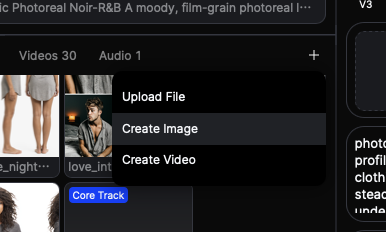
You can put assets into the Library yourself. Click + at the top right of the Library to:
* **Upload** an image — for example, a reference for your character or visual style. Reference images work best when they are in the Library before onboarding, so the Director can build on them from the start.
* **Create Image** or **Create Video** — generate a brand-new asset directly from the Library.
Add your own assets from the Library
## How to Edit the Canvas by Hand
You can always work on the Canvas directly: move shots, trim them, delete a clip, adjust timing.
Manual edits are treated as creative decisions. The Director never auto-reverts them — not even when it resumes work afterwards. If the Director thinks an edit conflicts with the direction you discussed, it asks you first instead of changing anything back.
## How to Fix Song Sections & Lyric Timing
The section boundaries and lyric timestamps detected during analysis are shown on the Canvas — and they are editable. They are also the foundation of the whole production: shot time windows, beat-aligned cuts, and lip sync are all built on them.
To fix them, adjust section boundaries and edit lyric text and timing directly on the Canvas. Every later step uses the latest version from the Canvas, not the original analysis.
{% hint style="warning" %}
Fix timing as early as you can — ideally right after onboarding, before the creative plan is written. Wrong section boundaries put shots in the wrong emotional moment; wrong lyric timing breaks lip sync, which is the most expensive thing to redo. If you fix timing later in the project, tell the Director you changed it so it can assess which finished shots are affected.
{% endhint %}
## How to Resume an Unfinished Project
Just come back and keep talking. No save ritual, no recap needed.
Whenever you reopen a project, the Director reads the current workspace state — every document, every asset and its active version, and the actual layout of the Canvas — and works out where the production stands. For example:
* Scripts and looks are ready but some shots aren't rendered → the Director tells you which shots are left and can continue.
* The Canvas is part storyboards, part finished video → the Director knows exactly which shots are still in preview.
* You left feedback before quitting → say "continue with the changes from last time."
{% hint style="info" %}
Your Music Video session lives with your ACE Studio project (.acep), inside your project folder. All assets are stored locally — so keep your project files safe.
{% endhint %}
All you need to say is what you want to do next:
* "Generate the remaining shots."
* "I watched the cut — the second chorus shot needs a redo."
* "I moved some shots around on the Canvas, check that everything still works."
If you edited the Canvas by hand while you were away, those edits are respected like any other [manual edit](#how-to-edit-the-canvas-by-hand) — recognized as yours, never silently undone.
---
# Agent Instructions
This documentation is published with GitBook. GitBook is the documentation platform designed so that both humans and AI agents can read, navigate, and reason over technical content effectively. Learn more at gitbook.com.
## Querying This Documentation
If you need additional information that is not directly available in this page, you can query the documentation by asking a question.
Perform an HTTP GET request on the following URL with the `ask` and `goal` query parameters:
```
GET https://docs.acestudio.ai/ai-tools/music-video/editing-and-iteration.md?ask=&goal=
```
`ask` is the immediate question: it should be specific, self-contained, and written in natural language.
`goal` is what the user is ultimately trying to achieve, the reason they need the answer. Sharing it helps GitBook give you a better, more relevant answer. A goal is most helpful when it describes the outcome the user wants rather than restating the question. For example, with `ask=how do I create an API token`, a goal like `automate deployments from our CI pipeline` lets GitBook tailor the answer to that use case.
The response will contain a direct answer to the question and relevant excerpts and sources from the documentation.
Use this mechanism when the answer is not explicitly present in the current page, you need clarification or additional context, or you want to retrieve related documentation sections.